
Introduction: The Invisible Wall Killing Your YouTube Views
Imagine this.
You spent 10 hours scripting, filming, and editing your best video yet. You hit publish. You wait. And then… nothing.
No views. No impressions. No new subscribers.
You check your analytics. The reach is dead. The video feels buried. But it didn’t violate any community guidelines. What’s going on?
For thousands of creators, the answer is a YouTube restricted mode check — and the terrifying discovery that their video has been silently filtered out from a huge chunk of viewers.
YouTube’s Restricted Mode is one of the most misunderstood features on the platform. It can quietly strangle your reach without a single warning notification. And if you’re not doing a YouTube restricted mode check regularly, you could be bleeding subscribers and views every single day without knowing it.
This guide will teach you exactly how Restricted Mode works, how to check if your videos are affected, how to fix it — and how AI tools like ytZolo can help you create content that avoids these traps in the first place.
Let’s dive in.
Table of Contents
What Is YouTube Restricted Mode?
YouTube Restricted Mode is an optional content filter that was first introduced back in 2010. It was built to help schools, libraries, workplaces, and parents block potentially mature or inappropriate content from appearing on YouTube.
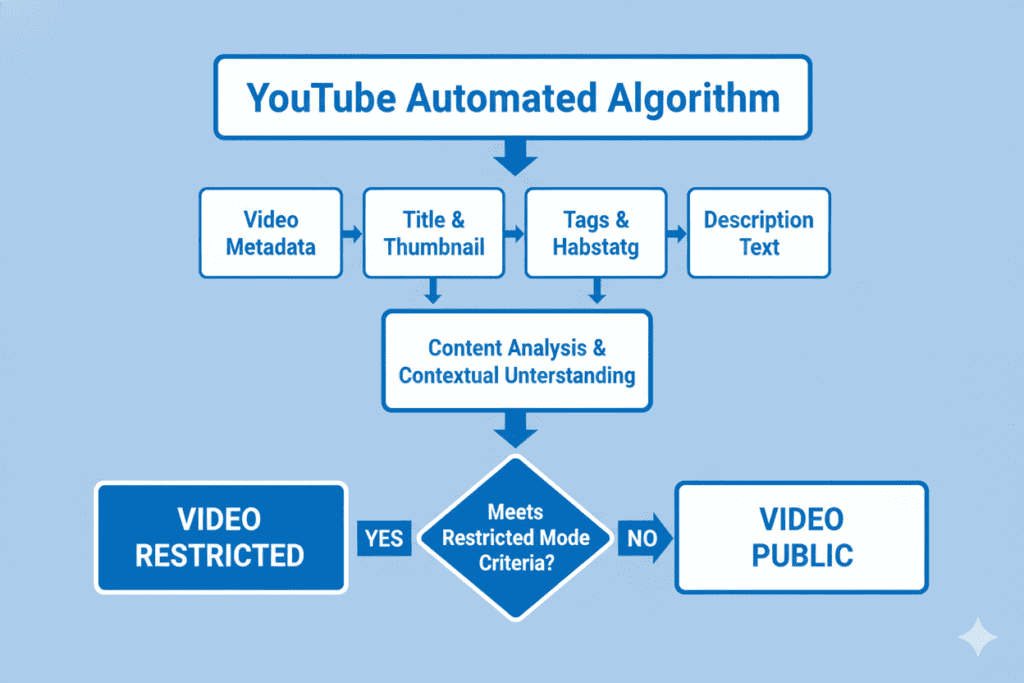
When a user turns on Restricted Mode, YouTube uses an automated system to filter out videos. This system scans your video’s title, description, tags, metadata, captions, and even the content of the video itself to decide if it should be hidden.
Here’s the kicker: your video doesn’t need to be age-restricted or violate any rules to get caught in this filter. The algorithm casts a wide net, and innocent content gets swept up all the time.
According to the YouTube Creator Blog, even YouTube admits the system sometimes makes mistakes. Educational videos, LGBTQ+ content, health discussions, and news commentary have all been wrongly filtered.
This is exactly why doing a regular YouTube restricted mode check is non-negotiable for serious creators.
Why YouTube Restricted Mode Matters for Creators
You might be thinking, “Only a few people use Restricted Mode, so why should I care?”
The answer is: more people than you think.
Schools, universities, corporate offices, hospitals, public libraries — all of these institutions often have Restricted Mode permanently turned on at the network level by their IT administrators. This means every student, employee, and visitor on those networks cannot see your video, no matter what they do personally.
That could represent millions of potential viewers you’re missing every single month.
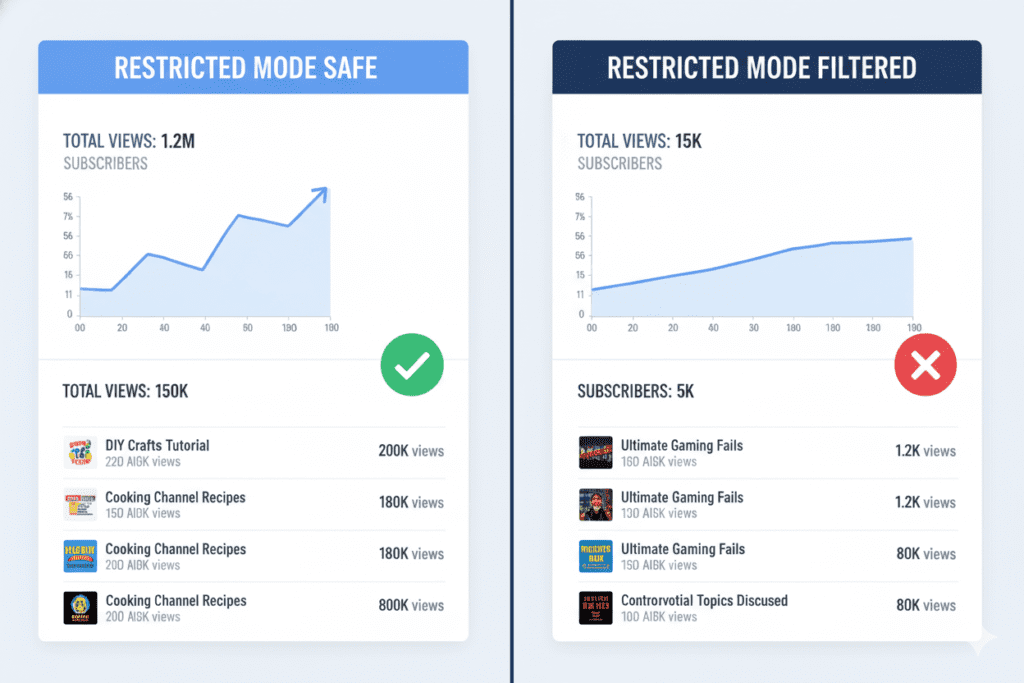
On top of that, when a video is filtered, it can’t appear in search results or suggested videos for those users. Your YouTube SEO takes a direct hit. Your impressions drop. Your click-through rate suffers.
Here’s what’s at stake for creators:
- Reduced reach — your video is invisible to an entire segment of viewers
- Lower watch time — fewer views means less data for the algorithm to promote your content
- Missed monetization — less visibility means fewer ad impressions
- Slow channel growth — the algorithm rewards reach, and restricted content gets less of it
- Hidden comments — Restricted Mode hides ALL comments, cutting off community engagement
A single video stuck in YouTube restricted mode can set your channel growth back by weeks. This is why knowing how to perform a YouTube restricted mode check is a core creator skill.
How to Do a YouTube Restricted Mode Check on Your Videos
This is the most important section of this guide. Let’s walk through the exact steps you need to follow to perform a YouTube restricted mode check right now.
Method 1: Enable Restricted Mode and Test Your Video Directly
This is the fastest and most reliable method.
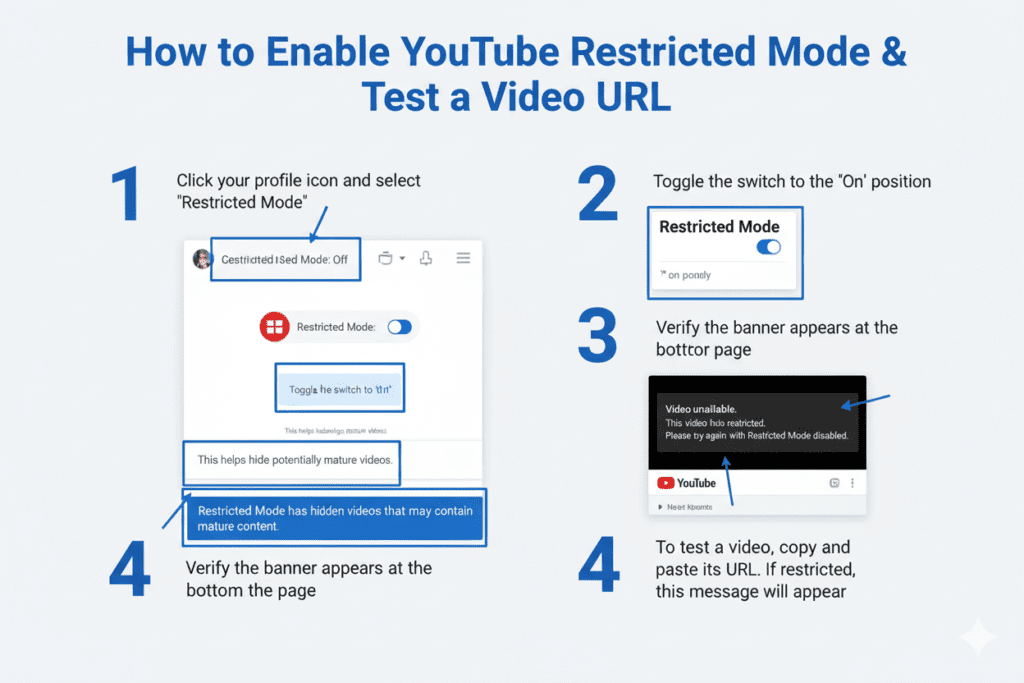
Step 1: Open YouTube in your browser and sign out of your account (or use an incognito window).
Step 2: Click your profile icon in the top-right corner (or the three-line menu on mobile).
Step 3: Scroll down to “Restricted Mode” and toggle it ON.
Step 4: Now search for your video by title, or paste the direct URL of your video into the address bar.
Step 5: If the video appears and plays normally — you’re safe. If you see a message saying “This video is unavailable with Restricted Mode enabled” — your video is being filtered.
This is the most direct YouTube restricted mode check method and takes less than two minutes.
Method 2: Check Via YouTube Studio
YouTube Studio gives creators a restricted mode visibility check from the backend.
Step 1: Go to YouTube Studio and sign in.
Step 2: From the left sidebar, click Content.
Step 3: In your video list, look for the Restrictions column.
Step 4: If any video shows a restriction label, click it to find out what type of restriction is applied.
This method is great for doing a batch YouTube restricted mode check across all your videos at once.
Method 3: Use YouTube’s Content Restrictions Page
YouTube has a dedicated tool to help users identify if restrictions are active.
Step 1: Go to YouTube and sign in.
Step 2: Visit the YouTube content restrictions diagnostic page.
Step 3: A checkmark will appear next to the relevant restriction type — whether it’s account-level, network-level, or DNS-level filtering.
This method is more useful for viewers troubleshooting why they can’t see certain content, but creators can use it to understand the viewer’s experience.
What Triggers YouTube Restricted Mode?
Understanding what gets your video flagged is the first step to avoiding it.
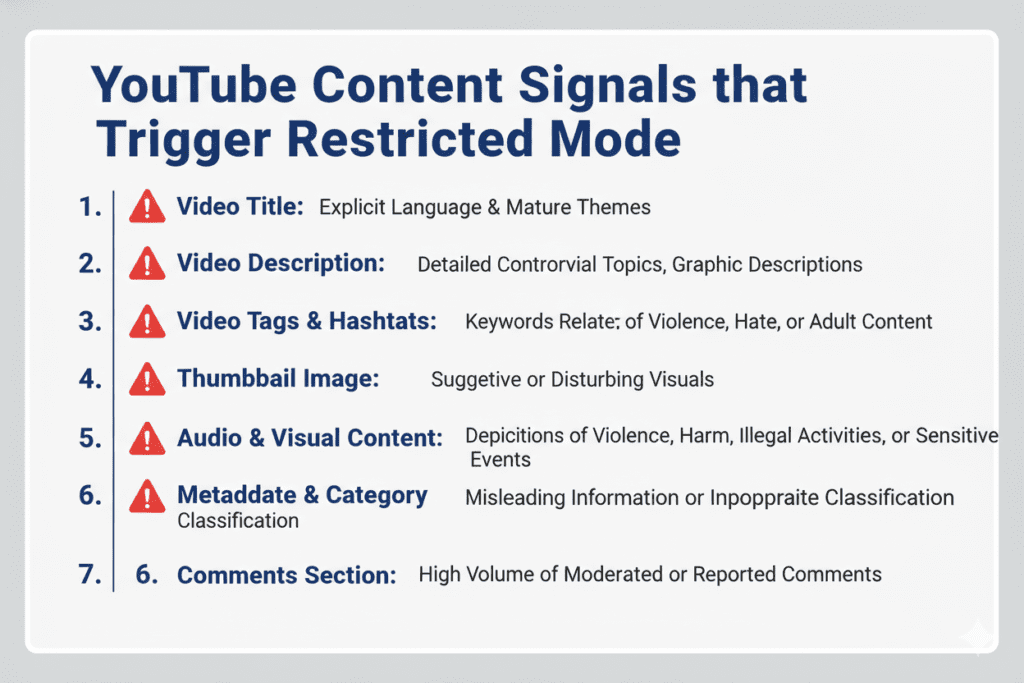
YouTube uses both automated machine learning systems and human reviewers to determine which videos get filtered in Restricted Mode. The signals the algorithm checks include:
Metadata Signals:
- Video title (flagged keywords or phrases)
- Video description (mature language or themes)
- Tags and hashtags
- Category and chapter labels
Content Signals:
- Profanity or explicit language in audio
- Violence, graphic imagery, or disturbing scenes
- Discussions of sensitive topics (addiction, self-harm, extreme politics)
- Sexual content or suggestive language
- Graphic news coverage or disaster footage
Community Signals:
- User reports flagging the video
- Age restrictions applied by YouTube’s review team
- Prior violations on your channel
Here’s something critical that most creators don’t know: even a clean video can get caught in the YouTube restricted mode filter if the title or description contains certain trigger words — even when used in an innocent context.
For example, a cooking video titled “Killer BBQ Recipes That’ll Blow Your Mind” could get flagged because of trigger language. A health and fitness video discussing “overdosing on vitamins” might be filtered due to the word “overdosing.” Context matters to humans but not always to algorithms.
This is where smart, AI-optimized content creation becomes essential.
How to Fix a Restricted Mode Filter on Your Video
So you did your YouTube restricted mode check and discovered a video is being filtered. Don’t panic. Here’s what you can do.
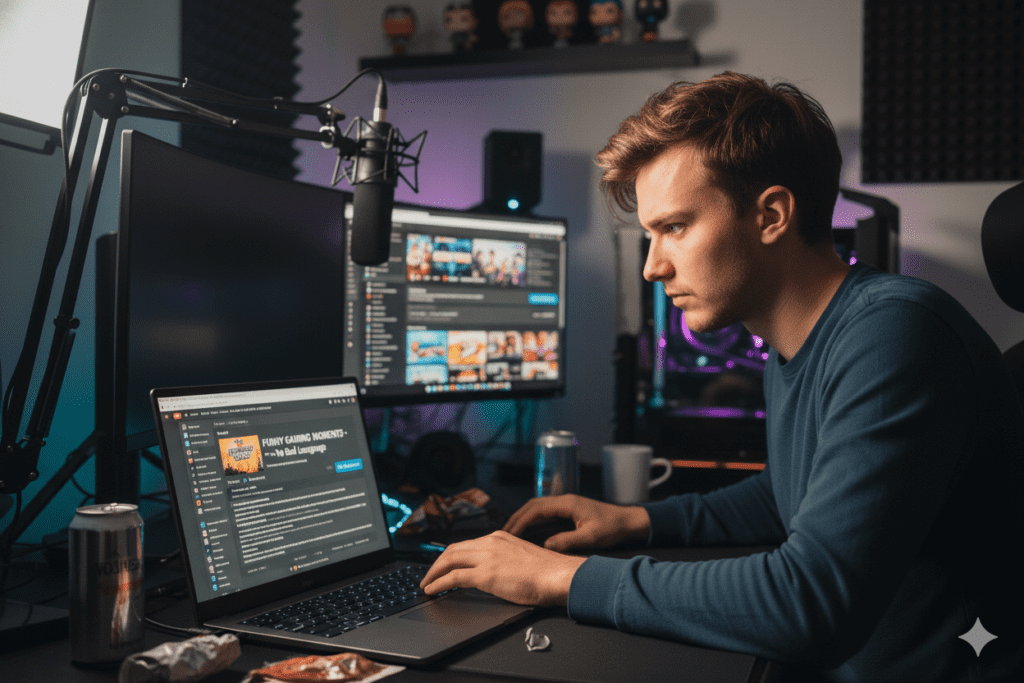
Step 1: Review and Edit Your Metadata
Go to YouTube Studio and review the title, description, and tags of the affected video. Look for words or phrases that could be triggering the filter. Clean up the language, remove ambiguous terms, and rewrite the description with clearer, safer phrasing.
Step 2: Edit the Video to Trigger a Re-Review
According to YouTube’s own support documentation, if you edit your video (even a minor change to the title or description), the system may automatically review it again. This is your best shot at getting a fresh algorithmic evaluation.
Step 3: Submit Feedback via YouTube
YouTube’s support page allows creators to submit feedback if they believe their content was incorrectly filtered. While this doesn’t guarantee a reversal, it does contribute to training the algorithm over time.
Step 4: Check Your Captions and Subtitles
Auto-generated captions might contain transcription errors that include flagged words. Review your auto-captions and correct any mistakes by uploading a clean, manually written subtitle file.
Step 5: Appeal Age Restrictions Separately
If your video has an age restriction (not just a Restricted Mode filter), the appeals process is different. Submit a formal appeal through YouTube Studio under the video’s restrictions section.
YouTube Restricted Mode Check on Different Devices
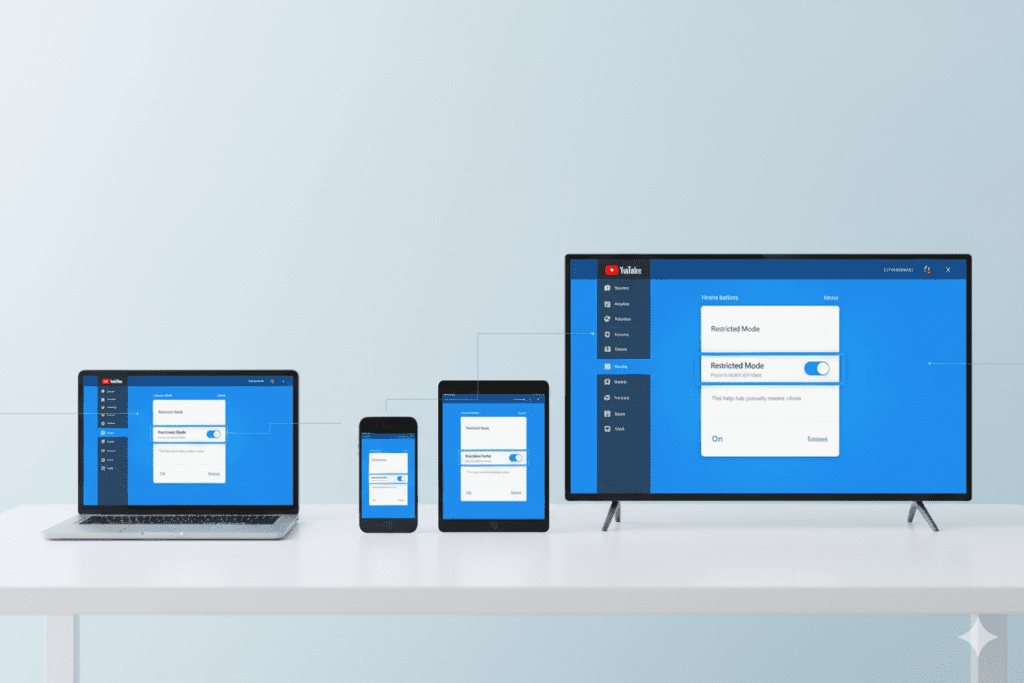
The YouTube restricted mode check process is slightly different depending on the device you’re using. Here’s a quick breakdown.
On Desktop (Chrome, Firefox, Safari)
- Click your profile icon > scroll to “Restricted Mode” > toggle on/off
- Restricted Mode is browser-specific — you must enable it in each browser separately
- You can lock it permanently using the “Lock Restricted Mode on this browser” option
On Android
- Open the YouTube app > tap your profile photo > tap Settings > General
- Toggle Restricted Mode on or off
- On mobile.youtube.com, go to Settings > Account
On iPhone/iPad (iOS)
- Open the YouTube app > tap your profile photo > Settings > General
- Toggle Restricted Mode
- Note: iOS parental controls can also enforce Restricted Mode at the device level
On Smart TV or YouTube TV
- Restricted Mode settings on smart TVs are device-level
- You may need to sign into your account on the TV to change the setting
- Some TV models require navigating through the YouTube app’s settings menu directly
On School or Work Networks
- If Restricted Mode is enforced by a network administrator, individual users cannot disable it
- This is the most impactful scenario for creators, as an entire institution’s users will be locked out
- Only the network administrator can turn it off at the network or DNS level
Always test your YouTube restricted mode check from the same type of network your target audience uses.
Why Manual Methods Are No Longer Enough
Let’s be real. Manually checking every video, rewriting descriptions, guessing which keywords triggered the filter, and hoping for the best — this is no way to run a YouTube channel in 2026.
The average YouTuber uploads multiple videos per month. Each one needs an SEO-optimized title, a carefully crafted description, well-chosen tags, an engaging thumbnail, and a structured script. Doing all of that manually — and then checking each video for restricted mode filters — is a full-time job on its own.
And here’s the harder truth: even when you do everything manually and “correctly,” you’re still guessing. You’re writing titles and descriptions based on gut feeling rather than data. You’re picking tags without knowing if they’re triggering filters. You’re writing scripts without knowing which phrases might set off YouTube’s automated systems.
Manual methods are reactive. AI-powered tools are proactive.
This is exactly why thousands of creators are turning to ytZolo — the all-in-one AI YouTube growth platform built specifically for modern creators who want to grow smarter, not just harder.
How ytZolo Helps You Beat Restricted Mode from the Start
Here’s where the game changes.
ytZolo is an AI-powered YouTube growth tool built to help creators produce content that ranks, gets discovered, and reaches the widest possible audience — without accidentally triggering filters like YouTube Restricted Mode.
Instead of reacting to restricted mode problems after the fact, ytZolo helps you prevent them from the start by generating content that is algorithmically optimized and audience-friendly.
Here’s how ytZolo directly helps with the YouTube restricted mode check challenge:
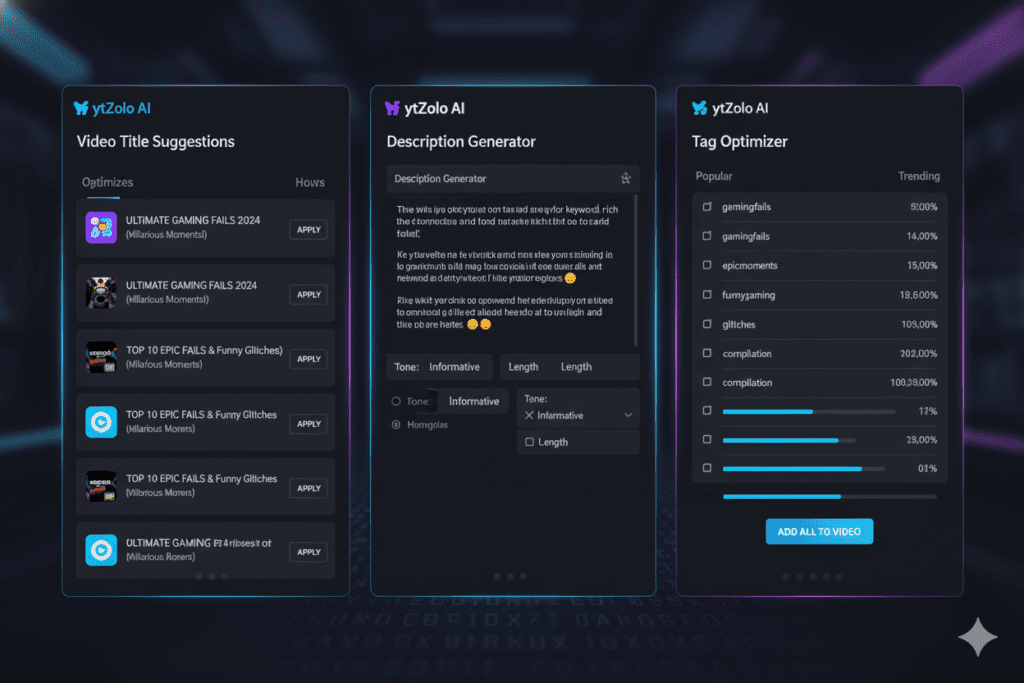
AI Title Generator ytZolo’s title generator creates viral, clickable titles that are optimized for SEO without accidentally using trigger phrases. You get high-CTR titles that are both compelling and algorithm-safe.
Smart Description Builder The AI writes detailed video descriptions packed with relevant keywords and semantic phrases — all clean, clear, and structured in a way that YouTube’s algorithm reads as trustworthy and appropriate content.
Tag Optimizer ytZolo helps you pick the right tags and hashtags that boost discoverability without flagging the restricted mode filter. You’ll stop guessing and start optimizing.
Script Writer ytZolo’s AI script generator creates structured, engaging video scripts in your niche. The language is natural, engaging, and free from the kind of ambiguous phrasing that sets off YouTube’s automated systems.
Thumbnail Concepts Your thumbnail is the first thing viewers (and algorithms) see. ytZolo helps you ideate thumbnails that are eye-catching, safe, and brand-consistent.
Creators who check out the ytZolo blog are already discovering how AI content optimization is the new standard for channel growth. The days of “upload and hope” are over.
Why ytZolo Is Better Than Other Tools
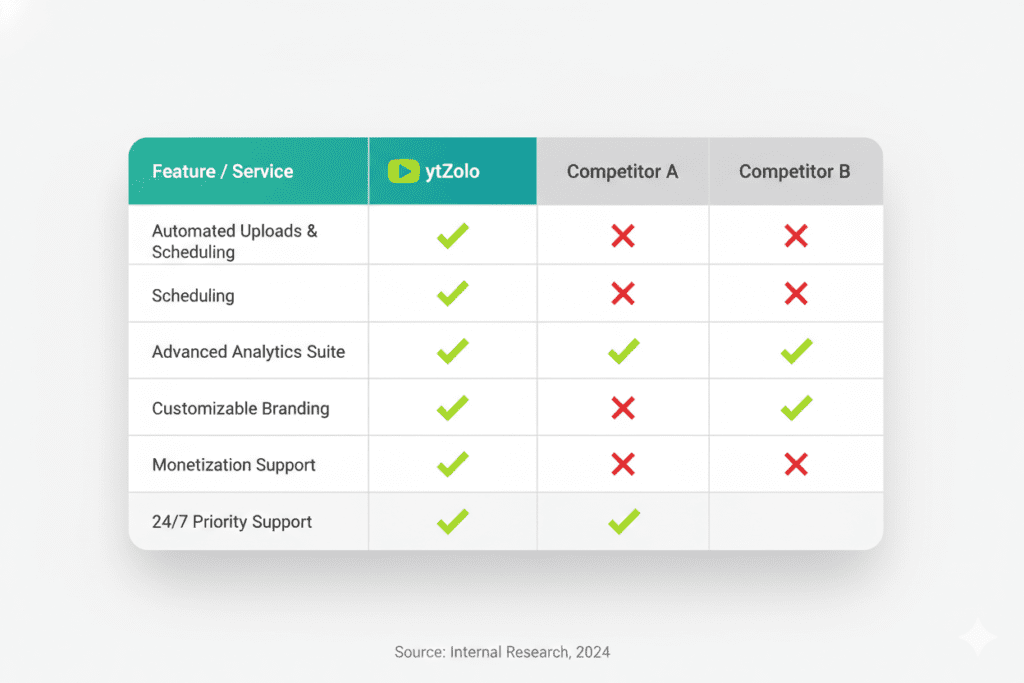
There are plenty of YouTube tools on the market. So what makes ytZolo the one worth your time?
Let’s break it down.
| Feature | ytZolo | Generic AI Writers | Basic SEO Tools |
|---|---|---|---|
| YouTube-specific optimization | ✅ Yes | ❌ No | ⚠️ Partial |
| Title + Description + Tags bundle | ✅ All-in-one | ❌ Separate tools | ❌ Tags only |
| Script writing for creators | ✅ Yes | ⚠️ Generic | ❌ No |
| Thumbnail concept generation | ✅ Yes | ❌ No | ❌ No |
| Algorithm-safe content framing | ✅ Built in | ❌ No | ❌ No |
| Built for viral content growth | ✅ Yes | ⚠️ Maybe | ❌ No |
Generic AI writers like ChatGPT are powerful, but they’re not built for YouTube. They don’t understand channel optimization, video SEO, or what makes a description algorithm-friendly versus one that triggers restricted filters.
Basic SEO tools focus on keyword research but don’t help you write, script, or create — they tell you what to target but not how to execute.
ytZolo combines everything. It’s the first truly all-in-one AI YouTube growth platform that understands the platform deeply — from how the restricted mode algorithm works to what makes a title go viral.
And unlike clunky, overpriced tools built for generic marketers, ytZolo was designed specifically for YouTubers and video creators who need speed, quality, and results.
The best part? You don’t need to be a tech wizard or SEO expert to use it. The interface is clean, intuitive, and built for creators of all sizes — from brand-new channels to established YouTubers looking to scale.
Pro Tips to Keep Your Videos Out of Restricted Mode
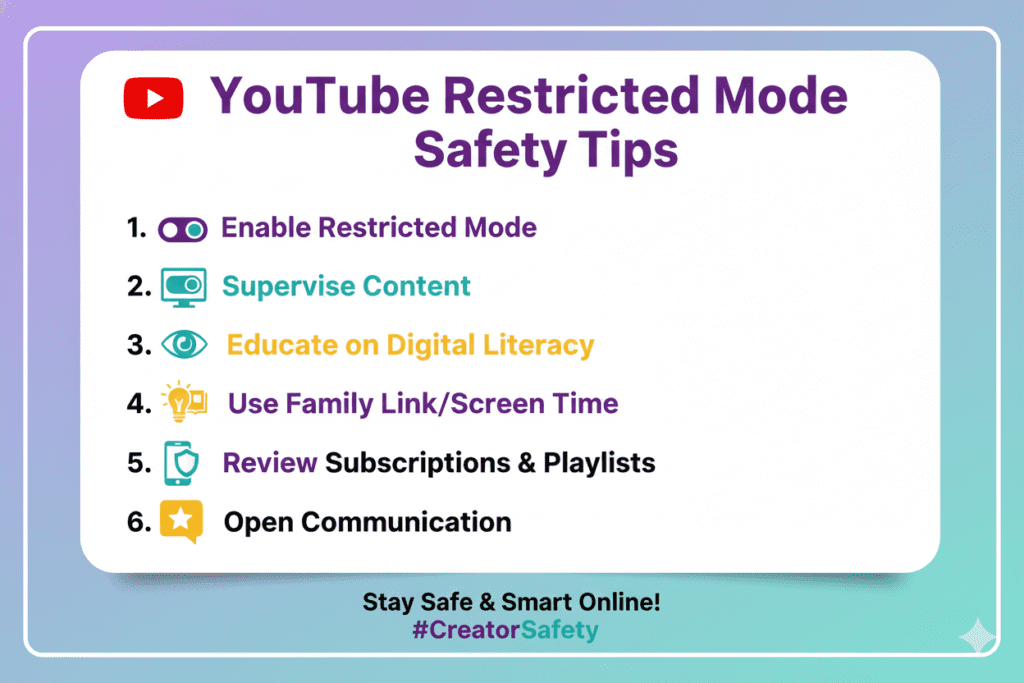
Beyond the YouTube restricted mode check process, here are battle-tested tips to keep your content safe and your reach strong.
1. Write Descriptive, Clear Titles Avoid clickbait that uses shock language. Titles like “This Will DESTROY You” or “DEADLY Workout Routine” can trigger filters even when the content is innocent. Be descriptive and clear.
2. Use Professional, Precise Language in Descriptions Your description should read like a professional article — clear, informative, and keyword-rich without slang, profanity, or ambiguous phrasing.
3. Review Auto-Generated Captions Before Publishing YouTube’s auto-captions are notoriously inaccurate. A misheard word in captions could flag your video. Always review and clean up captions before publishing.
4. Be Careful With Tags Tags that seem harmless in context can trigger filters when taken out of context. Avoid hyperbolic tags like “extreme,” “dangerous,” or “graphic” unless your content genuinely requires them.
5. Avoid Unnecessary Controversy in Thumbnails Thumbnails with aggressive facial expressions, simulated violence, or overly suggestive imagery can sometimes contribute to algorithmic filtering decisions. Keep thumbnails professional and brand-consistent.
6. Run a YouTube Restricted Mode Check Before Promoting Every Video Make it a habit. Before you start promoting on social media, sending to your email list, or running ads — do a quick YouTube restricted mode check to make sure your video is actually visible to all audiences.
7. Use AI Tools to Optimize Before You Publish This is the single biggest time-saver. Instead of cleaning up problems after the fact, use ytZolo to generate titles, descriptions, and tags that are algorithm-safe right from the start.
According to HubSpot’s research on YouTube marketing, video metadata optimization is one of the top factors influencing YouTube discoverability. Getting it right the first time is always better than trying to fix it later.
FAQ: YouTube Restricted Mode Check
1. How do I check if my YouTube video is in Restricted Mode?
To do a YouTube restricted mode check, enable Restricted Mode from your profile settings (or use an incognito window with Restricted Mode turned on), then search for your video or navigate directly to its URL. If the video shows an unavailability message, it’s being filtered. You can also check via YouTube Studio under Content > Restrictions column.
2. Why is my video filtered in Restricted Mode even though it follows YouTube’s rules?
YouTube’s automated algorithm scans titles, descriptions, tags, captions, and video content. It sometimes over-filters videos that don’t violate any guidelines. Sensitive topics, trigger language in metadata, or ambiguous phrasing in captions can all cause a video to be caught in the filter — even if the content itself is completely safe.
3. Does Restricted Mode affect video monetization?
According to YouTube, you can still monetize videos even if they are filtered in Restricted Mode. However, because filtered videos reach fewer viewers, your overall ad revenue and RPM will likely be lower due to reduced impressions and watch time.
4. Can I appeal a Restricted Mode filter on my video?
Yes. You can submit feedback through YouTube’s support system if you believe your video was incorrectly filtered. Additionally, editing the video’s metadata (title, description, or tags) may trigger the algorithm to re-review the video and potentially reverse the filter.
5. How can I prevent my videos from being filtered by Restricted Mode in the future?
The most effective prevention strategy is to use AI-optimized content creation from the beginning. Tools like ytZolo help creators generate titles, descriptions, tags, and scripts that are clean, keyword-optimized, and algorithm-safe — dramatically reducing the chance of triggering the restricted mode filter.
Conclusion: Stop Flying Blind — Start Creating Smarter
The YouTube restricted mode check is not a one-time fix. It’s an ongoing part of being a serious, strategic content creator.
Every video you publish is an investment. Your time, your creativity, your energy. The last thing you want is for that investment to be quietly suffocated by an invisible filter that your audience never even sees.
Now you know how to do a YouTube restricted mode check on every device. You know what triggers the filter, how to fix it, and — most importantly — how to prevent it from happening in the first place.
But here’s the real opportunity: creators who embrace AI-powered tools don’t just avoid restricted mode problems. They grow faster, publish smarter, and build channels that the algorithm loves.
That’s exactly what ytZolo is built for.
Whether you’re optimizing titles that get clicks without triggering filters, writing descriptions that rank in YouTube search, or scripting videos that keep viewers watching — ytZolo gives you the AI advantage that today’s most successful YouTubers are already using.
Don’t wait until another video gets buried in a restricted mode filter. Don’t keep doing YouTube restricted mode checks after the damage is already done.
Build smarter from frame one.
Start creating smarter, faster, and more viral YouTube content with ytZolo today.
👉 Visit ytZolo.com and start growing your channel now
Want more strategies for YouTube growth, SEO, and AI-powered content creation? Check out the ytZolo blog for the latest guides, tips, and tutorials built for creators who are serious about results.
External Authority Links Referenced:

