
Quick Answer: How to Turn Off Blade in CapCut
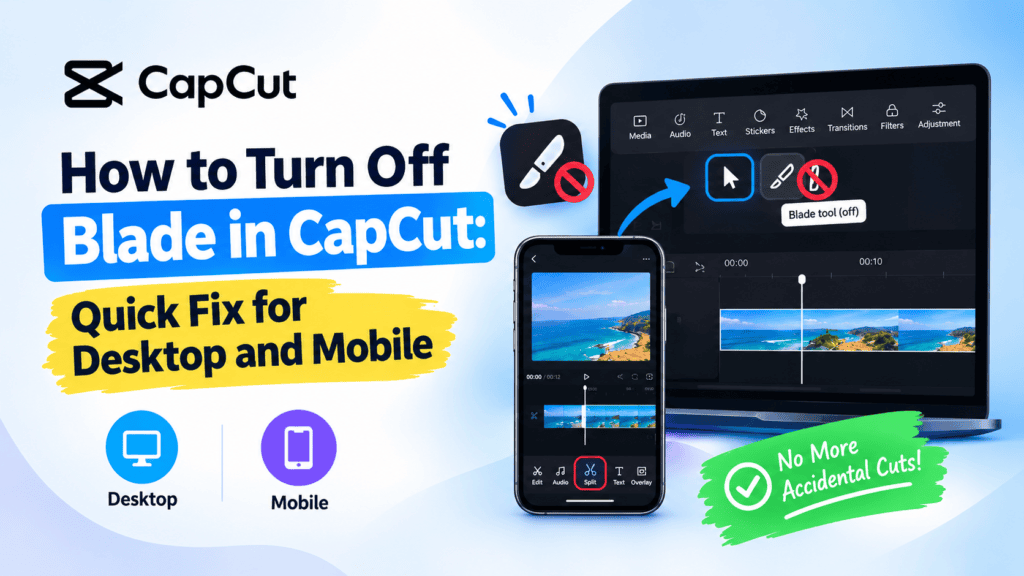
To turn off the Blade tool in CapCut desktop, select the normal arrow or selection tool in the editing toolbar. This returns you to selecting and moving clips instead of cutting them. On mobile, tap the clip and exit the Split editing action. If you made an unwanted cut, use Undo to reverse it.
How to Turn Off Blade in CapCut
If CapCut keeps cutting your clips when you click the timeline, you may still have the Blade or Split tool selected. To stop making unwanted cuts, switch back to the normal selection tool.
On CapCut desktop, look for the selection or arrow tool in the editing toolbar and select it. On mobile, tap the timeline clip to select it and use the regular editing controls instead of Split.
If you already made an unwanted cut, use Undo to reverse it before making more edits.
This guide explains how to exit blade mode, avoid accidental splits, and undo a cut in CapCut.
No more accidental cuts. No more wasted time fixing split errors. Just clean, smooth editing — the way it should be. And once your editing is clean, the next step is making sure people actually click your video — which is where AI-generated YouTube thumbnails can dramatically improve your CTR.
Table of Contents
What Is the Blade Tool in CapCut?
The Blade or Split function divides a video clip into separate segments at a chosen point on the timeline. It is useful when you want to remove a pause, rearrange footage, or edit one part of a video separately.
If you only want to select, move, or adjust a clip, make sure you are using the normal selection controls rather than a cutting action.
It’s one of CapCut’s most powerful features for trimming dead space, removing awkward pauses, and tightening your pacing — especially when combined with strategies like YouTube outro script ideas that boost retention to keep viewers watching till the end.
Why the Blade Tool Gets Accidentally Activated
Before we fix the problem, let’s understand why it happens in the first place.
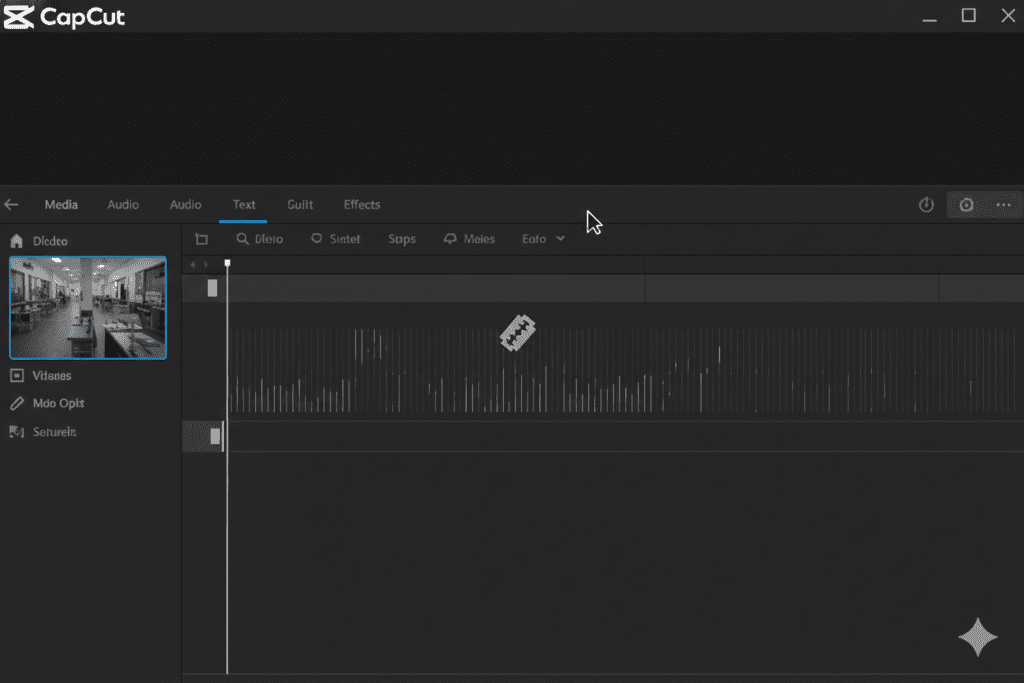
On CapCut desktop, the blade/split mode gets activated when you press Ctrl + B (the default keyboard shortcut for Split). If you accidentally hit this shortcut while your hands are on the keyboard, your cursor switches to the blade cursor without any obvious warning.
From that point on, every single click on the timeline creates a new cut if you don’t know how to turn off blade in CapCut. It’s easy to make five or six accidental splits before you even realize what happened.
On CapCut mobile, the blade tool doesn’t work the same way — it requires you to deliberately tap the “Split” button. But new editors often tap it by mistake, especially on smaller screens where buttons are close together.
Here’s a quick list of the most common causes:
- Accidentally pressing Ctrl + B on desktop
- Mistaking the Split button for another tool on mobile
- Using CapCut templates that pre-set the cursor mode
- Working too quickly on a zoomed-out timeline
Now let’s fix it.
How to Turn Off Blade in CapCut on Mobile
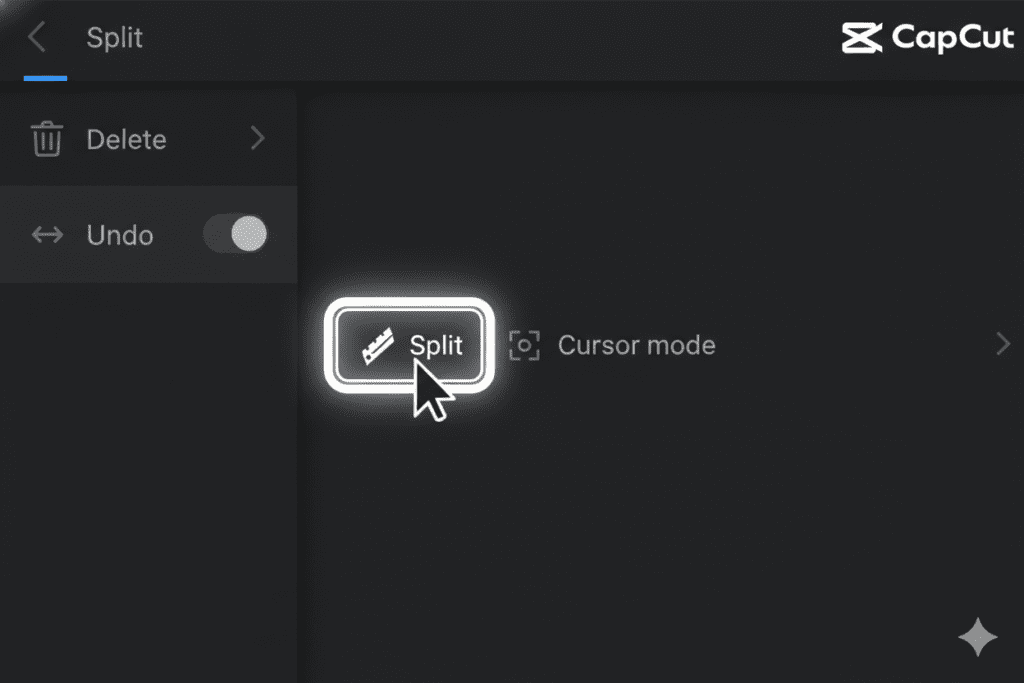
CapCut mobile editing works differently from the desktop timeline. You may see Split as an editing action rather than a persistent Blade tool.
Step 1: Tap the clip you want to edit
Select the video clip on your timeline to open its editing controls.
Step 2: Exit the Split action
If you have opened the Split control, return to the regular clip editing controls. Avoid tapping Split when you only want to select or move the clip.
Step 3: Check your next edit
Tap the clip and confirm that it is selected. If the timeline divides again, check which editing control you tapped.
The exact control layout can differ between CapCut mobile versions. If you cannot find the same buttons, check the controls displayed in your current app.
How to Turn Off Blade in CapCut on Desktop
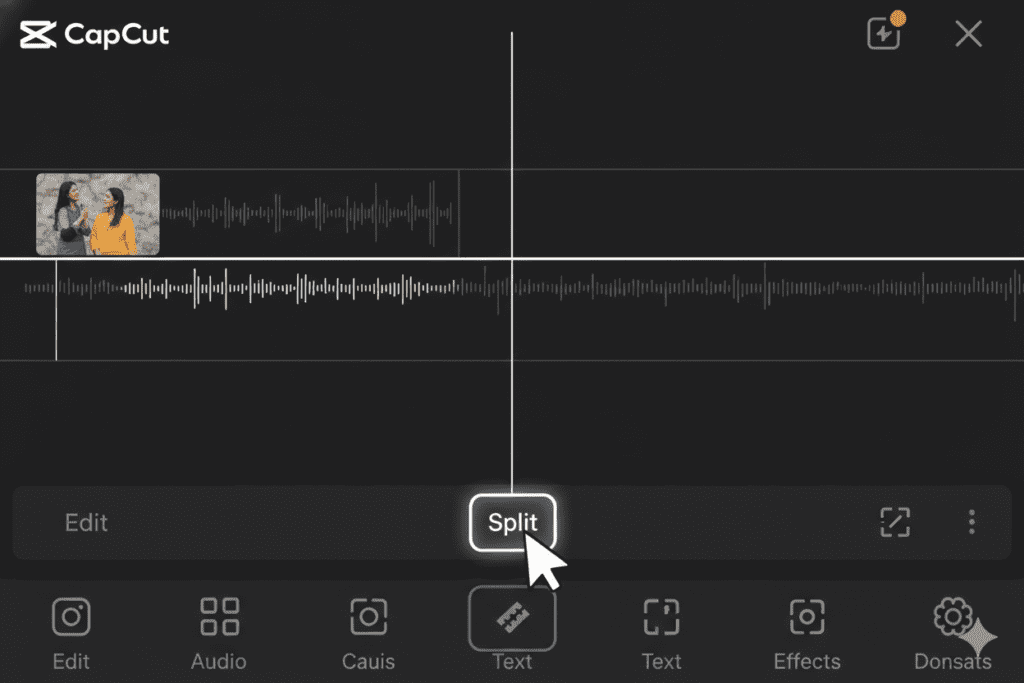
If the Blade tool is active in CapCut desktop, switch back to the selection tool before clicking clips on the timeline.
Step 1: Find the active editing tool
Look at the editing toolbar above or near your timeline. If the Blade, Cut, or Split tool is selected, it may cause clicks to divide clips rather than select them.
Step 2: Switch to the selection tool
Choose the arrow or selection tool in the toolbar. Its appearance and location may differ between CapCut versions.
Step 3: Test the timeline
Click a clip once. If the clip is selected instead of split, you have returned to normal selection mode.
Step 4: Check the tool if cuts continue
If clicking still splits clips, check whether a different cutting or trimming control remains active. Switch back to the selection tool and test again.
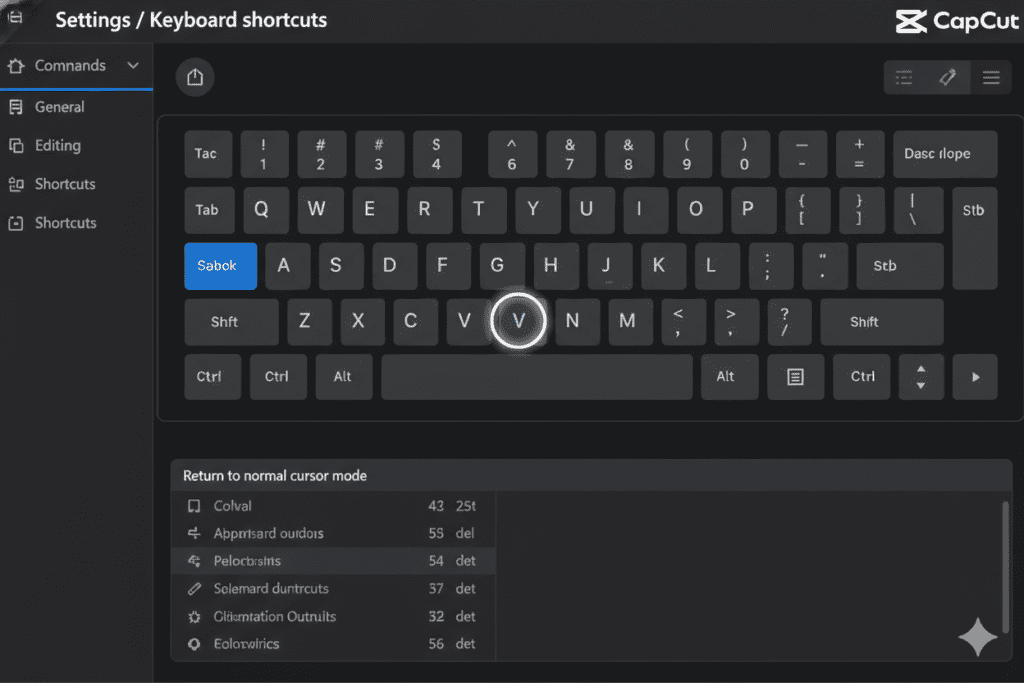
Shortcut note: CapCut keyboard shortcuts can vary by version and operating system. Use a shortcut only after confirming it in your current app’s shortcut list or interface.
How to Undo an Accidental Split in CapCut
If you accidentally split a clip, Undo is usually the quickest way to reverse the edit.
On CapCut desktop
- Use the Undo button in the editing interface or the keyboard shortcut shown for Undo in your version of CapCut.
- Check the timeline to confirm that the unwanted split has been reversed.
- If you have made several edits since the split, review each undo step carefully so you do not remove changes you wanted to keep.
On CapCut mobile
- Look for the Undo control in the editing interface.
- Tap Undo immediately after making the unwanted split.
- Check that the clip has returned to the state you intended.
Undo reverses recent editing actions. If you have already made additional edits, it may take more than one undo step to reach the unwanted split.
According to HubSpot, efficient editing workflows directly impact content consistency — which is one of the biggest growth drivers for creators.
How to Remove an Existing Split in CapCut
If undoing isn’t an option, you can manually remove a split and rejoin the clips. Here’s how:
On Mobile:
- Tap on one of the split segments on the timeline to select it.
- Look for a small connecting icon or drag the trim handle of one clip to meet the other.
- Alternatively, if you split a segment accidentally, tap on the unwanted split segment, tap Delete, and adjust the surrounding clips to fill the gap.
On Desktop:
- Select both clip segments that were accidentally split (hold Shift and click both).
- Right-click and look for a “Merge” or “Join” option if available in your version.
- If no merge option exists, delete the split point by clicking on the white split marker on the timeline and pressing Delete — this removes the cut while keeping the footage.
Pro Tip: Always zoom in on your timeline before making precise cuts. As CapCut’s own guidance confirms, a zoomed-out timeline makes it nearly impossible to cut at the exact frame you want — and much easier to make mistakes.
Pro Tips: Using the Blade Tool the Right Way
Now that you know how to turn off blade in CapCut, let’s talk about using it properly when you actually want it.
Tip 1: Zoom in before every cut. Pinch outward on mobile or use the zoom slider on desktop to get a frame-by-frame view before splitting. This prevents the blade from landing in the wrong spot.
Tip 2: Use the playhead precisely. Instead of clicking randomly on the timeline, press play, pause exactly where you want to cut, and then press S (desktop) or tap Split (mobile). This method is far more accurate.
Tip 3: Remove dead space systematically. Scrub through your footage, mark all the pauses and filler moments, then make all your splits at once. Then select and delete them in a batch. This becomes even more powerful when paired with AI storytelling script generators that help structure your content before you even start editing.
Tip 4: Keyboard shortcuts are your best friend. On desktop: learn V (return to cursor), S (split at playhead), and Ctrl + Z (undo). These three shortcuts will save you hours over the course of your editing career.
Tip 5: Lock clips you’re not editing. If you’re working on audio or text layers, lock your video clips to prevent accidental splits. Look for the lock icon on each track in the timeline panel.
Why ytZolo Is the Missing Piece of Your Editing Workflow
Here’s a truth most creators learn the hard way: editing your video is only half the battle.
You can spend hours perfecting your cuts in CapCut — learning how to turn off blade in CapCut, trimming every pause, tightening your pacing — and still upload a video that nobody watches. Why? Because without the right title, thumbnail, description, and tags, YouTube simply won’t show your video to anyone.
That’s where ytZolo comes in.
ytZolo is an all-in-one AI YouTube growth platform built specifically for creators. While CapCut handles your video editing, ytZolo handles everything that makes people actually click on your video and find it in the first place.
Here’s what ytZolo does for you:
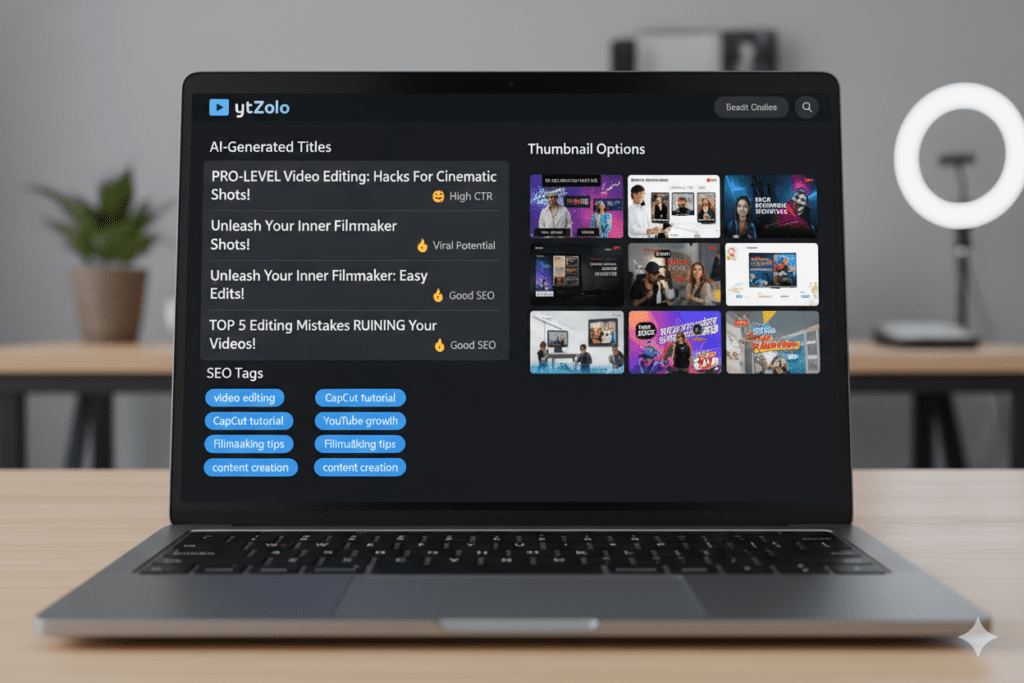
- AI-Powered Viral Titles — Generate click-worthy, SEO-optimized titles in seconds. No more staring at a blank screen wondering what to call your video.
- Thumbnail Creation — Design scroll-stopping thumbnails that drive clicks, without needing any design experience. Your thumbnail is responsible for up to 70% of your CTR — this matters enormously.
- Script Writing — Kill writer’s block forever. ytZolo’s script generator creates structured, engaging scripts tailored to your topic and channel style.
- SEO-Optimized Descriptions & Tags — Stop guessing which tags to use. ytZolo’s AI analyzes trending keywords and competitor data to build your entire metadata package automatically.
- Viral Content Ideas — Know what to film before you even pick up a camera. ytZolo surfaces trending topics in your niche so you’re always ahead of the curve.
The creators who grow the fastest in 2026 aren’t just good editors. They’re smart strategists who understand details like how to turn off blade in CapCut. And ytZolo is the tool that turns a regular creator into a strategic one — without requiring a full production team.
Check out the ytZolo blog for more strategies on growing your YouTube channel with AI.
Why ytZolo Is Better Than Other Tools
There are plenty of tools out there. TubeBuddy, VidIQ, ChatGPT, Canva, Jasper — you’ve probably heard of them. So why are serious creators switching to ytZolo?
Here’s the honest comparison:
| Feature | ytZolo | TubeBuddy | VidIQ | ChatGPT | Canva |
|---|---|---|---|---|---|
| AI Titles | ✅ YouTube-native | ❌ Basic | ❌ Basic | ⚠️ Generic | ❌ No |
| Thumbnail AI | ✅ Yes | ❌ No | ❌ No | ❌ No | ⚠️ Design only |
| Script Writing | ✅ Yes | ❌ No | ❌ No | ⚠️ Generic | ❌ No |
| SEO Tags & Descriptions | ✅ Automated | ✅ Analytics | ✅ Analytics | ❌ No | ❌ No |
| YouTube-Specific Training | ✅ Built for YouTube | ✅ Partial | ✅ Partial | ❌ No | ❌ No |
| All-in-One Workflow | ✅ Yes | ❌ No | ❌ No | ❌ No | ❌ No |
The key difference is this: TubeBuddy and VidIQ are analytics tools with some tag features bolted on. ChatGPT is a general AI that doesn’t understand YouTube’s algorithm. Canva is a design tool with no marketing intelligence.
ytZolo was built from the ground up for YouTube creators. Every single feature was designed around one goal: helping your videos get found, get clicked, and grow your channel.
When you learn how to turn off blade in CapCut and perfect your editing, you’re winning the production battle. When you add ytZolo to your workflow, you win the growth battle too. That’s the combination the fastest-growing creators are using right now.
“Creators who use AI tools produce content up to 3x faster and maintain more consistent publishing schedules — which is exactly what the YouTube algorithm rewards.” — HubSpot Content Marketing Research
Your thumbnail is responsible for a huge portion of your CTR — which is why many creators rely on tools like Canva’s YouTube thumbnail maker alongside smarter AI-driven platforms.
Or dive deeper into optimization strategies in the ytZolo blog to understand how thumbnails, titles, and scripts work together.
FAQ: How to Turn Off Blade in CapCut
Q1: How do I turn off the blade/split tool in CapCut on desktop?
If the Blade or Split tool is active in CapCut desktop, switch back to the normal selection tool using the editing toolbar. Look for the arrow or pointer icon and select it.
The exact tool layout may vary by CapCut version. If you cannot find the selection tool, check the toolbar and keyboard shortcut settings in your current version.
Q2: Why does CapCut keep cutting my clips when I click the timeline?
CapCut may keep cutting clips if a Blade, Split, or cutting action is active. Switch back to the normal selection tool and test by clicking a clip on the timeline.
If an unwanted split has already happened, use Undo to reverse the recent edit. The tool controls can differ between CapCut versions.
Q3: Is there a split tool on CapCut mobile, and how do I turn it off?
CapCut mobile includes a Split editing action for dividing clips. To avoid an unwanted split, select the clip and return to the regular editing controls instead of tapping Split. If you accidentally divide a clip, use the Undo control if the edit is still available to reverse.
Q4: How do I undo an accidental split in CapCut?
Use the Undo control in CapCut immediately after making an unwanted split. On desktop, use the Undo button or the shortcut shown in your version. On mobile, look for the Undo arrow in the editing interface.
Check the timeline after undoing to confirm the split has been reversed. If you have made other edits since the split, you may need to undo more than one action.
Q5: Can I remove a split without deleting footage in CapCut?
If the split was your most recent edit, use Undo to reverse it while preserving the original footage. If you have continued editing, you may need to adjust the separated clip segments manually.
The available options depend on your CapCut version and how the clips were edited. Avoid deleting a timeline segment unless you have confirmed that it contains no footage you need.
Final Takeaway
If CapCut keeps splitting clips when you click the timeline, switch back to the normal selection tool on desktop or exit the Split action on mobile.
If you already made an unwanted cut, use Undo and check your timeline before continuing.
The tool layout can vary by CapCut version, so follow the controls visible in your current editor.
Start creating smarter, faster, and more viral YouTube content with ytZolo today.
Want more creator tips? Explore the ytZolo blog for the latest strategies on YouTube SEO, AI content tools, and channel growth that actually works in 2026.
External resources: YouTube Creator Academy | YouTube Creator Blog | HubSpot State of Marketing Report

