
Quick summary: Learning how to turn a podcast into a YouTube video starts with choosing a format that suits your episode, whether it’s a static image, an audiogram, or full video footage.
Prepare your audio, add relevant visuals and captions, then upload the finished video through YouTube Studio.
If you need help creating podcast narration or improving audio, ytZolo’s AI voice and audio tools can support parts of your production workflow.
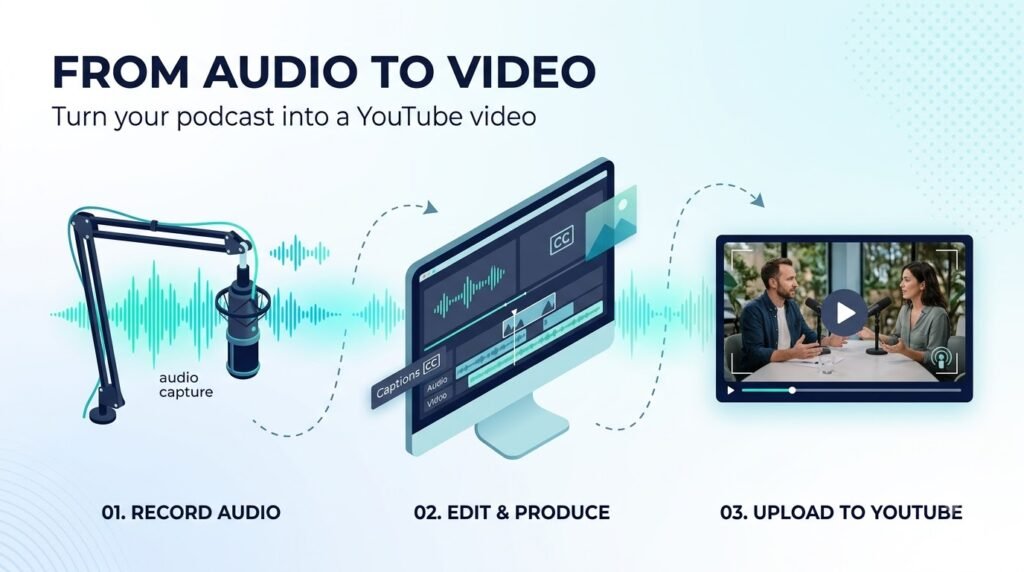
Table of Contents
You can do that by combining your audio recording with an image, animated waveform, captions, or footage. First, you need to download your finished audio episode.
Then, edit it in any video editing software. After that, record your podcast as a video on your computer. Finally, upload your finished product to YouTube.
The easiest way to use YouTube to enhance your podcast is to combine your podcast’s audio recording with a graphic of your episode’s cover art. Your podcast episodes will be more engaging for your audience if you animate the waveform and utilize footage related to your episode.
This article will go over all of your options, what you need to prepare, and how to post your podcast on YouTube as a podcast.
The first two steps in this process are relatively simple. You’ll want to upload your finished recording to your editing software of choice and edit the piece to your liking.
It’s essential to remember that not all programs are created equal, so you may need to experiment with several pieces of software before finding the one that best suits your needs.
What are the different ways to turn a podcast into a YouTube video?
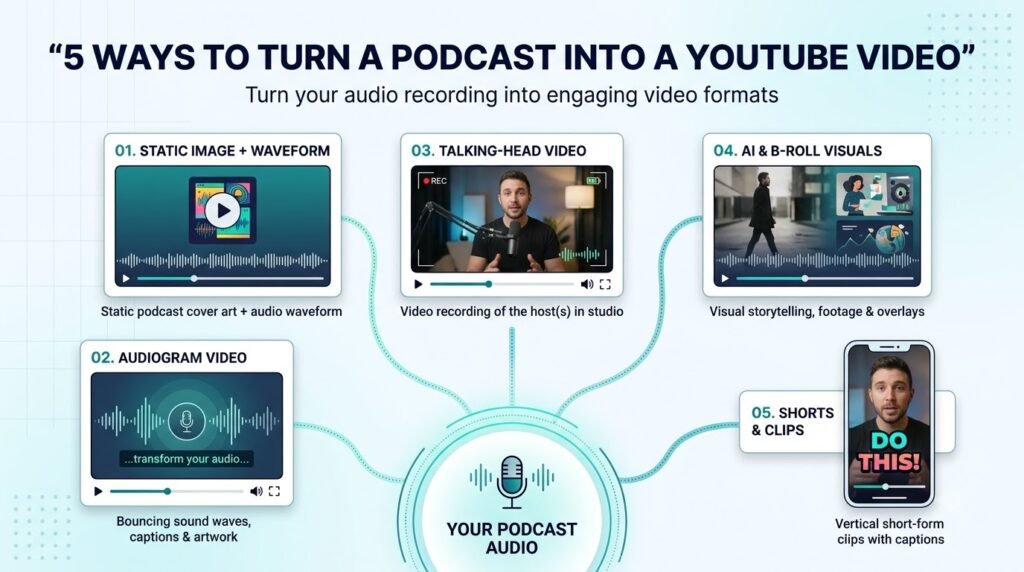
There are three common options for turning an audio podcast into a video: using a static image, creating an audiogram, and editing a full video podcast. It will depend on what you have, the kind of content, the available material, and the time investment.
Can you use a static image for a podcast video?
Yes. You can combine your podcast audio with a single image, such as your show artwork or episode cover, and export it as a video. This is a practical option when the conversation matters more than the visuals.
For example, an interview about small business marketing could play over the episode artwork for its entire duration. The process is straightforward, but the result will not have changing backgrounds as the conversation happens.
Make sure to use an image with large text that is easy to read and does not strain the eyes. It should also have enough space around the main subject to avoid the appearance of getting stretched on the screen.
What is an audiogram, and when should you use one?
An audiogram combines podcast audio with a waveform, captions, or simple animations. It adds movement without requiring you to record yourself on camera.
Imagine a podcast discussing YouTube monetization. You could show the speaker’s name, a moving waveform, and captions over a background that matches the topic.
An audiogram works well when you want more visual movement without creating a full video. For a long episode, however, a single repeated animation may become distracting or monotonous.
When should you create a full video podcast?
A video podcast made of speakers, a screen recording, a demonstration, or other footage. This type requires more editing than a standard still-image recording, but provides extra context for the viewer.
Ideal for interviews, demonstrations, tutorials, and educational talks, this option allows you to repurpose footage from the initial conversation if the speakers were recorded on camera.
You can also add clips of related media to the video podcast so that whenever a particular point is made, the viewer can see exactly what the speaker is talking about.
How do you turn a podcast into a YouTube video step by step?
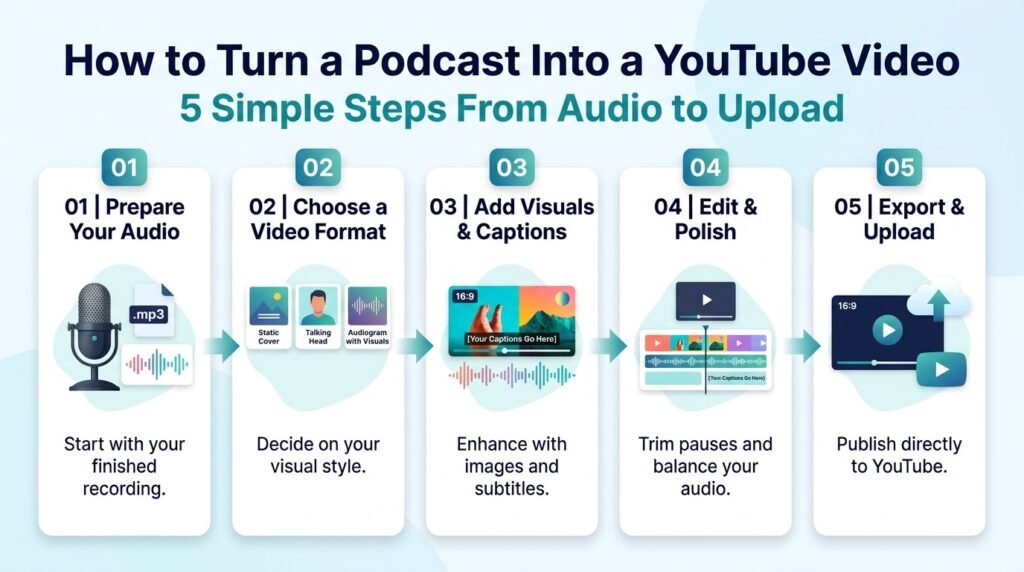
Start with your finished podcast audio, choose a video format, and prepare the visuals before editing. Once the audio and visuals are combined, review the exported file and upload it through YouTube Studio.
Step 1: How do you prepare your podcast audio?
Listen to the complete recording before starting the video edit. Check for unnecessary pauses, background noise, abrupt cuts, repeated sentences, and sections that shouldn’t be published.
Remove problems that interfere with the conversation, but don’t cut every pause. A short break between speakers can sound natural, while aggressive editing may make an interview feel rushed.
Keep a copy of the original recording in case you need to restore a section. If the episode includes several speakers, check that their voices are reasonably consistent in volume.
If you need new narration for an introduction or a section of the video, read ytZolo’s guide to an AI voice generator for podcasts. It covers the audio-production side of a podcast workflow rather than the complete video-editing process.
Step 2: How do you choose the right visuals?
Choose the visuals that best interpret the episode for the audience rather than using effects for the sake of aesthetics. A simple photo can work well for an interview, and a tutorial may well need screenshots or demos.
Prepare the episode artwork, speaker photos, captions, and footage before opening your video editor.
For a standard horizontal YouTube video, a 16:9 canvas at 1920 × 1080 pixels is a practical starting point.
Check that important text remains readable on a mobile screen. Avoid placing titles or speaker names too close to the edges.
Step 3: How do you combine the audio and visuals?
Import your podcast audio and visual files into a video editor, then place the audio on the timeline. Add your image, waveform, captions, or footage above it and arrange the visuals to match the episode.
If you’re using a still image, make sure to stretch it across the entire recording. When adding an audiogram, make sure the waveform and captions match the speech.
For a full video podcast, align the camera recordings with the final audio and remove unwanted footage. Play the timeline from beginning to end to check that the audio and visuals remain in sync.
Step 4: Should you add captions to a podcast video?
Final version – Captions can help people know what is being said when they cannot play the audio or want to read along.
You can generate a transcript automatically, but you should review it before publishing because some names, accents, or technical terms might be misspelled
For example, an episode about RSS feeds would have words that an automatic captioning tool would not recognize correctly. You should fix those words instead of leaving them as they are.
Make sure the text is easy to read and that each line ends at a reasonable place. It should also be easier to see than the background or any images. If the captions are over footage, remember not to cover any text or the faces of people.
Step 5: How do you export the finished video?
Export the video in a format accepted by YouTube, such as MP4 with H.264 video and AAC audio. Before uploading your file, check it to see that it exports correctly.
Make sure the audio plays to the end, the video is synced to the recording, captions are accurate, and your image isn’t stretched.
Check for unfinished transitions, accidental blank screens, and private information that may appear in a screen recording.
Also, make sure that you have permission to use the music and photos in the episode, including any third-party footage.
Can you turn a podcast into a YouTube video without editing?
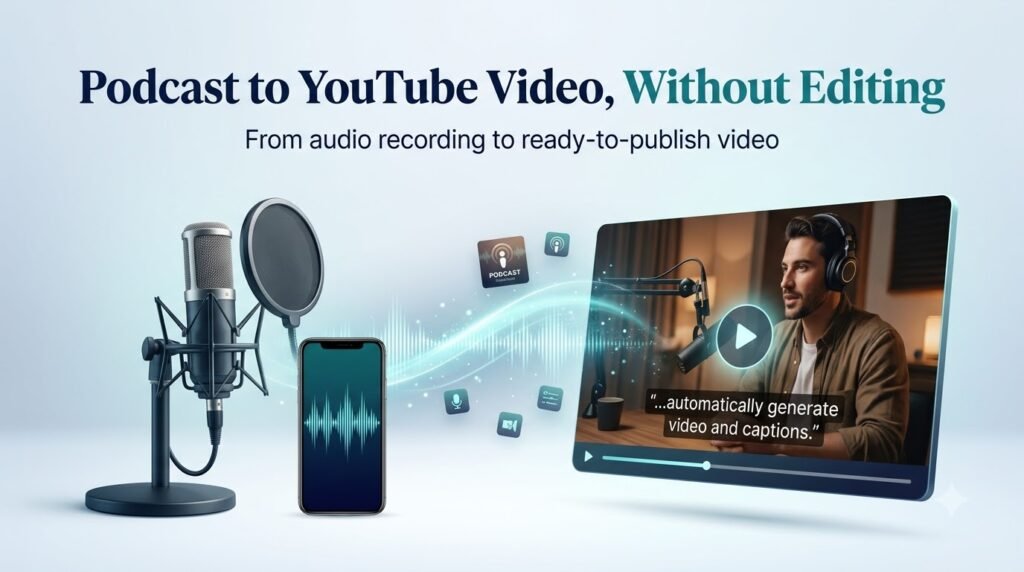
Yes. YouTube supports RSS delivery for eligible audio-first podcasts in supported regions, allowing the platform to create static-image videos from your podcast artwork and audio.
This can reduce manual editing when you want to publish existing audio episodes on YouTube.
According to YouTube’s official RSS delivery guide, you can submit an eligible RSS feed through YouTube Studio and select episodes for upload.
When a new episode is added to the feed, eligible episodes can be uploaded automatically according to your settings. YouTube uses the show’s artwork to create a video with a static image.
There are limitations. RSS delivery doesn’t create a full video recording or an animated audiogram, and it doesn’t distribute the podcast to other platforms. Published audio also doesn’t automatically update when you replace an episode’s audio file in the RSS feed.
If you want custom visuals, more control over the presentation, or a video with recorded speakers, creating and uploading a separate video may be more suitable.
For the wider process of publishing a podcast across different platforms, see the podcast distribution guide. That guide covers distribution, while this article focuses on converting an episode into a video.
How do you upload a podcast video to YouTube Studio?
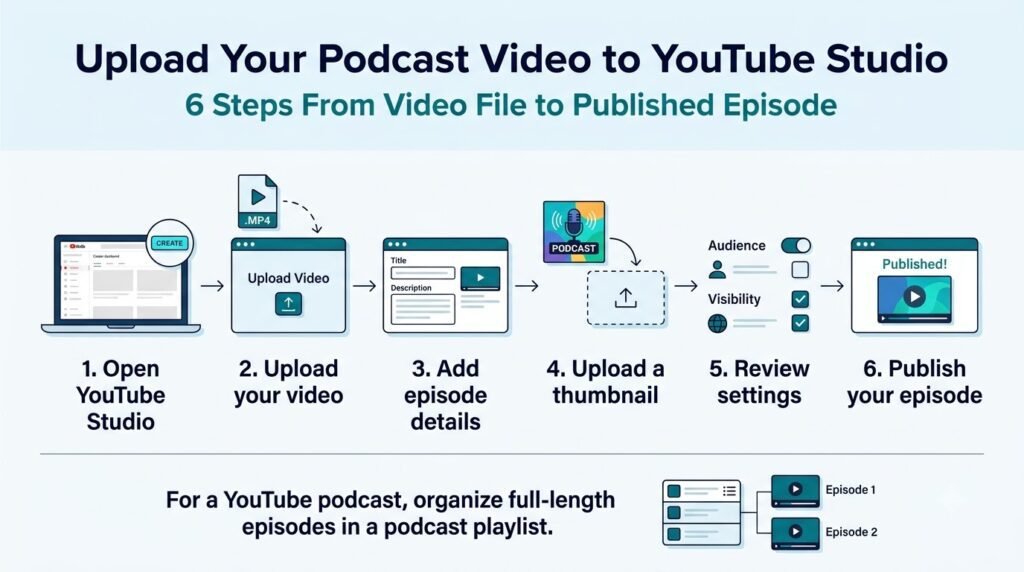
Once your video is ready, upload it through YouTube Studio, add the episode details, and choose when to publish it. If you want YouTube to recognize your show as a podcast, organize the full-length episodes in a podcast playlist.
Follow these steps:
- Open YouTube Studio and select Create, then Upload videos.
- Choose your exported podcast video.
- Add a descriptive title and an accurate description.
- Upload a suitable video thumbnail.
- Review the audience and visibility settings.
- Preview the upload and publish it when you’re ready.
To organize the episode as part of a podcast, open the Podcasts section in YouTube Studio and create a podcast or add the video to an existing one. YouTube treats a podcast as a playlist and its episodes as videos within that playlist.
Read YouTube’s official podcast setup guide for the current setup instructions. Keep full-length episodes in the podcast playlist and organize promotional clips separately.
How should you title and describe a podcast video?
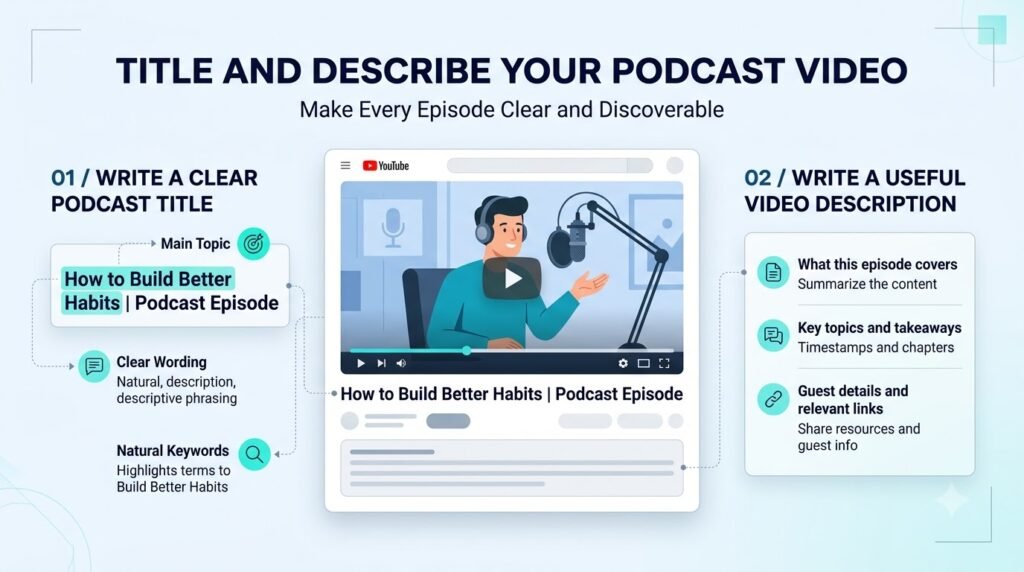
Your title on your video should tell viewers what the episode is about, and the description should tell your audience what they’ll hear in the episode, along with any important details.
Avoid relying only on an episode number because new viewers may not know what the show is about.
For example, “Episode 12 | Our Latest Conversation” gives little information about the subject. “How Small YouTube Channels Can Build a Loyal Audience” makes the topic clearer.
In your description, make sure to briefly mention what was discussed in the episode, who was interviewed (if anyone), and any timestamps or references that would be helpful to viewers referring to your video.
Make sure to use accurate information and never promise more than what’s there.
Choose a thumbnail that remains readable at a small size. If you need help developing a descriptive title, ytZolo’s article on YouTube video title ideas offers additional guidance.
How can you make a podcast video more interesting without recording new footage?
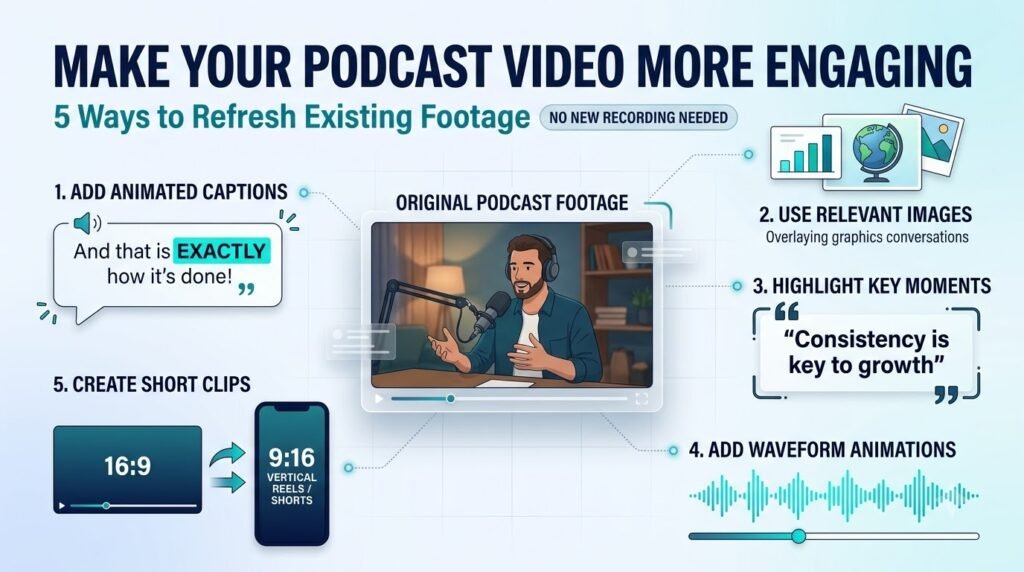
You can enhance an audio-driven podcast video with relevant images, captions, chapter markers, and supporting footage. You can do it without filming additional photos or videos for your podcast.
If the guest on your podcast talks about how they plan their content calendar, you can illustrate their point with relevant images or a screen recording. However, if it is a casual chat, maybe a character image and subtitling would be sufficient.
Speaking of which, adding supporting footage, also known as B-roll, is also a great way to enhance your podcast videos. However, keep in mind that it is essential to choose the footage that will complement what the speakers say.
If you want to explore this approach, ytZolo’s guide to an AI B-roll footage generator for YouTube videos explains the difference between finding existing footage and generating new clips.
Review every clip before publishing. Generated visuals can contain errors, and a visual that looks convincing may still misrepresent the subject being discussed.
What mistakes should you avoid when turning a podcast into a video?
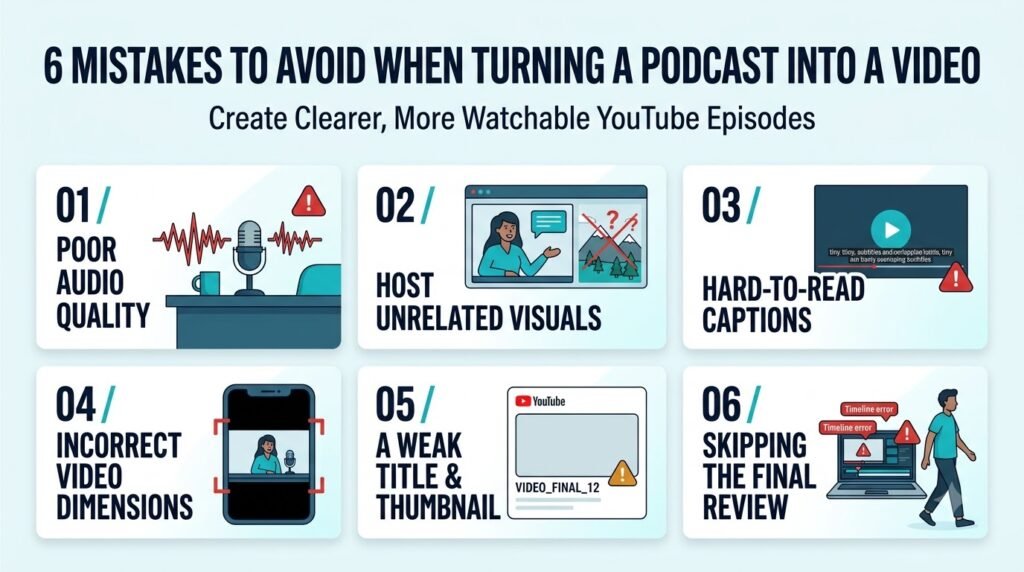
The most common mistakes are unclear audio, distracting visuals, imprecise captions, and the absence of publishing information. However, a quick review before uploading the video can help avoid errors.
Consider the following recommendations:
- Avoid long pauses: Trim excessive silences while retaining the integrity of the audio track.
- Avoid stretching the artwork: Ensure that the image is not stretched, and the borders match the proportions of the chosen background.
- Avoid using incorrect captions: Double-check the transcript for any errors, misspellings, or mispronunciations.
- Avoid using irrelevant visuals: Make sure the images support the concept and are not distracting.
- Avoid using copyrighted material: Clarify the rights to use the music and videos before uploading.
- Do not mix episodes and Shorts: Upload Shorts in a separate playlist to make the main page look more organized.
Avoid skipping the final review: Examine the exported video, title, thumbnails, description, and visibility options.
If the episodes include sponsorships or other elements that require disclosure, follow YouTube guidelines. Verify the guidelines if there is uncertainty about the terms and policies.
How can you tell whether your podcast video is working?
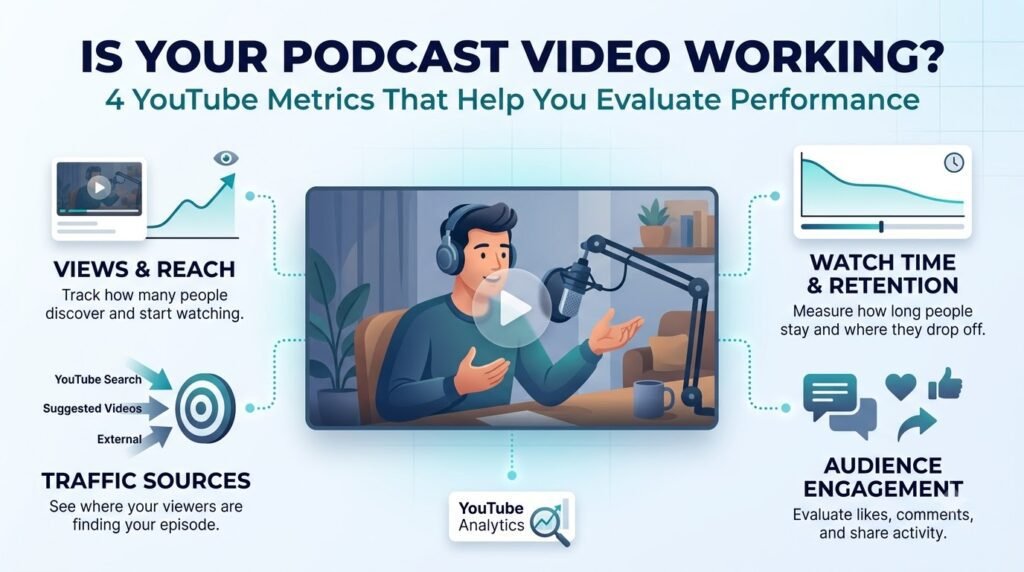
YouTube Studio Analytics can be applied to determine whether viewers find your episode interesting and what they think about it after watching.
First of all, consider impressions, click-through rate, views, watch time, traffic sources, and audience retention.
If viewers get bored at the beginning, you may want to improve the first few seconds, the quality of your voice, or the editing.
If the issue is with impressions, you need to re-examine your topic, title, and thumbnail rather than the format of your episode.
Moreover, it is essential to compare several episodes and take into account different angles rather than assess one video.
For instance, some viewers may be interested in a particular part of the show, whereas others will be disappointed with the first couple of minutes.
Therefore, if your first episode has a static image at the beginning, the next one may have a demo version of a product or a brief introduction.
In addition, it is possible to apply the information for the improvement of the next episodes. For example, if a significant number of viewers are getting bored at the beginning of your episodes, you may start the next episode later.
FAQs: How to Turn a Podcast Into a YouTube Video
Can you upload an MP3 directly to YouTube?
You need to create a video for the standard YouTube upload workflow because an MP3 alone isn’t a video file. You can combine it with an image or footage, or use eligible RSS delivery to create static-image videos.
Do you need to show your face in a podcast video?
No. You can use show artwork, an animated waveform, captions, or relevant footage instead. Camera footage is useful when it adds context, but it isn’t required for an audio-first episode.
What is the easiest way to convert a podcast into a video?
Combining your podcast audio with a static image is a straightforward method for a single episode. If your podcast already has an eligible RSS feed, YouTube’s RSS delivery option may reduce manual work.
Can you turn a podcast episode into YouTube Shorts?
Yes. You can select useful moments from a full episode and edit them into short vertical videos. Choose a moment that makes sense on its own, add readable captions, and keep the clip separate from the full-length podcast playlist.
Can AI create an entire podcast video?
AI tools can help with narration, transcription, captions, and some visual-production tasks, depending on the software. You should still review the final video and confirm that you have the necessary rights to use its audio and visual material.
Conclusion: How should you turn your podcast into a YouTube video?
Begin with the initial recording, opt for the simplest type of video that can accompany the episode and enhance the audio. Static images will suffice for many audio podcasts, while audiograms and video podcasts will offer additional context for episodes that require it.
Following that, edit the video, ensuring that the audio and captions are correctly placed, and upload the finished product via YouTube Studio.
Moreover, be sure to include the episode in a podcast playlist if needed, and start with one episode to understand how the audience will receive it. If the first episode appears to be in order and a new format is necessary, change the format.
About the author
Anshika Verma
Content researcher and writer at ytZolo
Email: anshika@ytzolo.com
Anshika Verma researches AI and creator tools, focusing on their practical uses, documented capabilities, and limitations. Her writing aims to distinguish verified product information from workflow recommendations so creators can make informed decisions.

