
Table of Contents
B-roll sounds simple until you actually edit a Youtube video.
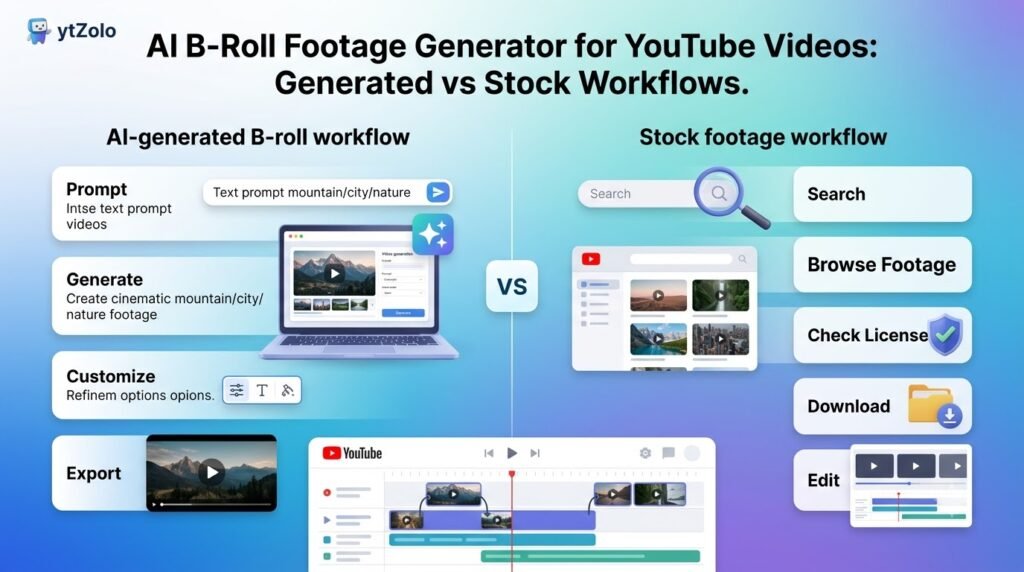
You have a finished script, narration, or talking-head recording. Then you need dozens of supporting shots: a laptop screen, a city street, a product close-up, an abstract concept or something that covers a jump cut.
That creates two very different problems. One is finding Existing footage that matches what you are saying. The other is creating footage that does not exist in a stock library.
Those jobs are increasingly handled by AI, but they are not the same thing.
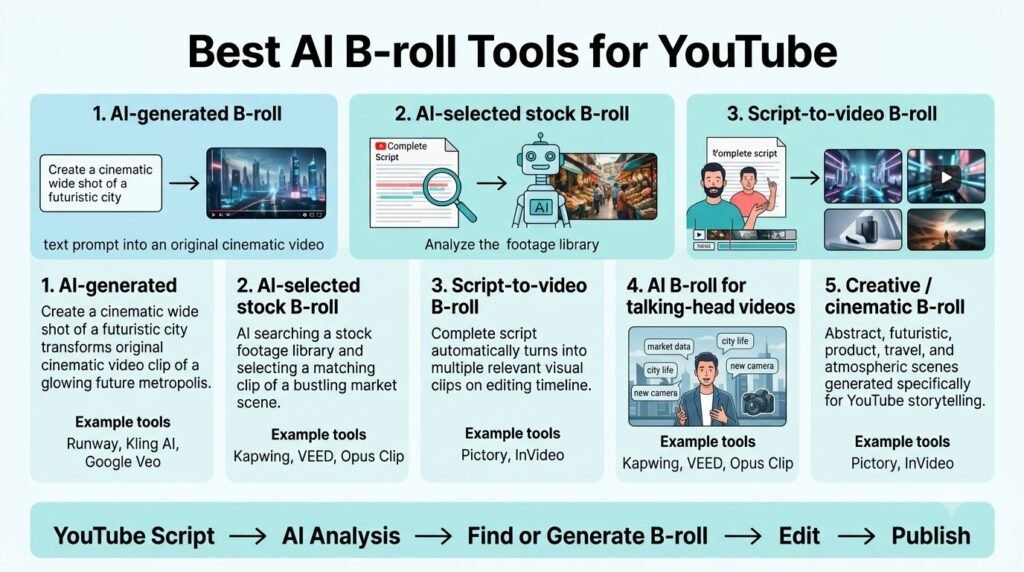
Some tools analyze your script or transcript and automatically select stock footage. Others generate completely new video clips from text or images. A third group combines both approaches inside a video editor.
That distinction is the foundation of this comparison.
Quick answer
An AI B-roll footage generator for YouTube videos can be a program that creates new clips out of prompts or a software that automatically discovers and inserts the existing footage according to your script or transcript.
For your everyday talking-head, educational, podcast, and explainer videos, the stock B-roll footage matching your script can save you hours of searching and editing.For unusual, fictional, highly specific, or impossible-to-film shots, generative AI is more useful.
Hybrid platforms such as Pictory, Fliki, Kapwing, InVideo, and OpusClip combine parts of both workflows, while Runway and Adobe Firefly provide stronger dedicated generative-video workflows. The right choice depends on whether your bottleneck is finding footage, creating footage, or assembling the two.
What is an AI B-roll generator?

B-roll is supporting footage placed over or around your primary footage, commonly called A-roll.
For youtube, B-roll can:
- illustrate something mentioned in narration
- cover jump cuts
- show a process or location
- demonstrate a product
- break up long talking-head sections
- provide visual context to an abstract idea
- create transitions between sections
An AI B-roll system adds automation to that process. The important question is what the AI actually does with the footage.
Type 1: AI-generated B-roll
The system creates a new video clip from a text prompt, image, and reference.
The system creates a new video clip from a text prompt, image, or reference.
For example:
“Cinematic close-up of a creator editing a YouTube video at night, shallow depth of field, slow camera push-in, warm desk lighting, 16:9.”
The output didn’t come from a stock library. It was generated.
Runway’s current Gen-4.5 workflow supports both text-to-video and image-to-video, with 16:9 output at 1280×720 and 720p resolution. Gen-4 supports 5- and 10-second generations.
Type 2: AI-selected stock B-roll
The AI doesn’t create the footage.
Rather, it analyzes your script, transcript, or video, and then searches in a stock library for footage that matches the context.
Pictory , for instance, automatically assigns visuals to text and allows creators to replace them with other options from its stock library. Its current library contains footage from providers such as Storyblocks and Getty Images.
Type 3: Hybrid B-roll
Hybrid systems combine the two.
Kapwing’s current AI B-roll process allows it to automatically match stock footage from places like iStock, Pexels, and Pixabay, but also for creators to be able to make their own images or videos from prompts.
This is important because a good YouTube workflow doesn’t typically need one approach for every scene.
AI-generated B-roll vs AI-selected stock B-roll
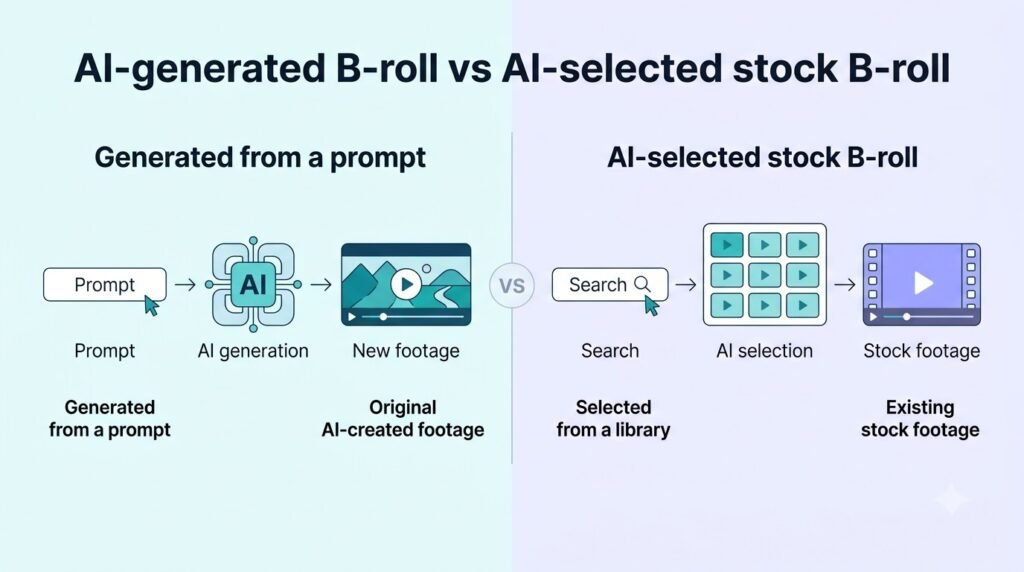
The difference becomes clearer when you look at the actual editing problem.
| Requirement | AI-generated footage | AI-selected stock footage |
| Need a realistic city street | Possible | Usually easier |
| Need a specific fictional scene | Strong fit | Usually difficult |
| Need an exact product demonstration | Risky unless using supplied references | Better if your own footage is available |
| Need real-world factual footage | Requires careful review | Licensed real footage may be preferable |
| Need a strange or impossible visual | Strong fit | Limited |
| Need 20 generic cutaways quickly | Can become expensive | Usually efficient |
| Need exact script matching | Depends on prompting | Transcript matching can help |
| Need visual originality | High potential | Limited by library |
| Need predictable licensing | Depends on model and plan | Depends on stock provider/license |
| Need fast editing | Requires generation and review | Often faster |
The key lesson is that “AI B-roll” doesn’t automatically mean AI-generated video.
A creator who spends hours searching for stock footage has a different problem from a creator who can’t find a specific shot anywhere.
Generated B-roll vs stock B-roll
Neither approach fits every Youtube scene.
Use generated B-roll when:
- the shot doesn’t exist in stock
- you need a fictional environment
- the visual represents an abstract idea
- you need a very specific camera movement
- you want a distinctive visual style
- the scene would be expensive or impossible to film
- you need a visual metaphor
Example:
“A miniature city made from circuit boards slowly powering on as the camera moves through the streets.”
Searching a stock library for that scene isn’t practical.
Generation makes more sense.
Use stock B-roll when:
- the subject is real and factual
- you need ordinary locations
- you’re showing common activities
- the video requires many supporting clips
- speed matters more than uniqueness
- you’re covering real events or places
- visual accuracy is important
For example, if your script says:
“The creator opens YouTube Studio and checks the retention graph.”
A screen recording of the actual YouTube Studio interface is generally more useful than an AI-generated approximation.
Use your own footage when accuracy matters most
For products, software interfaces, physical locations, demonstrations, and personal experiences, your own footage can be the most direct option.
AI-generated B-roll shouldn’t be used to visually imply that something actually happened when it didn’t.
How AI B-roll works for YouTube
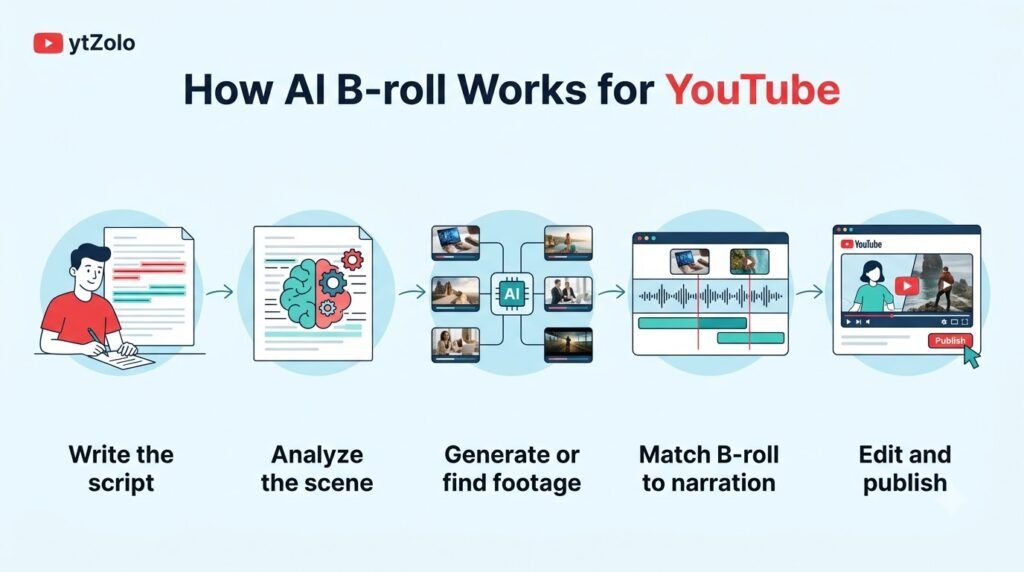
A practical AI B-roll workflow usually looks like this:
Script → visual breakdown → footage selection/generation → review → timeline placement → editing → export
The AI can intervene at several stages.
Script analysis
The system identifies nouns, actions, locations, concepts, and visual opportunities.
For example:
“The average creator spends hours manually searching for supporting footage.”
Possible visual suggestions:
- creator searching stock footage
- video editing timeline
- stock library search
- clock or time-lapse
- multiple browser tabs
Footage selection
A stock-oriented system searches its available media library.
Footage generation
A generative system takes a prompt and returns a new shot.
Placement
More advanced tools could place footage near to a relevant sentence or timestamp.
OpusClip, for example, can analyze an uploaded video and automatically add contextual B-roll. Its current workflow supports both AI-generated B-roll and Pexels stock footage.
Human review
This step is still needed.
AI can misinterpret a sentence, it can pull in an irrelevant stock shot, it can make an unrealistic object, or it can make a shot that aesthetically clashes with the rest of your video.
Best AI B-roll tools for YouTube
The following tools are grouped by the workflow they actually support rather than simply being labeled “AI video generators.”
1. Pictory
Pictory is particularly relevant when the starting point is a script, article, recording, or existing video.
What it does
Pictory can transform textual material into scene-based videos and automatically match visuals to the content. It additionally offers stock footage and AI-generated visual capabilities.
B-roll method
Hybrid.
It can leverage licensed stock footage and AI-generated visuals.
Pictory currently claims that its AI Studio can generate custom visual scenes with the use of models including PixVerse and Veo, and that its stock library includes Storyblocks and Getty Images.
YouTube suitability
It fits creators producing:
- educational videos
- explainers
- faceless videos
- article-to-video content
- narrated videos
- long-form informational content
Its script-based workflow is more relevant to YouTube than a standalone text-to-video model because the creator can move from written content to scenes and then edit those scenes.
Pricing
As of September 29, 2026, Pictory lists:
- Starter: $29/month monthly or $25/month billed annually
- Professional: $59/month monthly or $35/month billed annually
- Team: $199/month monthly or $119/month billed annually
- Enterprise: custom
The annual plans include large video minutes allowance and AI credits.
Credits and limits
Pictory’s AI credits are separate from its video-minute allowance.
For example, the current Starter plan includes 100 AI credits per month on monthly billing, while the Professional plan includes 500. The platform also has separate limits for exported video minutes.
That makes comparing raw credit numbers difficult to directly compare with Runway or other generation platforms.
Watermark
Paid Starter, Professional, and Team plans currently list no watermark.
Commercial use
Pictory says that its stock visuals are licensed according to its agreements with Storyblocks and Getty Images, while its generated videos are cleared for commercial use, according to its current product information.
It should also be noted that there is one YouTube specific thing about Pictory: it currently requires clearance codes for videos that contain Melodie music uploaded to YouTube from September 1, 2026 onward.
Limitations
Pictory is more useful when you want a complete scene-building workflow than when you simply want to generate one highly controlled cinematic shot.
Best use cases
Script-to-video, educational content, faceless explainers, article repurposing, and mixed stock/AI workflows.
Who may not need it
Creators who already have an editor and only need occasional custom AI-generated shots may prefer a dedicated generation platform.
2. Fliki
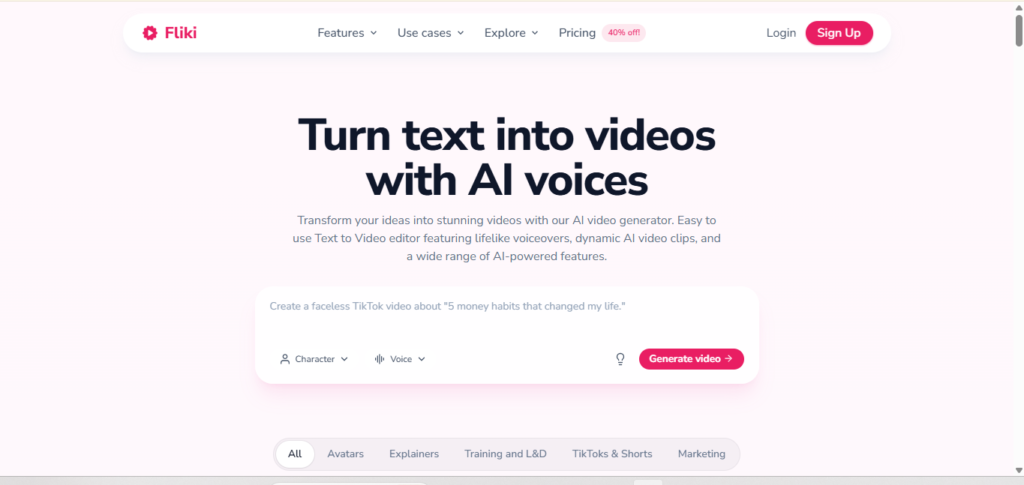
Fliki is primarily a script-to-video platform that includes narration, stock media, AI visuals, captions, and editing.
What it does
You can provide an idea, script, blog post, or presentation and build a narrated video around it.
Fliki’s current platform includes stock images, video clips and music, alongside AI-generated visuals. Its paid plans provide commercial rights.
B-roll method
Primarily stock-based, with AI-generated visuals available on higher tiers.
This distinction matters.
If your main requirement is “read my script and give each section a visual,” Fliki is closer to an automated script-to-video system than a standalone cinematic B-roll generator.
YouTube suitability
Fliki fits:
- faceless channels
- educational videos
- narrated explainers
- multilingual content
- article-to-video workflows
Pricing
Current monthly pricing is:
- Free: $0
- Standard: $28/month
- Premium: $88/month
- Enterprise: custom
Fliki’s current pricing page lists 180 monthly credits on Standard and 600 on Premium.
An annual promotional price could be different from the monthly billing, so it may be more appropriate to use the current pricing page instead of assuming that the annual discount will last forever.
Resolution and duration
The Standard plan currently supports 1080p and videos up to 15 minutes.
Premium allows for longer videos, up to 40 minutes according to the current pricing information.
Watermark
The Free plan includes a Fliki watermark.
Paid plans remove the watermark.
Commercial use
The current Standard plan includes commercial rights, while the Free plan does not.
Limitations
Stock matching can still produce footage that is technically related to a sentence but visually wrong for the exact point you’re making.
That means creators should review scene selection rather than exporting the first generated draft.
Best use cases
Narrated YouTube videos where the script is already written and the creator wants visuals, voiceover, captions, and editing in one workflow.
Who may not need it
Creators who only need a few original cinematic cutaways won’t get much value from its full script-to-video stack.
3. InVideo AI
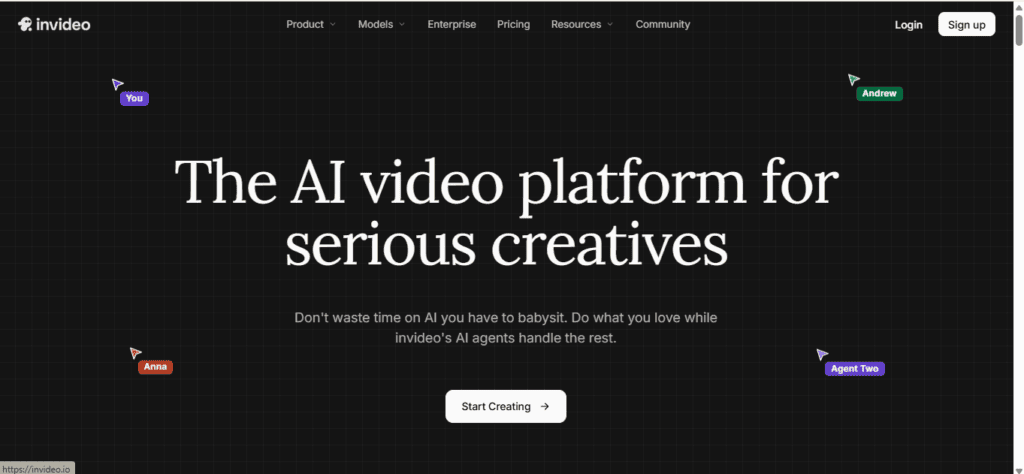
InVideo AI sits further toward the full production end of the spectrum.
What it does
The current InVideo ecosystem combines AI generation, stock footage, editing, audio, and other media models.
Its new Agent Two workflow can tap into more than 16 million premium stock videos, photos, and music tracks from suppliers such as Shutterstock and iStock, available with commercial licenses, according to InVideo.
B-roll method
Hybrid.
It can retrieve stock footage and generate new footage through its available AI models.
YouTube suitability
This makes it relevant to:
- faceless YouTube channels
- explainers
- product videos
- marketing videos
- script-to-video workflows
- creators wanting an integrated editor
Pricing
The current InVideo pricing page lists:
- Starter: $20/month per seat when billed annually, 400 credits
- Plus: $50/month per seat when billed annually, 2,000 credits
- Max: $100/month per seat when billed annually, 5,000 credits
- higher custom/team options may apply
The platform states that credits are used across video creation and generative models and that model costs can differ.
Credit system
This is an important distinction.
InVideo credits aren’t equivalent to “one B-roll clip.”
The number consumed depends on the model and operation. InVideo explicitly says generative models have different costs and that credit costs may change.
Watermark
The current free version includes a watermark, but paid versions allow for watermark-free exports.
Commercial use
Their Agent Two documentation even claims that stock footage and music from top suppliers can be used commercially.
Creators should be able to distinguish their stock assets from those of individual third-party AI models, as model-specific terms can vary.
Limitations
InVideo is broader than a B-roll tool.
If you’re already done with an edit and just want 3 custom cutaways, a video generator can allow for lower overhead in the process.
Best use cases
Creators who want AI-assisted script-to-video production with stock, generated media, narration, and editing in one environment.
4. Runway
Runway represents the dedicated generative-video side of this comparison.
What it does
Runway creates brand-new video clips from scratch using AI instead of searching through an existing collection of pre-made videos (a stock library) for extra footage (B-roll).
Its current Gen-4.5 workflow supports text-to-video and image-to-video generation.
B-roll method
Generated footage.
YouTube suitability
Runway is useful when you need:
- cinematic cutaways
- fictional environments
- visual metaphors
- unusual locations
- impossible shots
- custom product-style visuals
- atmospheric establishing shots
It is less about automatically building every B-roll insert from an entire YouTube script.
16:9 support
Gen-4.5 currently supports 16:9 at 1280×720 and 720p output. It also supports vertical, square, 4:3, 3:4, and 21:9 formats.
Clip duration
Gen-4 supports 5- and 10-second outputs.
The current documentation lists:
- Gen-4: 60 credits for 5 seconds
- Gen-4: 120 credits for 10 seconds
- Gen-4 Turbo: 25 credits for 5 seconds
- Gen-4 Turbo: 50 credits for 10 seconds
Credits
Runway currently gives:
- Free: 125 one-time credits
- Standard: 625 monthly credits
- Pro/Unlimited: 2,250 monthly credits
- Max: 9,500 monthly credits
The exact number of clips those credits produce depends on the model and duration. Gen-4.5, for example, uses 12 credits per second.
Watermark
Free generations contain a Runway watermark.
Standard and higher plans remove it.
Commercial use
Runway declares that the creators retain rights and can use the content created with Runway at will, without any non-commercial limitations from Runway.
This doesn’t absolve the creator of potential problems with other rights, such as trademarks, recognizable people, or deceptive depictions.
Limitations
The biggest workflow limitation is that generated footage still needs to be planned, generated, reviewed, and edited.
For a video with tens of ordinary visual references, generating each shot from scratch may be unnecessary.
Best use cases
Custom cinematic B-roll that stock libraries can’t provide.
Who may not need it
Creators who mainly need generic footage such as laptops, offices, travel locations, cooking, or business meetings may get faster results from AI-selected stock footage.
5. Adobe Firefly
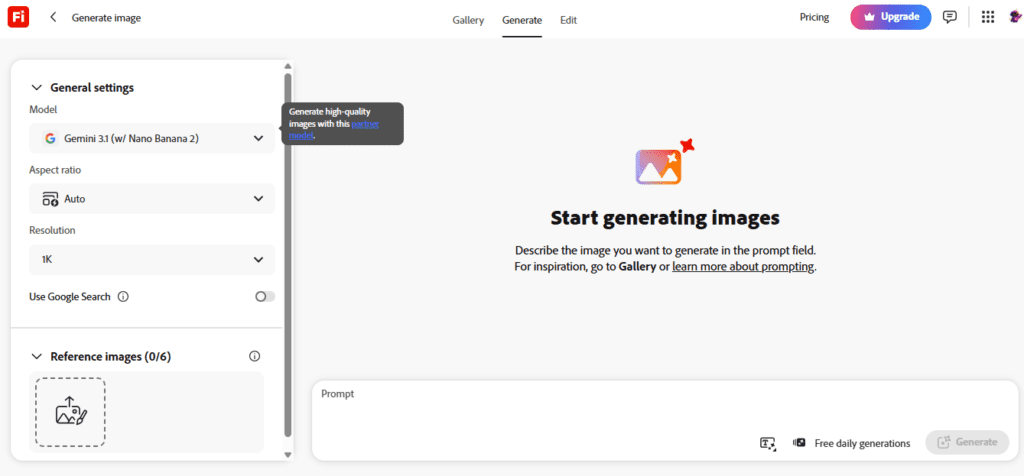
Adobe Firefly represents another hybrid environment, but the key to its value for B-roll lies in its generative video capabilities and integration into Adobe’s editing environments.
What it does
Firefly offers both text-to-video and image-to-video generation, plus access to partner models.
Current Firefly documentation lists models including Firefly Video, Veo, Kling, Luma and Runway depending on the workflow.
B-roll method
Generated footage, with multiple model options.
16:9 support
Firefly Video supports:
- 540p
- 720p
- 1080p
and:
- 16:9
- 9:16
- 1:1
The default Firefly Video duration is five seconds.
Partner models provide different limits.
For example, Firefly’s current Kling 3.0 integration supports 16:9 and 9:16, 720p or 1080p, and up to 15 seconds per shot.
Camera controls
Firefly currently supports camera and motion controls, including camera-motion reference workflows.
With the help of a reference video, creators can specify the way the camera moves or pans, zooms, tilts, and tracks.
Pricing
Current India pricing lists:
- Firefly Free: limited daily generations
- Firefly Standard: ₹797.68/month including GST, 2,000 credits
- Firefly Pro: ₹1,596.54/month including GST, 4,000 credits
- higher plans provide larger allocations
Adobe also lists team plans separately.
Watermark
Adobe’s current Firefly plan information does not list a mandatory Firefly watermark on paid outputs in the way Runway’s Free plan does.
Commercial use
Adobe says outputs from its Firefly models are designed for commercial use, with models trained on licensed and public-domain content. However, Adobe specifies that partner models may have different terms of use.
That distinction is important when you use a model such as Runway, Kling, or another partner model through Firefly.
Limitations
Firefly’s model choice is powerful but makes the credit system and licensing question more complicated.
Two generations made inside the same interface may be governed by different model terms.
Best use cases
Creators already working in the Adobe ecosystem who need custom 16:9 B-roll and want multiple generative models available in one production environment.
6. Kapwing
Kapwing takes a different approach.
Rather than asking the platform’s creators to generate videos and images one by one, Smart B-roll’s workflow analyzes the transcript of an existing video and inserts relevant footage.
What it does
Kapwing says its AI B-roll tool:
- analyzes the transcript
- identifies important topics and visual moments
- searches relevant media
- places B-roll automatically
- lets the creator edit the result on the timeline
The stock sources include iStock, Pexels, and Pixabay, and the company’s AI tools can generate custom images and video.
B-roll method
Hybrid.
Input types
The main process begins with a video uploaded by the user that has a piece of audio that contains speech.
Kapwing specifies that the speech is necessary as the AI needs to comprehend the context of the video.
YouTube suitability
This makes it particularly relevant to:
- talking-head videos
- tutorials
- product reviews
- podcasts
- educational videos
- interviews
Custom generation
If a particular footage cannot be located, the user may also request AI-generated material. Currently, Kapwing offers multiple models, including MiniMax, Veo, and Seedance, to create images of the user’s choice.
Editing
B-roll can be trimmed, resized, repositioned, replaced, and edited directly on the timeline.
That matters because automatic placement isn’t the same as a finished edit.
Pricing and credits
Kapwing’s AI features are based on a system of credits. The amount of it required depends on the type of tool and the chosen model. The current state of the B-roll page suggests that free users can test the workflow, while Pro offers more access.
To make the right choice when buying, it would be better to check the current price page and compare the available credits with a similar offer from another company.
Best use cases
Creators who already have a talking-head recording and want AI to find and place supporting visuals automatically.
7. OpusClip
OpusClip is particularly relevant when the starting point is an existing long-form video.
What it does
OpusClip can analyze an uploaded or linked video and add contextual B-roll automatically.
It supports both AI-generated B-roll and stock B-roll from Pexels.
B-roll method
Hybrid.
Input
The workflow starts from existing video.
For supported sources, OpusClip currently accepts links from YouTube, Google Drive, Vimeo, Zoom, Twitch, Facebook, LinkedIn, Twitter, Loom, Riverside, and StreamYard.
Stock footage
OpusClip says its stock B-roll comes from Pexels and that paid users can use the stock B-roll subject to the underlying provider’s guidelines.
AI-generated footage
Creators can pick a sentence and make B-roll, or re-make an existing AI B-roll suggestion with a new prompt.
Limitations
OpusClip is strongest when your workflow begins with recorded material.
If you are writing a YouTube script and need to create a whole visual sequence before recording anything, then a script-to-video tool maybe fits more naturally into your workflow.
Best use cases
Podcasts, interviews, talking-head videos, webinars, and long-form footage being repurposed into shorter videos.
Feature-by-feature comparison
The table below deliberately avoids treating all “credits” as equivalent.
| Tool | B-roll approach | Script/transcript matching | Text-to-video | Image-to-video | 16:9 | Output/resolution | Watermark | Commercial-use information |
| Pictory | Hybrid | Yes | Yes | Yes | Yes | Up to 1080p on listed plans | No on paid plans | Licensed stock and commercial-use information published |
| Fliki | Stock + AI visuals | Yes | Yes | Limited/available through AI workflow | Yes | Up to 1080p on Standard | Free has watermark | Commercial rights on paid plans |
| InVideo | Hybrid | Yes | Yes | Yes | Yes | Model-dependent | Free has watermark | Commercially licensed stock stated |
| Runway | Generated | No dedicated script-to-B-roll workflow | Yes | Yes | Yes | Gen-4.5: 720p | Free has watermark | Runway permits commercial use |
| Adobe Firefly | Generated/model hub | Partial | Yes | Yes | Yes | Firefly Video up to 1080p; model-dependent | Model/plan dependent | Firefly models designed for commercial use; partner terms vary |
| Kapwing | Hybrid | Yes | Yes | Yes | Yes | Model/export dependent | Plan-dependent | Stock/model-specific terms apply |
| OpusClip | Hybrid | Yes, from source video | Yes, for AI B-roll | Available in B-roll workflow | Supports multiple formats | Export depends on plan/workflow | Plan-dependent | Stock use follows underlying provider terms |
Pictory’s current plan page lists 1080p exports and its stock licensing information is documented separately.
Fliki lists 1080p paid exports, a 15-minute Standard video limit, and commercial rights on its Standard plan.
Runway’s current Gen-4.5 documentation specifies 16:9 1280×720 output, while its Gen-4 documentation lists 5- and 10-second clips.
Adobe’s available resolutions, aspect ratios and durations vary by model, which is why model-specific documentation is more useful than a single Firefly-wide specification.
How much does usable B-roll actually cost?
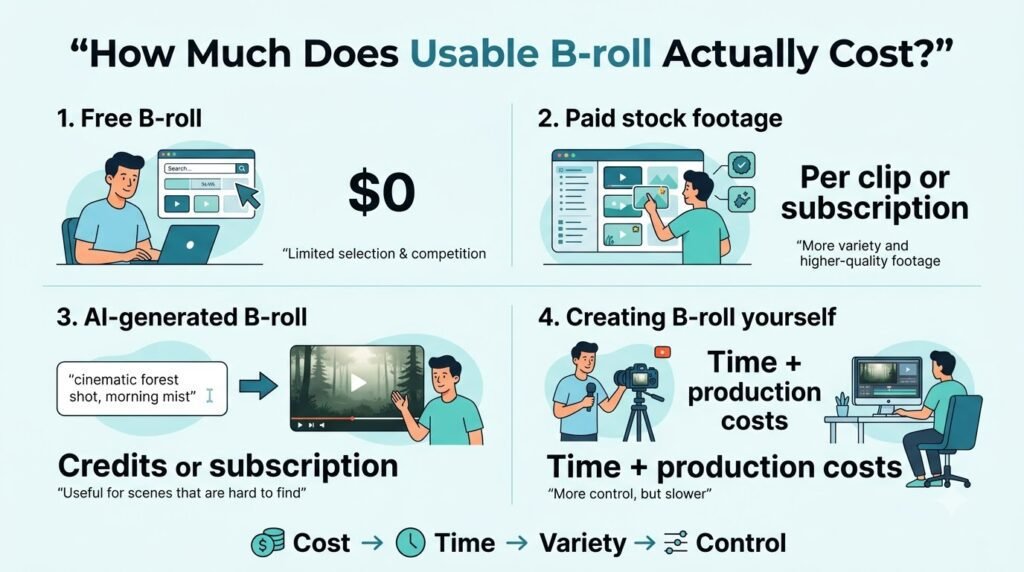
The subscription price isn’t the same as the cost of usable B-roll.
This is particularly obvious with generative video.
Suppose a model generates a five-second clip.
If the first generation works, the cost is relatively straightforward.
If you generate the shot four times before finding something usable, your practical cost is closer to four generations.
Runway makes this visible by the pricing that is determined by the seconds of the generation and the model’s use. Gen-4.5 currently consumes 12 credits per second, while Gen-4 and Gen-4 Turbo have their own rates.
Stock-based B-roll has a different cost structure.
The subscription usually provides access to the media library, while the more significant expenditure may be the time spent looking for, previewing, downloading, replacing, and editing clips.
That means a 25–60 monthly video platform isn’t automatically cheaper or more expensive than a generative model.
The meaningful calculation is:
monthly subscription + generation retries + editing time + licensing requirements = practical B-roll cost
For a creator making 20 videos per month, saving 30 minutes of footage searching on each video can matter more than a small difference in subscription price.
How to choose an AI B-roll generator for YouTube
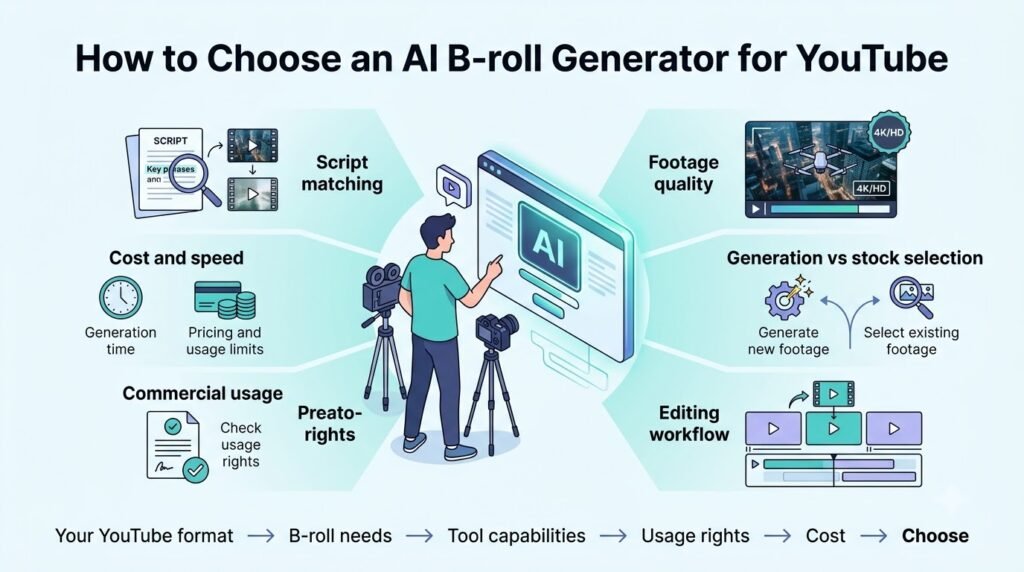
Start with the workflow, not the model name.
If you already have a talking-head video
Look for transcript-based B-roll placement.
Kapwing and OpusClip are particularly relevant to this workflow.
If you have a finished script
Look for script-to-video tools that can automatically associate scenes with visuals.
Pictory and Fliki fit this workflow.
If you need custom cinematic shots
Look at dedicated generative-video platforms.
Runway or Adobe Firefly provide more control over generated footage.
If you want stock and generation in one workflow
A hybrid platform would allow switching between tools less.
Pictory, InVideo, Kapwing, Fliki, and OpusClip all combine different parts of the workflow.
If your videos are mostly factual
Focus on getting the visuals right rather than making it pretty
For instance, a finance video might need a real chart or screenshot, whereas an AI generated graphic might have faulty figures or interface.
How to create better AI B-roll prompts
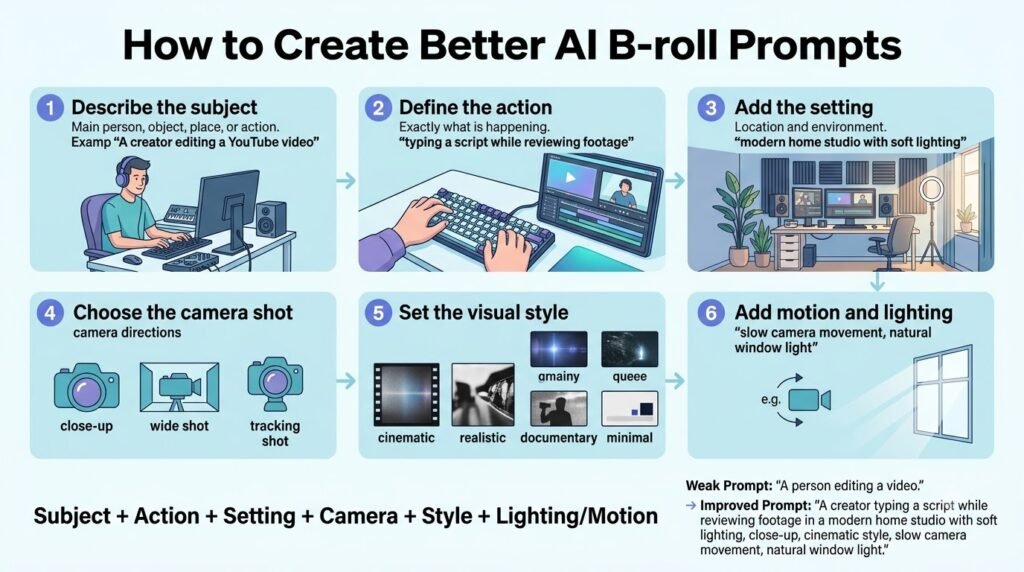
A useful B-roll prompt doesn’t need to be enormous.
Use this structure:
Subject + action + location + camera + lighting + visual style + composition + aspect ratio
Example 1: YouTube editing
Close-up of a creator editing a YouTube timeline on a desktop monitor, hands on keyboard and mouse, modern home studio, slow camera push-in, soft evening lighting, realistic documentary style, shallow depth of field, 16:9.
Example 2: Technology explainer
Macro shot of a modern computer processor on a circuit board, subtle electrical activity, slow lateral camera movement, cool studio lighting, realistic commercial product footage, clean background, 16:9.
Example 3: Business video
Small business owner reviewing analytics on a laptop in a bright office, natural window light, over-the-shoulder composition, slow handheld movement, realistic documentary footage, 16:9.
Example 4: Abstract concept
A stream of glowing data moving through a dark network of connected nodes, slow forward camera movement, subtle depth of field, restrained blue-white lighting, cinematic technology visualization, 16:9.
Don’t over-specify everything
Adding 40 instructions to a prompt don’t necessarily lead to a better shot.
Focus on the visual information that actually matters to the edit.
Adobe’s current guidance on the other hand, says to be specific about subject, motion, style, lighting, and camera attributes in a video.
A practical script-to-B-roll workflow
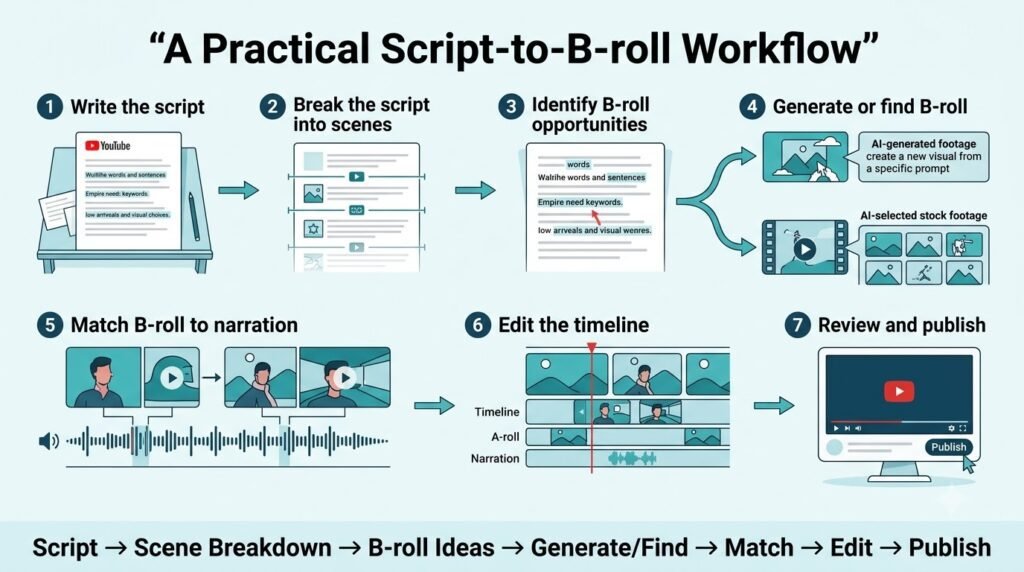
For a 10-minute YouTube video, don’t ask AI to generate 10 minutes of footage.
Break the script into visual beats.
Step 1: Mark visual opportunities
Take your narration and identify:
- facts
- actions
- locations
- objects
- examples
- transitions
- abstract concepts
Step 2: Decide the footage source
For every beat, choose:
Own footage → screen recording → licensed stock → AI-generated footage
This easily understandable hierarchy prevents unnecessary generation.
Step 3: Generate only missing shots
If a suitable clip is available in the stock library, do not generate it simply because AI can.
Use generation for the shots where it provides something the existing library cannot.
Step 4: Keep shots short
B-roll doesn’t need to remain on screen for 20 seconds.
A five second generated clip can often cover a sentence, transition, or visual example.
Step 5: Esdit around the narration
The B-roll should support the spoken point.
Don’t make the viewer watch a beautiful AI shot that has nothing to do with what you’re saying.
Common AI B-roll mistakes
1. Generating footage for everything
AI generation is not automatically better than stock.
For generic footage, generation can add unnecessary cost and review time.
2. Matching keywords instead of meaning
A script can mention “Apple,” for example.
A keyword-based system might interpret that as fruit.
The correct visual depends on the context.
AI tools that understand the bigger picture can help match b-roll footage more accurately, but creators should still check every single edit themselves.
3. Ignoring visual continuity
A video can quickly become inconsistent if one B-roll clip looks like a documentary, the next looks like a glossy advertisement, and the next looks like an AI animation.
Use consistent:
- lighting
- lens style
- color treatment
- camera movement
- visual realism
4. Trusting AI-generated text inside footage
AI video models can still struggle with precise text.
Avoid using generated footage as the source of truth for:
- product names
- website interfaces
- statistics
- charts
- prices
- legal documents
- software screens
Use real screenshots or recordings instead.
5. Using AI footage to imply real events
This creates a factual problem, not just a visual-quality problem.
If your video is about real places, events or people, make it clear when AI footage is illustrative and not real.
6. Forgetting licensing
“AI-generated” doesn’t mean “every possible use is automatically permitted.”
Licensing can depend on:
- the platform
- the subscription tier
- the model
- the stock provider
- whether the content contains third-party intellectual property
For example, Luma’s current licensing documentation says Free and Lite generations are personal-use only and watermarked, while Plus, Unlimited, and Enterprise generations have commercial rights and no watermark.
That’s why licensing should be checked before production rather than after publishing.
AI B-roll and YouTube policies
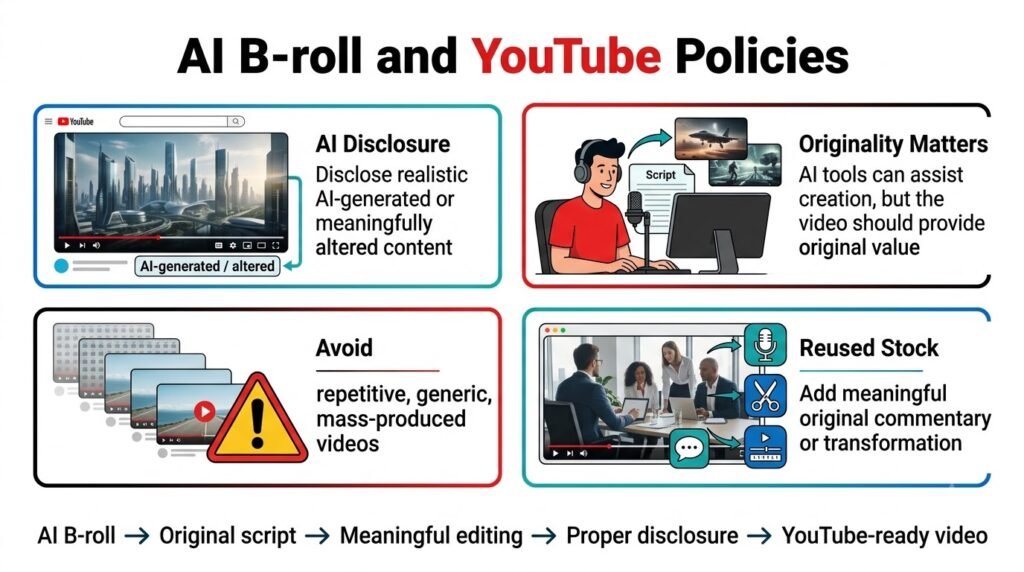
Using AI footage does not necessarily make a YouTube video non-monetizable.
The bigger issue is the value and originality of the finished content.
In addition, YouTube changed the name of its “repetitious content” policy to inauthentic content in July 2025, stating that repetitive or mass-produced content can be ineligible for monetization.
YouTube also renamed its “repetitious content” policy to inauthentic content in July 2025, clarifying that repetitive or mass-produced content can be ineligible for monetization.
That does not mean AI B-roll itself is prohibited.
A creator may use AI footage as one production element in their video including their own narration, analysis, demonstrations, editing, and storytelling.
It is a concern when a channel regularly produces multiple videos with little to no original content.
YouTube even gives examples of such as using generic templates, repetition, and AI footage that does not have original or unique information or perspective.
When do you need to disclose AI-generated footage?
YouTube currently asks creators to disclose uses of AI to substantially alter or generate realistic content.
Examples include:
- generating a realistic scene that never happened
- altering footage of a real event or location
- making a real person appear to do something they didn’t do
YouTube’s help documentation currently states that creators can disclose this by selecting the AI-use option during upload.
In contrast, YouTube gives common examples of production assistance, like generating an outline, script, title, thumbnail, infographic, captions, or audio repair, as ones that don’t need disclosure by themselves.
For B-roll, the important question is therefore not simply “Did AI touch this video?”
It’s:
“Did AI create or meaningfully alter realistic content in a way that should be disclosed?”
When in doubt, review the current YouTube disclosure guidance before publishing.
Where ytZolo fits into the B-roll workflow
ytZolo should not be treated as a direct B-roll generator unless its current product capabilities explicitly expand into that category.
Its current website positions it around YouTube content production, including:
- script generation
- thumbnail generation
- titles
- descriptions
- tags
- content ideas
- multiple AI models
- AI Audio Studio features
That makes ytZolo relevant before the B-roll stage.
A creator can use the workflow like this:
Topic → script → visual planning → B-roll → edit → title → thumbnail → description → tags
The script is particularly important because it becomes the source material that many B-roll systems analyze.
This recommendation also applies to ytZolo’s existing YouTube script guidance, which suggests marking pattern interrupts like [B-ROLL], [GRAPHIC], and [ZOOM] during script preparation.
That creates a practical connection between script development and later B-roll editing.
For example, a script could contain:
[B-ROLL: YouTube Studio retention graph]
or:
[B-ROLL: creator searching stock footage]
The B-roll tool can then be used later to source or generate those visuals.
For related workflow guidance, see ytZolo’s existing articles on YouTube script writing best practices, AI-generated content for YouTube, and YouTube SEO titles and descriptions.
What current search results are missing
The current landscape of search has an ample number of “best AI B-roll generator” lists, but there are a couple of recurring omissions
1. They mix different categories
Certain comparisons feature Runway alongside stock-matching tools, but do not note that one produces footage while the other retrieves footage.
This leads to an artificially misleading comparison in terms of pricing and features.
2. They focus on visual quality instead of workflow
A beautiful five-second AI clip does not answer whether it can process a twelve-minute YouTube script and put appropriate visuals throughout it.
The workflow matters.
3. Credit numbers are often compared directly
A platform’s 1,000 credits aren’t necessarily equivalent to another platform’s 1,000 credits.
One may charge by video second. Another can bill by generation. Still, another can use credits for narration, avatars, images, and video concurrently.
4. Licensing is underdeveloped
A tool can generate excellent footage but still require a meticulous review of the commercial rights, model-specific terms, stock-provider licenses, or plan limitations.
5. YouTube-specific questions are often missing
Creators need to know:
- Is 16:9 available?
- Can the tool start from a script?
- Can it work from a transcript?
- Can it add B-roll to an existing video?
- Can it produce short cutaways?
- Is 1080p available?
- Is the output watermarked?
- Can the output be monetized?
- Does realistic AI footage need disclosure?
These questions are more useful than a generic “AI video quality” score.
6. The actual cost of usable footage is rarely discussed
Generation retries, rejected clips, editing time, and replacement footage can materially change the economics.
That’s especially important for creators publishing weekly or several times per week.
FAQ
What is the best AI B-roll footage generator for YouTube videos?
There isn’t one workflow that fits every YouTube creator.
For script-driven stock and AI visuals, tools such as Pictory and Fliki are relevant. For transcript-driven automatic B-roll placement, Kapwing and OpusClip are relevant.
For custom generated footage, Runway and Adobe Firefly provide dedicated generative-video workflows.
Can AI generate B-roll directly from a YouTube script?
Yes, some platforms can.
Both Pictory and Fliki offer the ability to use a script as a source for scene-based video generation, with others being focused on analyzing either a video or transcript.
Can AI B-roll generators create 16:9 footage?
Yes.
Runway offers 16:9 outputs, while Adobe Firefly provides the 16:9 outputs as well for relevant models. Other script-to-video platforms also support landscape YouTube workflows.
How long are AI-generated B-roll clips?
It depends heavily on the model.
Runway Gen-4 currently supports five- and ten-second generations. Adobe Firefly is available with durations that vary by model; examples in partner-model documentation include four- to 15-second lengths.
Longer YouTube videos are normally assembled from multiple shots rather than generated as one continuous B-roll clip.
Is AI-generated B-roll copyright free?
Don’t treat “AI-generated” as a universal copyright guarantee.
The usage rights are determined by the provider, subscription, model, and content.
Runway permits commercial use of generated content under its terms, while Luma currently restricts commercial use on its Free and Lite plans.
Can I monetize YouTube videos containing AI B-roll?
AI use by itself does not automatically make a video ineligible for monetization.
YouTube requires monetized content to meet its originality, non-repetition, rights, and other policy requirements.
Does AI B-roll need to be disclosed on YouTube?
Realistic AI-generated or meaningfully altered content may require disclosure.
YouTube specifically lists realistic generated scenes that never happened and altered real events or places among the examples requiring disclosure.
Is stock B-roll better than AI-generated B-roll?
They solve different problems.
Stock footage is often practical for real-world, generic, or factual scenes. AI generation is useful when the required shot is highly specific, fictional, abstract, or unavailable in a stock library.
Can AI B-roll replace video editing?
Not completely.
AI can automate searching, generating, scene matching and placement, but a creator still has to ensure relevance, pacing, continuity, factual accuracy, licensing and the narrative itself.
Should every sentence in a YouTube video have B-roll?
No.
B-roll should enhance the story rather than distract with visuals. Some statements are best delivered in a form of A-roll, screenshots, graphics, a demonstration, or a pause.
Conclusion
The phrase AI B-roll footage generator for YouTube videos covers several different technologies.
Some platforms find their own stock footage. Some create new footage. And some combine the two, with elements of script analysis and editing.
The practical choice starts with the problem you’re trying to solve.
If you’re spending hours hunting for generic footage, you’ll appreciate being able to automatically match stock footage to a script.
If you can’t find the exact visual you need, generative video can create a new option.
If you need to create complete videos from scripts, then a hybrid script-to-video platform will be a more sensible option than a standalone generator.
The most useful workflow is often not AI-generated footage everywhere. This is especially the case if you have to choose between your own footage, licensed stock, and b-roll generated by the program for each scene — which is the best option in each case.
That approach also keeps the human part of YouTube production where it belongs: deciding what the viewer should see, why they should see it, and how it supports the story.
Author
Anshika Verma is a content researcher and writer at ytZolo who researches and evaluates AI and creator tools, focusing on practical workflows, current product capabilities, and evidence-based comparisons.
Email: anshika@ytzolo.com

