
If you’ve ever spent forty-five minutes wrestling with layers in an editor just to end up with a thumbnail that still doesn’t look “clickable,” you’re not alone. Thumbnails are quietly one of the highest-leverage pieces of a YouTube video, and yet most creators treat them as an afterthought squeezed in right before hitting publish.
That’s changed fast. A free AI YouTube thumbnail maker can now take a text prompt, a screenshot, or a selfie and turn it into a polished, on-brand thumbnail in under a minute — no layers, no gradients, no fighting with font kerning. But “AI thumbnail maker” has become a crowded, noisy category, and free plans vary wildly in what they actually let you do before pushing you toward a paywall.
This guide breaks down how AI thumbnail generation actually works, which free tools are genuinely worth your time in 2026, what their limitations are, and how to build a thumbnail strategy that doesn’t rely on guesswork. We researched official product pages, pricing documentation, and independent creator reviews to keep this accurate and current — no recycled “best of” lists, no invented statistics.
Quick Summary: If you want the fastest path to a usable thumbnail with zero learning curve, Canva’s Magic Media and Adobe Express’s Firefly-powered generator are the most dependable free starting points.
If you publish daily and burn through AI credits fast, a template-first tool like Snappa or VistaCreate paired with manual polish may serve you better long-term than a credit-metered AI thumbnail maker free tier.
Table of Contents
What Is a Free AI YouTube Thumbnail Maker?

A free AI YouTube thumbnail maker is a web-based design tool that uses machine learning models to generate, edit, or enhance thumbnail images from a text prompt, an uploaded photo, or a video frame — at no cost, at least up to a usage limit.
Unlike a plain YouTube thumbnail generator built purely on drag-and-drop templates, an AI thumbnail maker adds a generative layer on top. You describe what you want (“a shocked streamer reacting to a phone screen, neon background, bold red text”) and the model produces several image options for you to pick from and refine.
How AI Generates Thumbnails
Most AI thumbnail generator tools rely on diffusion-based image models — the same family of technology behind general-purpose AI image generator platforms — trained to interpret a text prompt and produce a matching image. Some tools, like Adobe Express, lean on proprietary models (Firefly) trained specifically on licensed content for commercial safety.
Others integrate third-party frontier models. The output quality, prompt accuracy, and text-rendering ability differ noticeably between them, which is why testing more than one AI thumbnail creator before committing to a workflow is worth the extra ten minutes.
How Templates Work
Template-based tools work differently. Instead of generating pixels from scratch, they offer a pre-designed library — thousands of layouts built by human designers — that you customize by swapping in your own photo, adjusting the text overlay, and tweaking colors. This is the model Snappa, VistaCreate, and much of Canva’s non-AI workflow are built around.
AI Generation vs. Template Editors
The practical difference matters when you’re choosing a YouTube thumbnail AI workflow:
- AI generation is faster for ideation and works well when you don’t have strong source footage or a clear visual concept yet.
- Template editors give you more predictable, on-brand results and don’t burn through a metered credit system.
Many creators end up using both: AI generation for a background or concept, then a template editor for text, branding, and final polish.
Why Thumbnails Matter for YouTube Growth
A thumbnail’s job is simple to state and hard to execute: stop the scroll and earn the click, without misrepresenting the video.
Click-through rate (CTR) is the percentage of people who see your thumbnail in search, suggested videos, or subscription feeds and actually click it. Thumbnails and titles work together to set that first impression — YouTube’s own Creator Academy has long emphasized that a compelling thumbnail-title pairing is one of the strongest levers a creator has over discovery, because the platform’s recommendation system factors in how viewers respond to what they’re shown.
A few things a strong thumbnail creator workflow should account for:
- First impressions — most viewers decide whether to click within a second or two of seeing a thumbnail, so clarity and contrast matter more than intricate detail.
- Brand consistency — channels that use a repeatable color palette, font, or layout style become instantly recognizable in a crowded feed, which builds trust over time.
- YouTube’s recommendation behavior — while YouTube doesn’t publish an exact CTR benchmark, its guidance consistently frames thumbnails as part of the signal that influences whether a video gets surfaced to more viewers.
We’re intentionally not citing a specific average CTR percentage or “X% CTR boost” figure here — those numbers vary enormously by niche, audience size, and video type, and many of the statistics circulating in AI thumbnail maker marketing pages aren’t independently verifiable. What’s consistently true across creator advice from Google and YouTube is that clarity beats cleverness, and testing beats guessing.
💡 Expert Tip: Before reaching for any YouTube thumbnail AI tool, pull up ten thumbnails from the top-performing videos in your niche and study what they have in common — not to copy them, but to understand the visual language your audience already responds to.
How AI Thumbnail Makers Work

Whether you’re using a free AI thumbnail generator or a paid one, most tools combine several distinct AI-powered features under one roof. Understanding each helps you evaluate which AI design tool actually fits your workflow.
Text-to-Image Generation
You type a description and the model produces multiple image options. Quality and prompt-following accuracy vary a lot between tools — this is usually the single biggest differentiator in an AI thumbnail generator comparison.
Background Removal
Isolates a subject (usually a face or product) from its original background so it can be placed onto a new scene. This is one of the most consistently useful AI features across nearly every thumbnail creator online, free or paid.
Object Selection and Replacement
Some tools let you click a region of a generated or uploaded image and describe a change — swapping a shirt color, adding a prop, or changing an expression — without regenerating the whole image from scratch.
Text Overlays
Nearly every AI thumbnail maker free tier includes some form of text tool, but the better ones offer AI-assisted font pairing and auto-contrast so your headline stays readable against any background.
Templates
Even AI-first tools usually keep a template library as a fallback or starting point, because pure generation isn’t always faster than starting from a well-designed layout.
Face Enhancement
Sharpens, relights, or subtly retouches a face in the thumbnail — useful for creators who rely on expressive reaction shots.
Color Optimization
Auto-adjusts saturation and contrast to make a thumbnail pop against YouTube’s white or dark interface, and against neighboring thumbnails in a crowded results page.
Export Formats
Standard exports are JPEG or PNG at YouTube’s required 1280×720 minimum resolution (16:9 aspect ratio, under 2MB). Free plans on several tools cap resolution or add watermarks — always check this before you commit to a workflow.
Best Free AI YouTube Thumbnail Makers (2026)
We researched official pricing and feature pages plus independent 2026 reviews for each tool below. Free-plan limits change often, so treat the specifics as a snapshot and always confirm current limits on the provider’s site before you build a workflow around them.
1. Canva
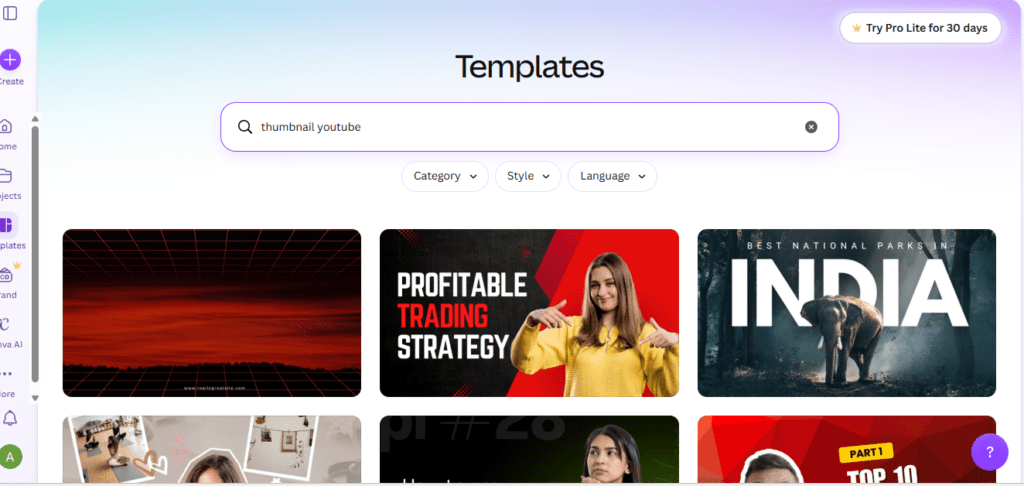
Overview: Canva remains the most widely used AI design tool for creators who want one platform for thumbnails, banners, and social graphics. Its AI thumbnail maker runs on Magic Media, which <cite index=”2-1″>lets you generate thumbnail image suggestions by describing your video and choosing from style presets across photography, digital art, fine art, and pixel art categories</cite>.
Free plan limitations: <cite index=”2-1″>Free users get a limited number of AI image generations per day</cite>, and <cite index=”3-1″>the free plan restricts transparent-background exports, compression control, and access to premium elements and stock photos</cite>.
Pros:
- Huge template library alongside AI generation
- Very low learning curve for beginners
- Real-time team collaboration on designs
Cons:
- Daily AI generation caps on the free tier
- Best assets and the background remover sit behind Canva Pro
Best for: Beginners and creators who want thumbnails, banners, and social posts in one ecosystem.
Pricing: Free plan available. <cite index=”7-1″>Canva Pro starts at $14.99/month for one person</cite>.
2. Adobe Express
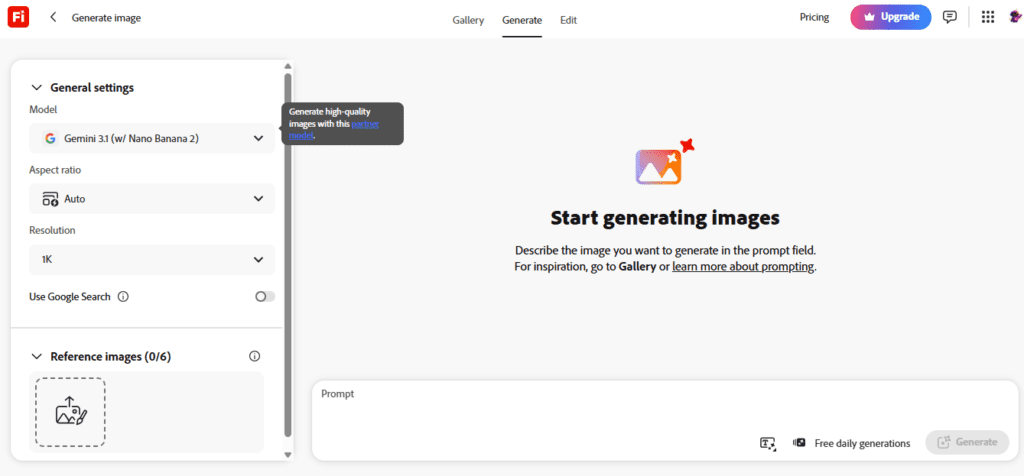
Overview: Adobe Express offers a dedicated AI thumbnail generator built on Adobe Firefly. <cite index=”12-1″>You describe your thumbnail, click generate, and receive four results at once, which you can refine with reference images or adjusted style settings</cite>. Because <cite index=”19-1″>Firefly is trained on licensed Adobe Stock content and public domain material</cite>, it’s a strong pick if commercial safety matters to your channel.
Free plan limitations: <cite index=”14-1″>The free plan includes only 25 generative AI credits per month</cite>, and <cite index=”12-1″>each generation costs 1 credit for four images</cite> — so free users get roughly 25 generation rounds before hitting the wall.
Pros:
- Commercially safe AI model trained on licensed content
- Four image variations per prompt for quick A/B options
- Deep integration with the wider Adobe ecosystem
Cons:
- Credits run out quickly for daily uploaders
- Slightly steeper learning curve than Canva for first-time users
Best for: Creators already using Adobe tools, or anyone who wants AI output with clear commercial-use terms.
Pricing: Free plan available. <cite index=”16-1″>Premium runs $9.99/month</cite>.
3. Fotor
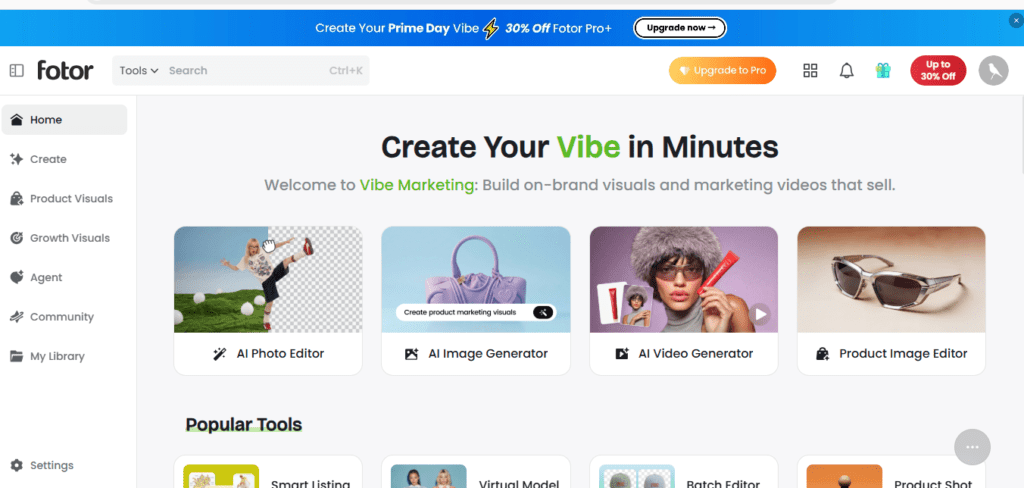
Overview: Fotor pairs a photo editor with an AI thumbnail generator. <cite index=”30-1″>You describe your channel theme, style, and key visual elements, and Fotor’s AI handles layout, subject cutout, background composition, and even facial expression changes</cite> to make a thumbnail more expressive.
Free plan limitations: Fotor Basic is free with limited AI image credits; <cite index=”31-1″>the free plan adds watermarks to exports</cite>, which is a dealbreaker if you need clean, publish-ready files.
Pros:
- Batch generation for testing multiple thumbnail variations
- Facial expression and close-up editing tools
- Affordable entry-level paid tier
Cons:
- Free exports carry a watermark
- AI image quality trails top-tier frontier models
Best for: Budget-conscious creators who want AI editing without a steep price jump.
Pricing: Free plan available. <cite index=”26-1″>Pro is $8.99/month with 100 credits</cite>.
4. Picsart
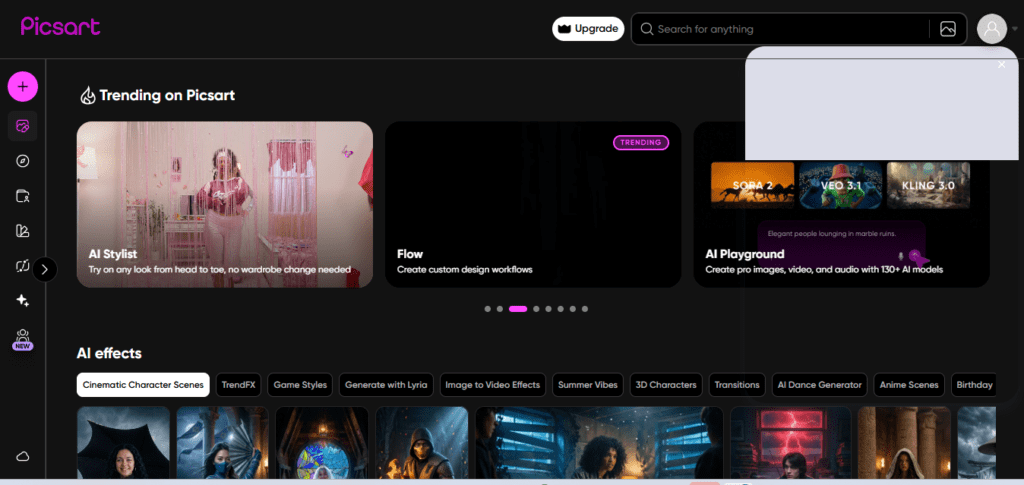
Overview: Picsart is a mobile-first, all-in-one creative app combining photo editing, AI generation, and templates. <cite index=”23-1″>The free tier includes core photo editing tools plus limited AI features, including a handful of daily background removals and AI generations</cite>.
Free plan limitations: <cite index=”26-1″>The free plan is capped at 5 AI credits per week and 100 MB of storage</cite>, and <cite index=”23-1″>watermarks appear on AI-processed outputs</cite>.
Pros:
- Strong mobile app for on-the-go editing
- Broad toolset beyond just thumbnails (video, collage, effects)
- Active background-removal and object-replacement AI tools
Cons:
- Weekly AI credit limit is tight for regular creators
- Free tier lacks a commercial usage license for most content
Best for: Mobile-first creators who want one app for photo, video, and thumbnail work.
Pricing: Free plan available. Paid plans start around <cite index=”26-1″>$13/month for the Plus tier</cite>.
5. Microsoft Designer
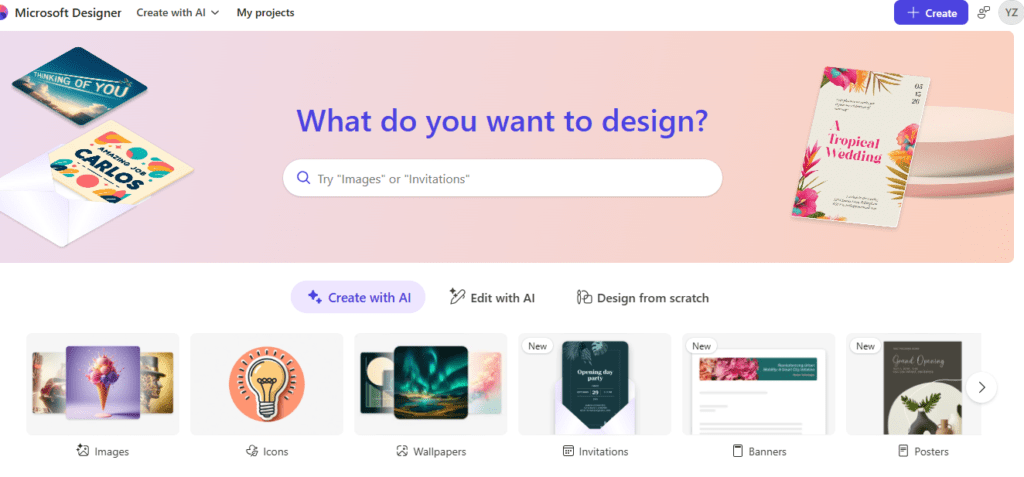
Overview: Microsoft’s <cite index=”27-1″>AI graphic design tool is powered by DALL-E</cite> and includes design templates for social media alongside background removal and replacement.
Free plan limitations: <cite index=”27-1″>The free tier is limited to 15 “boosts” (AI generation credits) per day</cite>, which resets daily rather than monthly — helpful if you generate in small daily bursts rather than large batches.
Pros:
- Daily-refreshing free credits, not a hard monthly cap
- Clean, simple interface with fast generation
- Bundled with Microsoft 365 subscriptions
Cons:
- Smaller template library than Canva or Adobe Express
- Less thumbnail-specific tooling (no dedicated YouTube-size presets in some flows)
Best for: Microsoft 365 subscribers who want AI generation without a separate subscription.
Pricing: Free tier available. <cite index=”27-1″>Included with Microsoft 365 plans starting at $6.99/month</cite>.
6. Snappa
Overview: Snappa skips AI generation entirely and focuses on speed. <cite index=”34-1″>The free plan gives access to every template, every stock photo, and every design feature — the only real limit is three downloads per month</cite>.
Free plan limitations: <cite index=”34-1″>Only 3 downloads per month on the free plan</cite>, and <cite index=”34-1″>Snappa currently has no AI-powered design features at all</cite> — no text-to-image, no AI copy suggestions.
Pros:
- Every template and asset unlocked even on free plan
- Extremely fast, no-frills editor purpose-built for quick graphics
- No credit system to track
Cons:
- Hard 3-download monthly cap on free plan
- No AI image generation of any kind
Best for: Creators who already have strong source images and just need fast, clean layout and text work.
Pricing: Free plan (3 downloads/month). <cite index=”34-1″>Pro is $10/month with unlimited downloads</cite>.
7. VistaCreate
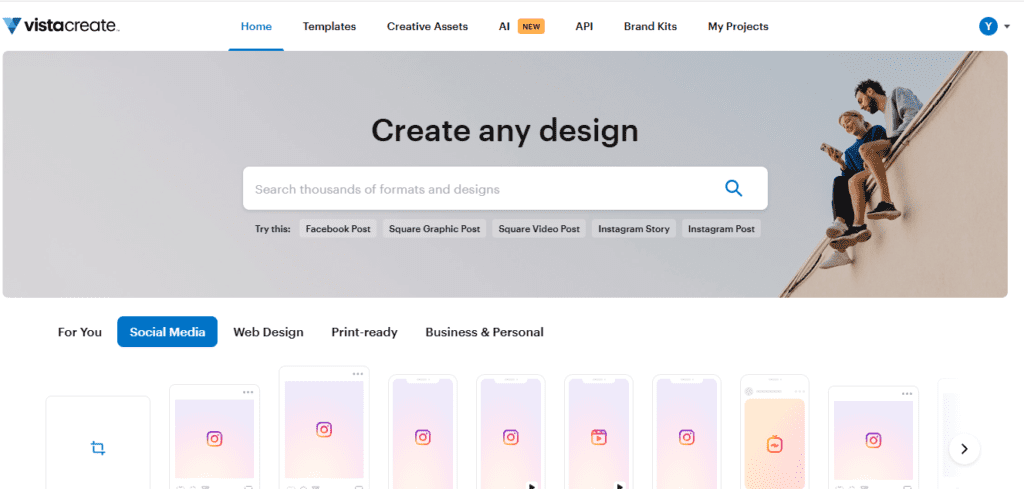
Overview: VistaCreate (formerly Crello) offers a generous free tier built around a massive template library. <cite index=”32-1″>The Starter plan includes 50,000+ static and animated templates, 1 million+ royalty-free assets, background remover access, and a basic brand kit</cite> — notably more generous than several competitors’ free tiers.
Free plan limitations: The free plan restricts the resize tool (designing once and exporting for multiple platforms), some premium stock, and team features.
Pros:
- One of the more generous free template libraries in the category
- Includes animated graphics, not just static thumbnails
- Background remover included even on the free tier
Cons:
- AI generation features are lighter than dedicated AI-first tools
- Multi-platform resize tool locked behind Pro
Best for: Creators who want a deep free template library without hitting a download wall.
Pricing: Free Starter plan. <cite index=”32-1″>Pro runs $10–$13/month</cite>.
8. Visme
Overview: Visme goes beyond thumbnails into infographics and data visualization, <cite index=”40-1″>offering a drag-and-drop platform where every part of a template can be edited</cite>, plus custom color scheme and brand-matching tools.
Free plan limitations: <cite index=”40-1″>The free plan is capped at 5 projects</cite>, and <cite index=”38-1″>free downloads are watermarked</cite>.
Pros:
- Strong for creators who also need infographics or data-heavy thumbnails
- Full editing control over every template element
- Custom brand color and font management
Cons:
- Steeper learning curve than dedicated thumbnail-only tools
- Restrictive 5-project free cap and watermarked exports
Best for: Educational or data-driven channels that need thumbnails plus supporting visual content.
Pricing: Free plan (5 projects). <cite index=”40-1″>Paid plans start at $12.25/month</cite>.
9. Kapwing
Overview: Kapwing’s YouTube Thumbnail Maker is built for creators whose thumbnail ideas come straight from their footage. <cite index=”38-1″>Its standout feature captures a freeze-frame from an uploaded video, turning a specific moment into a ready-to-edit thumbnail</cite>.
Free plan limitations: Free plan restricts export resolution and watermarks longer projects; heavier AI features sit behind paid tiers.
Pros:
- Video-to-thumbnail freeze-frame workflow is genuinely unique
- Good fit for creators who already edit video in-browser
- Collaborative, browser-based editor
Cons:
- Free plan is more restrictive than template-first competitors
- Less useful if you don’t already have finished or near-finished footage
Best for: Video editors who want to pull a thumbnail directly from their footage rather than generating one from scratch.
10. Pixelcut
Overview: Pixelcut is best known for product photography AI tools but has expanded into general thumbnail and social graphic generation, with background removal and AI backdrop generation as its core strengths.
Free plan limitations: Free plan generation counts are limited daily; higher-resolution exports and batch tools require a subscription.
Pros:
- Strong background removal and recomposition tools
- Simple mobile-friendly interface
- Fast generation times
Cons:
- Less thumbnail-specific template support than Canva or Snappa
- Smaller font and text-styling toolkit
Best for: Creators who want fast subject-background compositing more than heavy template design.
11. ytZolo
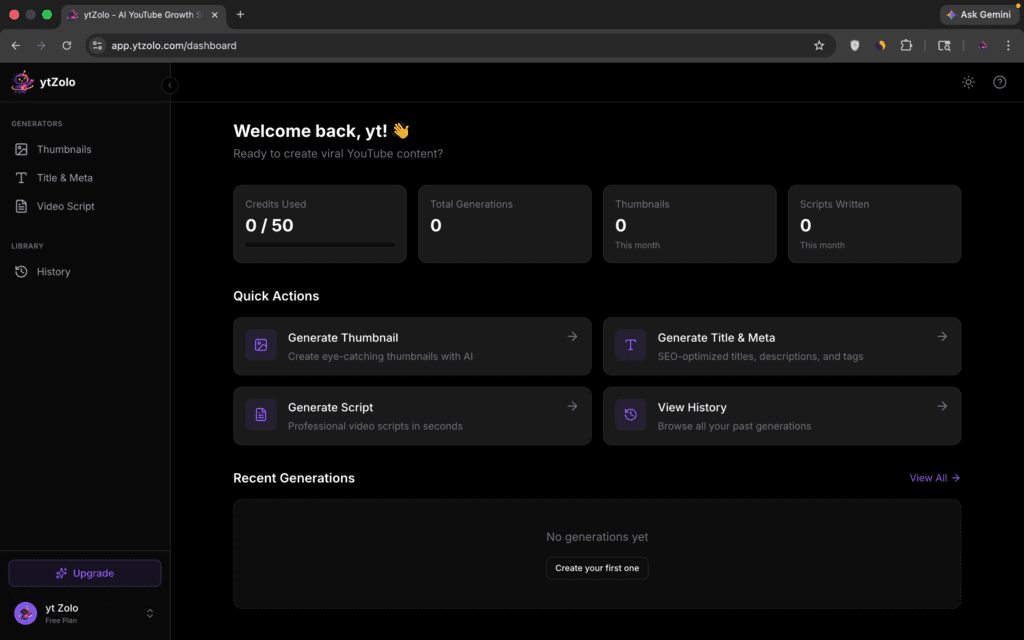
Overview: ytZolo is an AI-powered platform tailored specifically for YouTube creators. It streamlines the thumbnail creation process by generating eye-catching, high-CTR visual concepts based directly on your video’s topic and target audience.
Free plan limitations: The free tier operates on a limited credit system for AI generations, and advanced features like premium asset libraries or batch exports may require an upgrade.
Pros:
- Purpose-built specifically for YouTube growth and optimization
- Fast generation times with distinct creator-focused styles
- Easy-to-use interface without an overwhelming learning curve
Cons:
- Template depth is smaller compared to giant legacy platforms like Canva
- Free credits can run out quickly for high-frequency uploaders
Best for: YouTube creators who want an AI-first tool dedicated solely to video performance rather than general graphic design.
11. Simplified
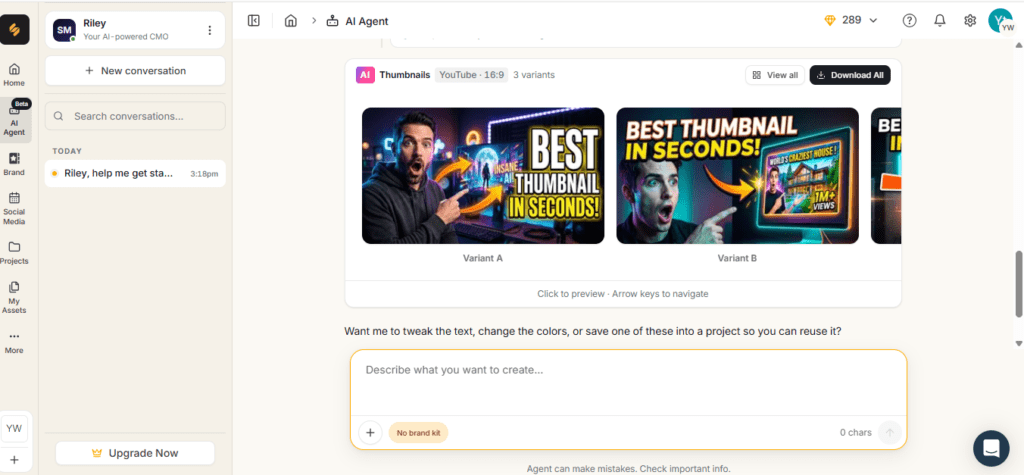
Overview: Simplified positions itself as an all-in-one content platform. <cite index=”31-1″>It combines graphic design, AI writing, video editing, and social scheduling, letting you generate thumbnail images from text prompts and write titles and descriptions in the same workspace</cite>.
Free plan limitations: AI image generation credits are limited on the free tier, and premium templates and scheduling features are paywalled.
Pros:
- Combines thumbnail generation with title and description writing
- Useful for teams managing multiple content types in one place
- Social scheduling built in
Cons:
- Jack-of-all-trades approach means less thumbnail-specific depth
- Free AI credits are limited relative to dedicated design tools
Best for: Small teams and marketing agencies who want thumbnails, copy, and scheduling in a single subscription.
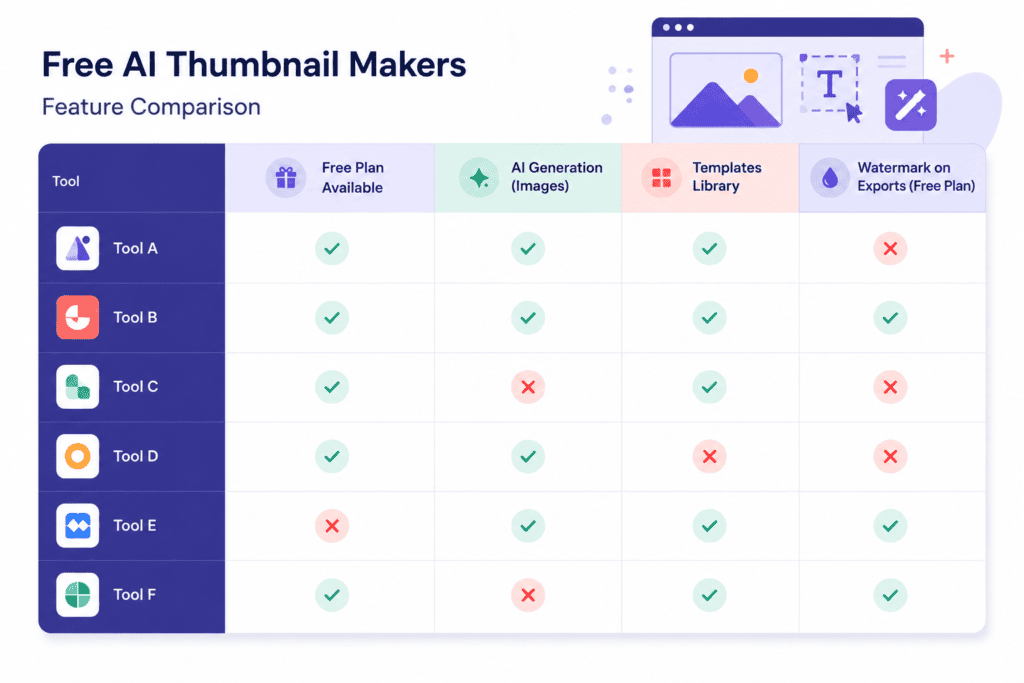
Comparison Table: Free AI YouTube Thumbnail Makers
| Tool | Free Plan | AI Generation | Templates | Export Quality | Best For |
|---|---|---|---|---|---|
| Canva | Yes, daily AI cap | Yes (Magic Media) | Extensive | Standard | Beginners, all-purpose design |
| Adobe Express | Yes, 25 credits/mo | Yes (Firefly) | Extensive | High | Commercially safe AI output |
| Fotor | Yes, limited credits | Yes | Moderate | Standard | Budget AI editing |
| Picsart | Yes, 5 credits/week | Yes | Extensive | Standard | Mobile-first creators |
| Microsoft Designer | Yes, 15 boosts/day | Yes (DALL-E) | Moderate | Standard | Microsoft 365 users |
| Snappa | Yes, 3 downloads/mo | No | Extensive | High | Fast template-based design |
| VistaCreate | Yes, generous | Limited | Extensive (50K+) | Standard | Large free template library |
| Visme | Yes, 5 projects | Limited | Extensive | Standard | Infographic-style thumbnails |
| Kapwing | Yes, limited | Limited | Moderate | Standard | Video-to-thumbnail workflow |
| Pixelcut | Yes, daily cap | Yes | Limited | Standard | Background compositing |
| ytZolo | Yes, limited credits | Yes | Moderate | Standard | Youtube Creators |
| Simplified | Yes, limited credits | Yes | Moderate | Standard | Teams needing copy + design |
Did You Know? Several tools in this category, including Adobe Express and Microsoft Designer, meter AI generation through a credit system rather than a flat monthly cap — meaning a single prompt can quietly cost more than one credit depending on output resolution or the model used.
How to Choose the Right AI Thumbnail Maker
Not every AI thumbnail creator fits every workflow. Here’s what actually matters when narrowing your shortlist.
Ease of Use
If you’re brand new to design, prioritize a tool with a short learning curve — Canva and Snappa both let you produce something usable within minutes of signing up.
Customization
Some AI design tool platforms lock font uploads, custom brand colors, or advanced layer control behind paid tiers. If brand consistency matters to you, check this before committing.
Brand Assets
Look for brand kit support — the ability to save your channel’s colors, fonts, and logo so every thumbnail stays visually consistent without manual re-entry each time.
AI Quality
Prompt-following accuracy and text rendering inside generated images vary significantly between tools. Test the same prompt across two or three free plans before deciding which AI image generator produces results closest to your niche’s visual style.
Export Options
Confirm the free tier allows watermark-free, full-resolution (1280×720 minimum) exports in JPEG or PNG — some tools quietly restrict this to paid users.
Pricing
Weigh credit-metered tools (Adobe Express, Fotor, Picsart) against flat-limit tools (Snappa’s download cap, Visme’s project cap). If you publish frequently, a flat cap can be easier to plan around than a credit system that fluctuates by resolution or output count.
Speed
For creators publishing several videos a week, generation speed and batch options matter as much as final image quality — waiting sixty seconds per variation adds up fast across a content calendar.
Learning Curve
Full design suites like Visme offer more power but ask more of new users. Dedicated, narrower tools tend to get you to a finished thumbnail faster.
Quick Summary: There’s no single best AI thumbnail maker — the right choice depends on your publishing frequency, whether brand consistency matters more than raw AI creativity, and how much friction you’re willing to tolerate from credit systems and watermarks.

Best Practices for AI YouTube Thumbnails
AI can generate the raw image, but strategy still determines whether that thumbnail earns a click.
Contrast
High contrast between your subject and background is one of the most reliable ways to stand out in a busy suggested-videos feed. If your AI thumbnail generator output looks flat, try a prompt that specifies a contrasting background color.
Text Readability
Keep headline text short — three to five words is a common creator guideline — and test it at thumbnail size (roughly 120×68 pixels, how it appears on mobile) before publishing.
Color Psychology
Warm colors (red, orange, yellow) tend to draw the eye faster than cool tones, which is part of why so many high-performing thumbnails lean into bold, saturated palettes. Use this intentionally rather than by default.
Face Expressions
Expressive, clear facial expressions consistently outperform neutral or blurry ones in creator testing, which is why so many AI thumbnail maker tools now include dedicated expression-editing features.
Minimal Text
Resist the urge to explain the whole video in the thumbnail. The title does that job — the thumbnail’s role is to create curiosity and visual clarity, not deliver a synopsis.
Brand Consistency
Reuse a consistent font, color palette, and layout style across your channel using your chosen AI design tool’s brand kit feature, so viewers recognize your content in a crowded feed.
Testing Thumbnails
YouTube’s built-in thumbnail testing tools let you compare variations directly on your channel — generate two or three options with your thumbnail generator online and let real data decide, rather than personal preference alone.
Mobile Readability
Most YouTube viewing happens on phones, so always preview your thumbnail at a small size before publishing. A design that looks great on a 27-inch monitor can be unreadable on a 6-inch screen.
Common Mistake: Designing thumbnails only at full size on a desktop monitor, then discovering the text is illegible once shrunk down to how it actually appears in a mobile feed.
Common Mistakes to Avoid
Even with a capable AI thumbnail maker free plan in hand, these mistakes show up constantly:
- Too much text — cramming a full sentence onto a thumbnail reduces readability and dilutes visual impact.
- Low contrast — pale text on a busy background disappears at thumbnail size.
- Clickbait — a thumbnail that misrepresents the video content damages audience retention and trust, and YouTube’s Creator Academy specifically warns against this practice.
- Poor cropping — AI-generated subjects sometimes get awkwardly cropped; always review before exporting.
- Unreadable fonts — decorative or overly thin fonts can look great at full size and vanish at thumbnail size.
- Ignoring branding — one-off thumbnail styles that don’t match your channel’s visual identity make it harder for returning viewers to recognize your content instantly.
AI vs. Manual Thumbnail Design
| Factor | AI Thumbnail Maker | Manual Design |
|---|---|---|
| Speed | Minutes per concept | Often 30–60+ minutes per design |
| Learning curve | Low to moderate | Moderate to high |
| Creative control | Prompt-dependent, less granular | Full pixel-level control |
| Consistency | Depends on brand kit features | Fully controllable by the designer |
| Cost at scale | Credit systems can add up | Time cost instead of subscription cost |
| Best for | High-frequency publishers, quick iteration | Highly branded, meticulously art-directed channels |
Neither approach is objectively superior — plenty of high-performing channels use a hybrid workflow: AI generation for concept speed, manual refinement for brand polish.
Frequently Asked Questions
Is a free AI YouTube thumbnail maker actually good enough for a growing channel? Yes, for most creators starting out or publishing a few times a week. Free plans do come with real limits — daily or monthly credit caps, watermarks on some tools, and restricted export quality — so it’s worth confirming those limits match your publishing cadence before relying on one exclusively.
Do AI-generated thumbnails perform better than manually designed ones? There’s no universal answer. Performance depends far more on contrast, clarity, and relevance to the video than on whether the image was generated by AI or designed by hand. The best approach is testing your own thumbnails against each other using YouTube’s built-in comparison tools.
Can I use AI thumbnail maker outputs commercially? This varies by platform and by the specific AI model behind the tool. Adobe Express’s Firefly model is explicitly built on licensed and public domain training data for commercial safety. Other platforms’ terms vary, so always check the specific tool’s usage policy before monetizing content built with AI-generated imagery.
What image size does YouTube require for thumbnails? YouTube requires a minimum resolution of 1280×720 pixels in a 16:9 aspect ratio, with a file size under 2MB, in JPG, GIF, or PNG format.
Do I need design experience to use an AI thumbnail generator? No. Most tools in this category are built specifically for non-designers, with guided prompts, templates, and one-click adjustments replacing the need for traditional design software skills.
Why do some free AI thumbnail makers add a watermark? Watermarking free-tier exports is a common way for companies to encourage upgrades to paid plans while still offering a genuinely usable free product. If a watermark-free export matters to you, confirm this specifically before choosing a tool.
How many free AI-generated thumbnails can I make per month? This varies dramatically — from roughly 25 credit-based generations per month on some platforms to daily-refreshing limits on others. Because these limits change as providers update pricing, always check the current numbers on the provider’s own pricing page.
Should I use a general AI image generator instead of a dedicated thumbnail tool? General-purpose AI image generators can produce strong raw visuals, but dedicated AI thumbnail maker tools typically add YouTube-specific presets, text overlay tools, and thumbnail-sized templates that save time versus manually resizing and formatting a generic AI image.
Can AI thumbnail makers help with YouTube Shorts thumbnails too? Many of the tools covered here, including Canva and Adobe Express, support vertical (9:16) formats suited to Shorts, in addition to standard 16:9 YouTube thumbnails.
What’s the biggest limitation of free AI thumbnail generator tools? Generation limits are the most common constraint. Nearly every free plan caps how many AI images you can create in a given period, which pushes high-frequency creators toward either a paid plan or a hybrid workflow that mixes AI generation with manual template editing.
Final Verdict
There isn’t one universally “best” free AI YouTube thumbnail maker — the right pick depends on how you actually work.
- New creators who want the shortest learning curve: Canva’s Magic Media gives you AI generation and a massive template library in one place, with a genuinely usable free tier.
- Creators who care about commercial-use clarity: Adobe Express, built on licensed Firefly training data, offers more certainty around usage rights than most competitors.
- High-frequency publishers on a budget: A hybrid approach — Snappa or VistaCreate for fast, unlimited-template layout work, supplemented occasionally with a metered AI tool for fresh concepts — tends to outlast pure AI-credit workflows.
- Teams that need thumbnails plus copy: Simplified consolidates AI image generation with title and description writing in one workspace.
- Video-first workflows: Kapwing’s freeze-frame-to-thumbnail feature is uniquely useful if your best thumbnail material already exists inside your footage.
Whichever AI thumbnail maker you choose, the tool is only half the equation. Contrast, readability, honest representation of your video, and consistent branding matter more than which AI image generator produced the base image. Treat AI as a faster starting point, not a replacement for testing and iteration.
About the Author
Anshika Verma is an AI Researcher, YouTube SEO Research Specialist, and Creator Economy Analyst focused on evaluating AI-powered creator tools through hands-on testing and documentation review. Her work centers on evidence-based comparisons of design, writing, and workflow tools used by YouTube creators, small businesses, and marketing teams. Anshika is committed to transparent methodology — cross-checking vendor claims against official documentation and independent creator feedback before publishing any comparison — and to updating published guides as tools and pricing evolve.
Email: anshika@ytzolo.com


I was wondering if you ever thought of changing the page layout of your website?
Its very well written; I love what youve got to say. But maybe
you could a little more in the way of content so people could connect with it better.
Youve got an awful lot of text for only having one
or two pictures. Maybe you could space it out better?