
Summary: A real-time AI voice changer transforms your voice while you’re actually speaking — during a stream, a call, or a game — instead of processing a finished recording. This guide walks through how the live pipeline works, what hardware and settings actually matter, common causes of lag or robotic glitches, and how to set one up correctly the first time.
Recording a video gives you room to fix things later. A live stream doesn’t.
If your voice changer lags, glitches, or drops out mid-sentence, your audience hears it happen in real time. That’s the entire challenge of building a real-time AI voice changer — the software has to listen, transform, and output your voice fast enough that nobody notices the gap.
This article focuses specifically on the live use case: what’s happening technically in those milliseconds, how to set your system up correctly, and how to troubleshoot it when things go wrong. For a broader look at how AI voice changer technology works overall, see our AI voice changer guide.
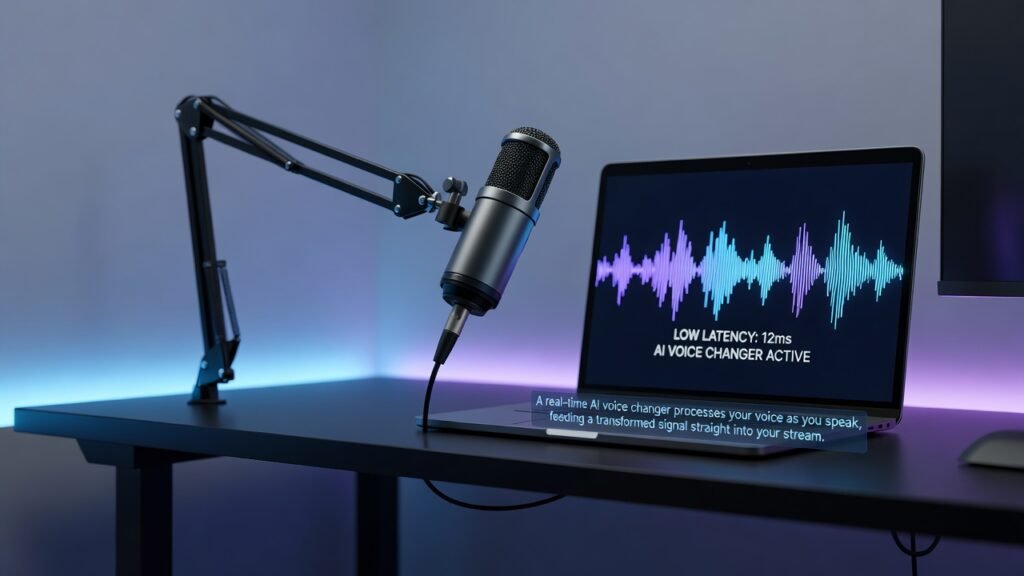
Table of Contents
What Makes a Voice Changer “Real-Time”?
A real-time voice changer processes your microphone input continuously, as you talk, and hands the transformed audio to whatever app is listening — Discord, OBS, a game, or a call.
There’s no file to review or edit afterward. The conversion either sounds right the instant you speak, or it doesn’t.
This is different from uploading a finished recording and waiting for a converted file to download, which is how most AI voice changer tools handle YouTube narration or podcast production instead.
How Real-Time Voice Conversion Actually Works
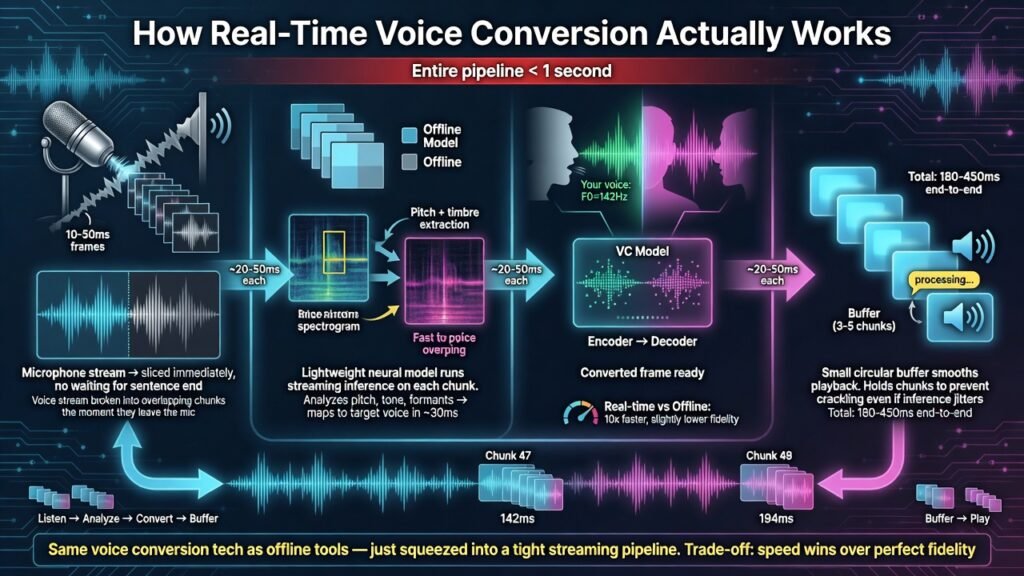
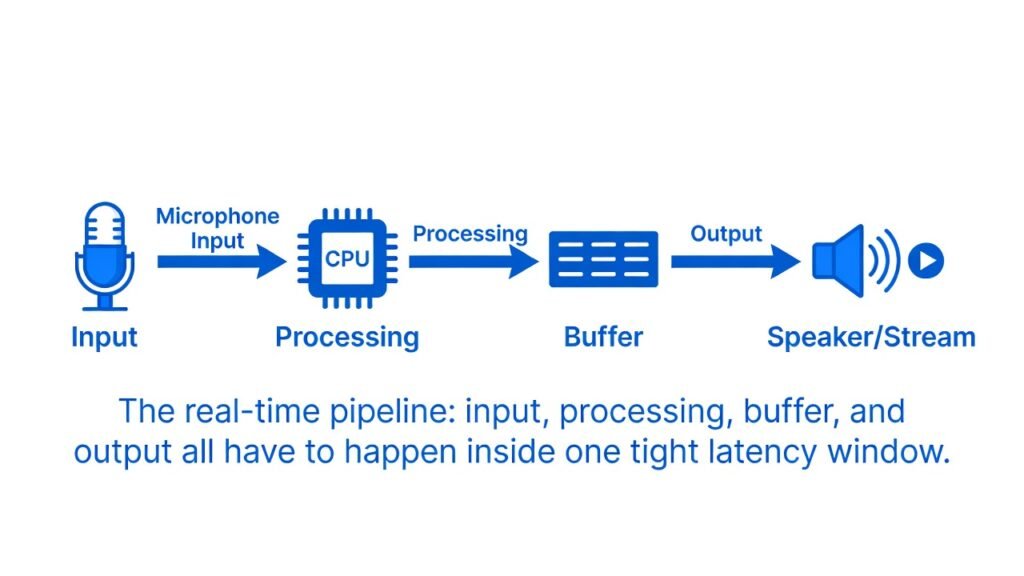
Every real-time system is built around one constraint: the entire pipeline — listening, analyzing, converting, and playing back — has to finish in well under a second.
To do that, the audio isn’t processed all at once. It’s broken into tiny chunks, sometimes just tens of milliseconds long, and each chunk moves through the model separately.
Chunking. Your voice stream is sliced into short audio frames the moment they leave your microphone, rather than waiting for a full sentence.
Streaming inference. A lightweight neural model analyzes each chunk for pitch and tone, then maps it to the target voice almost immediately, instead of using the heavier, slower models built for recorded audio.
Buffered playback. A small buffer holds a few chunks so playback stays smooth, even if one frame takes slightly longer to process than the next.
This is the same underlying voice conversion concept covered in our main AI voice changer guide — real-time tools just apply it inside a much tighter time window, which is why they generally trade a little audio fidelity for speed.
Setting Up a Real-Time AI Voice Changer: Step by Step
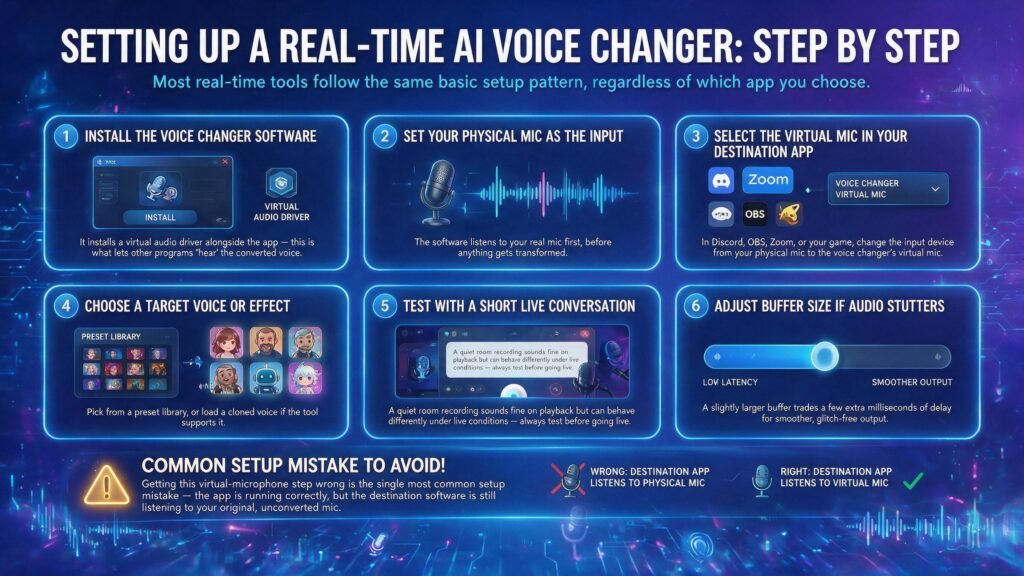
Most real-time tools follow the same basic setup pattern, regardless of which app you choose.
1. Install the voice changer software. It installs a virtual audio driver alongside the app itself — this is what lets other programs “hear” the converted voice.
2. Set your physical microphone as the input. The software listens to your real mic first, before anything gets transformed.
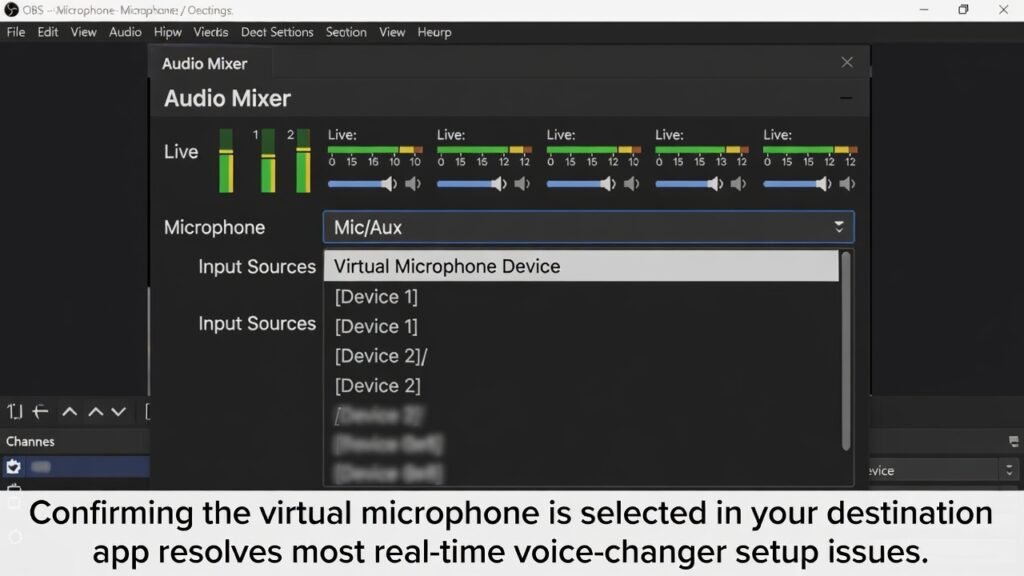
3. Select the virtual microphone in your destination app. In Discord, OBS, Zoom, or your game, change the input device from your physical mic to the voice changer’s virtual mic.
4. Choose a target voice or effect. Pick from a preset library, or load a cloned voice if the tool supports it.
5. Test with a short live conversation. A quiet room recording sounds fine on playback but can behave differently under live conditions — always test before going live.
6. Adjust buffer size if audio stutters. A slightly larger buffer trades a few extra milliseconds of delay for smoother, glitch-free output.
Getting this virtual-microphone step wrong is the single most common setup mistake — the app is running correctly, but the destination software is still listening to your original, unconverted mic.
Hardware and System Requirements That Actually Matter
Real-time performance depends on your hardware more than any recorded voice-changing task does, since there’s no room to wait for extra processing time.
CPU matters more than GPU for most consumer tools. Lightweight real-time models are typically optimized to run on a handful of CPU cores rather than requiring dedicated graphics hardware.
RAM headroom prevents stutter. Running a voice changer alongside a game, a streaming encoder, and Discord simultaneously competes for the same memory — 16GB is a reasonable practical minimum for a smooth session.
Sample rate and buffer size are the two settings worth understanding. A higher sample rate improves clarity but adds processing load; a smaller buffer reduces delay but raises the risk of audio dropouts on weaker hardware.
Your microphone’s input quality sets the ceiling. A clean signal gives the model more accurate features to convert, even in real time — a noisy or clipping mic makes every downstream step harder. Running a dedicated AI voice isolator upstream isn’t practical for live audio, but the same clean-input principle still applies: fix room noise and gain staging before you ever open the voice changer.
The Latency Budget: What Has to Happen in Under 300 Milliseconds
Latency is the total delay between the moment you speak and the moment your converted voice reaches a listener.
That delay isn’t one number — it’s several small delays stacked on top of each other, and each one eats into your budget.
Input buffering adds a few milliseconds while your audio interface collects enough samples to process.
Model inference is the actual conversion step, and it’s usually the largest chunk of the delay.
Network transmission only applies to cloud-based tools, adding round-trip time that local, CPU-based tools skip entirely.
Output buffering smooths playback but adds a final small delay before sound reaches your speakers or stream.
Local processing tends to have more predictable total latency than cloud round-trips, simply because there’s one less variable — network conditions — in the chain.
Once total delay creeps past roughly 200 to 300 milliseconds, conversation starts to feel out of sync, which matters most in gaming voice chat or video calls where lip movement and audio need to line up.
Real-Time Voice Changing Beyond Gaming
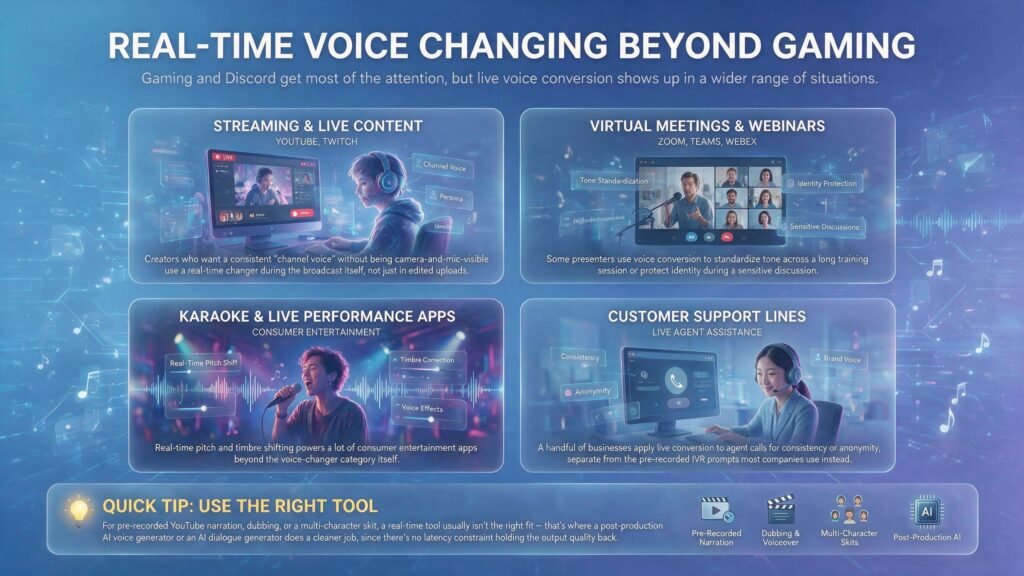
Gaming and Discord get most of the attention, but live voice conversion shows up in a wider range of situations.
Live YouTube and Twitch streams. Creators who want a consistent “channel voice” without being camera-and-mic-visible use a real-time changer during the broadcast itself, not just in edited uploads.
Virtual meetings and webinars. Some presenters use voice conversion to standardize tone across a long training session or protect identity during a sensitive discussion.
Karaoke and live performance apps. Real-time pitch and timbre shifting powers a lot of consumer entertainment apps beyond the voice-changer category itself.
Customer-facing live support lines. A handful of businesses apply live conversion to agent calls for consistency or anonymity, separate from the pre-recorded IVR prompts most companies use instead.
For pre-recorded YouTube narration, dubbing, or a multi-character skit, a real-time tool usually isn’t the right fit — that’s where a post-production AI voice generator or an AI dialogue generator does a cleaner job, since there’s no latency constraint holding the output quality back.
Common Real-Time Problems and How to Fix Them
Most live voice-changer complaints trace back to a handful of repeatable causes.
Robotic glitches during fast speech. Rapid talking or overlapping words give the model less time per chunk to work with — speaking slightly slower and more clearly reduces this noticeably.
Audio dropouts or stutter. This is almost always a buffer size that’s set too small for your hardware — increasing it by even a small amount often resolves the issue.
The destination app still hears your real voice. Double-check that Discord, OBS, or your game is actually set to the voice changer’s virtual microphone, not your physical one.
Echo or doubled audio. This usually happens when both your original mic and the virtual mic are active in the same app at once — disable one of them.
Drift after a long session. Some tools slowly lose sync between input and output over hours of continuous streaming; restarting the app periodically resets the buffer cleanly.
If problems persist after checking all of the above, the issue is often simply hardware headroom — closing background apps, especially other audio or video processing software, frees up the CPU cycles a real-time model needs.
Real-Time Voice Changing on a YouTube Live Stream
Livestreaming with a converted voice raises the same disclosure question as any altered audio, just under tighter time pressure since there’s no edit pass before publishing.
If a viewer could reasonably mistake your converted voice for your real, unaltered voice in a way that’s misleading, disclosure expectations apply — the same standard covered in our breakdown of YouTube’s altered and synthetic content policy.
Obvious character voices, comedic effects, or clearly fictional personas during a stream generally don’t trigger the same concern, since no reasonable viewer would assume it’s your genuine voice.
Deciding this before you go live — not mid-stream — avoids having to backtrack or add a disclosure label after the fact.
Real-Time vs. Recorded: Picking the Right Mode
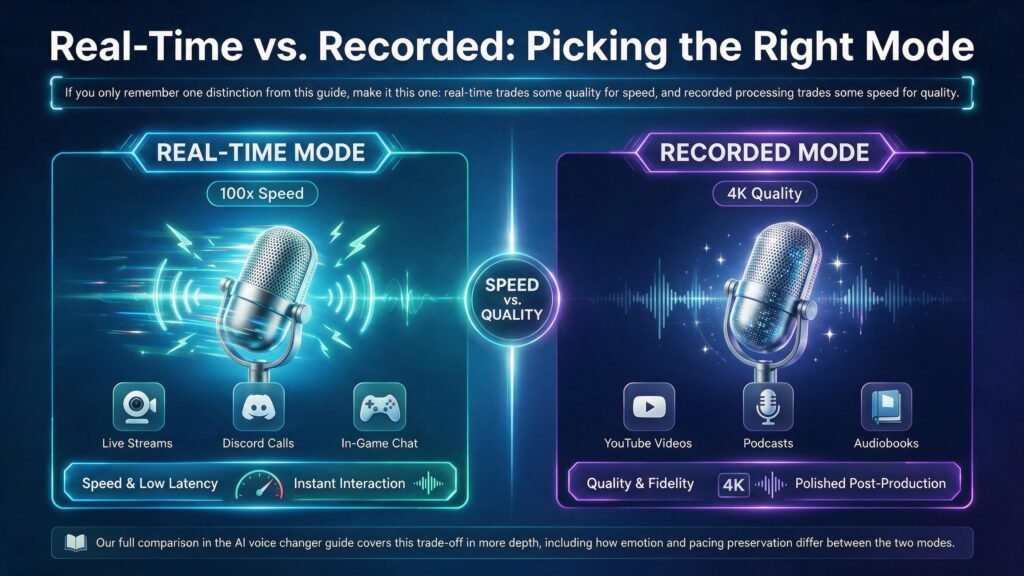
If you only remember one distinction from this guide, make it this one: real-time trades some quality for speed, and recorded processing trades some speed for quality.
A live stream, a Discord call, or in-game chat needs real-time. A YouTube video, podcast episode, or audiobook almost always benefits more from recorded, post-production conversion instead.
Our full comparison in the AI voice changer guide covers this trade-off in more depth, including how emotion and pacing preservation differ between the two modes.
What Is an AI Voice Changer?
At a basic level, an AI voice changer reshapes the pitch, tone, and texture of a voice without changing the words spoken — our full explainer covers the underlying mechanics in detail.
How to Change Your Voice with AI
The general workflow — pick a target voice, run the conversion, review the output — applies whether you’re working live or with a recording; see the step-by-step walkthrough for the recorded-file version.
Best AI Voice Changers in 2026
Tool selection depends heavily on whether you need live performance or studio-quality output — our hands-on comparison of 16 tested AI voice changers breaks down latency, Discord/OBS support, and pricing for each.
Voice Conversion Explained
Voice conversion is the research term behind every voice changer on this list — it separates what was said from how it sounds, then rebuilds the audio in a new voice, as explained in our voice conversion breakdown.
AI Voice Generator
Not every project starts with a recording — an AI voice generator creates speech directly from typed text, which is the better fit for scripted narration than live conversion.
Why Does My AI Voice Sound Robotic?
Robotic output usually comes down to noisy source audio or over-processed pitch shifting — our detailed breakdown of the four causes applies to both live and recorded conversion.
AI Voice Changer for Businesses
Companies use voice conversion for training narration, agent anonymity, and localized marketing — see how it fits into a broader workflow in our business use-case section.
Speech Synthesis vs Voice Conversion
Synthesis builds speech from text with no original recording; conversion reshapes an existing recording — our side-by-side comparison unpacks exactly where that line sits.
Where Real-Time Fits Inside a Full Content Workflow
A real-time voice changer solves the live moment, but almost nothing you stream stays purely live afterward.
Highlight clips get re-edited, VODs get uploaded to YouTube, and clean audio still needs music, sound effects, or translated versions for other markets.
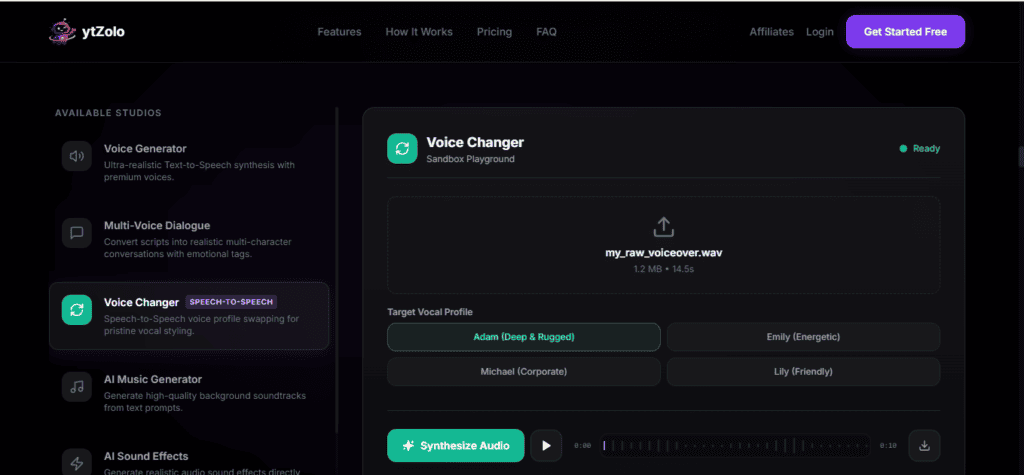
Platforms like ytZolo handle that second half of the pipeline — recorded voice generation, AI dubbing, background music, and the SEO metadata that gets a re-uploaded clip discovered — once the live moment is over. If you’re comparing dedicated live tools against a bundled platform, our ytZolo vs. VEED comparison looks at that workflow-fit question directly.
Frequently Asked Questions
Is a real-time AI voice changer free to use? Several tools offer a usable free tier for basic effects, with paid plans unlocking custom voice cloning, more presets, or higher-quality processing.
How much latency is acceptable for live streaming? Aim for under roughly 200 to 300 milliseconds — beyond that, listeners start to notice a delay between your speech and the converted output.
Does a real-time voice changer work on Mac? Support varies by tool; check current platform compatibility before installing, since several popular options remain Windows-only.
Can I use a real-time voice changer on a video call? Yes, most tools install as a virtual microphone that Zoom, Teams, or similar apps can select as an input device.
Why does my voice changer sound worse live than in a recording? Real-time processing uses lighter, faster models to hit the latency target, which trades a small amount of audio fidelity for speed — recorded conversion doesn’t face that constraint.
Do I need a powerful computer for real-time voice changing? A modern multi-core CPU and adequate free RAM matter more than a dedicated GPU for most consumer real-time tools.
Can background noise be removed during real-time voice changing? Some tools include basic real-time noise suppression, but heavier noise cleanup is generally better handled before the stream, not during it.
Is real-time voice changing legal for streaming? Generally yes for entertainment and privacy use — cloning or closely mimicking a real person’s voice without consent carries separate legal and platform-policy risk.
Final Thoughts
A real-time AI voice changer only has to succeed at one thing: staying invisible while it works. No lag, no dropout, no robotic artifact that pulls a viewer out of the moment.
Getting there is mostly about matching your setup to your hardware — the right buffer size, a clean input signal, and the correct virtual microphone selected in whatever app you’re streaming, calling, or gaming through.
Once the live session ends, the workflow doesn’t have to. Explore ytZolo’s AI Audio Studio for the recorded side of voice production, or see pricing plans to get started.
About the Author
Anshika Verma is a content and SEO researcher at ytZolo, specializing in AI audio and video production technology for creators. She writes about voice AI, YouTube growth, and creator tooling, drawing on hands-on testing of voice conversion, dubbing, and text-to-speech systems across the industry.
📧 anshika@ytzolo.com
Sources referenced: YouTube Help Center — Disclosing Altered or Synthetic Content.

