
Quick Summary: If your AI voice sounds robotic, the cause is almost always one of nine things: noisy source audio, over-aggressive pitch shifting, flattened prosody, a mismatched target voice, low bitrate compression, real-time latency limits, an outdated model, wrong output settings, or text that wasn’t written for speech. ytZolo helps you fix the root cause, not just the symptom, so the robotic tone usually disappears.
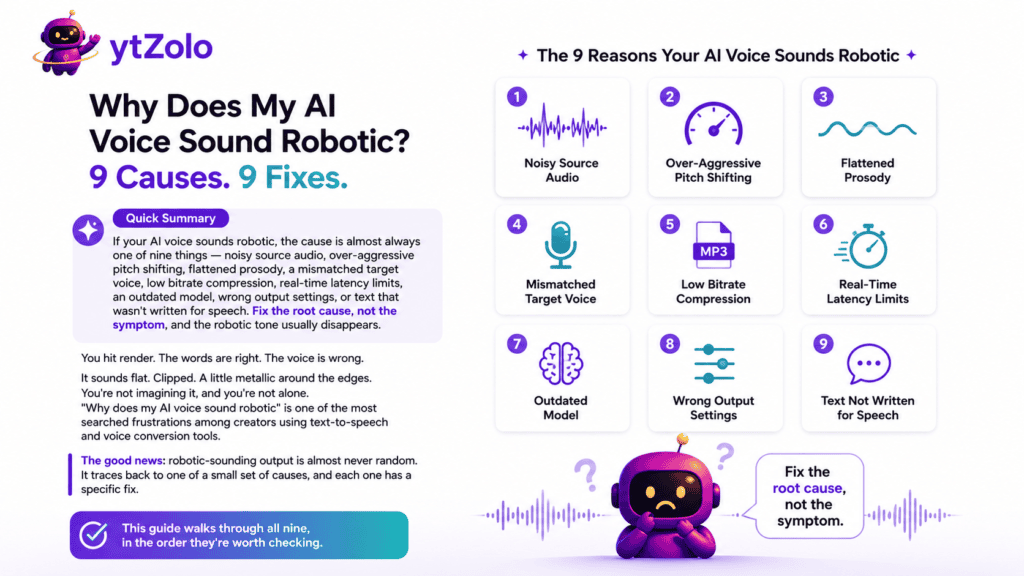
You hit render. The words are right. The voice is wrong.
It sounds flat. Clipped. A little metallic around the edges.
You’re not imagining it, and you’re not alone. “Why does my AI voice sound robotic” is one of the most searched frustrations among creators using text-to-speech and voice conversion tools.
The good news: robotic-sounding output is almost never random. It traces back to one of a small set of causes, and each one has a specific fix.
This guide walks through all nine, in the order they’re worth checking.
Table of Contents
Why Trust This Guide
This article was researched and written by Anshika Verma, a content and SEO researcher at ytZolo who tests AI voice, dubbing, and text-to-speech systems as part of her day-to-day work.
The causes below are drawn from published speech-processing research, YouTube’s own creator guidance, and hands-on testing across multiple voice tools — not guesswork.
First: Two Different Problems Get Called “Robotic”
Before troubleshooting, separate these two situations. They have different fixes.
Situation 1: You typed text and got speech back. This is text-to-speech (speech synthesis). Robotic tone here usually comes from prosody and text formatting.
Situation 2: You recorded your own voice and got a different voice back. This is voice conversion. Robotic tone here usually comes from source audio and pitch mismatch.
Our Speech Synthesis vs Voice Conversion breakdown explains the technical difference in more depth if you’re not sure which one you’re using.
Cause 1: Noisy or Low-Quality Source Audio
This is the number one reason a converted AI voice sounds robotic.
Voice conversion models work by analyzing your original recording in fine detail. Background hum, room echo, or mic clipping gets baked into that analysis.
The model can’t separate your voice from the noise around it. So it guesses — and the guess sounds artificial.
The fix: Record in a quiet, low-echo space. Use a decent USB or XLR mic instead of a laptop mic. Run a noise pass with an AI voice isolator before conversion, not after.
Clean input consistently produces a more natural AI voice than any post-processing setting can.
Cause 2: Pushing Pitch Too Far From Natural Range
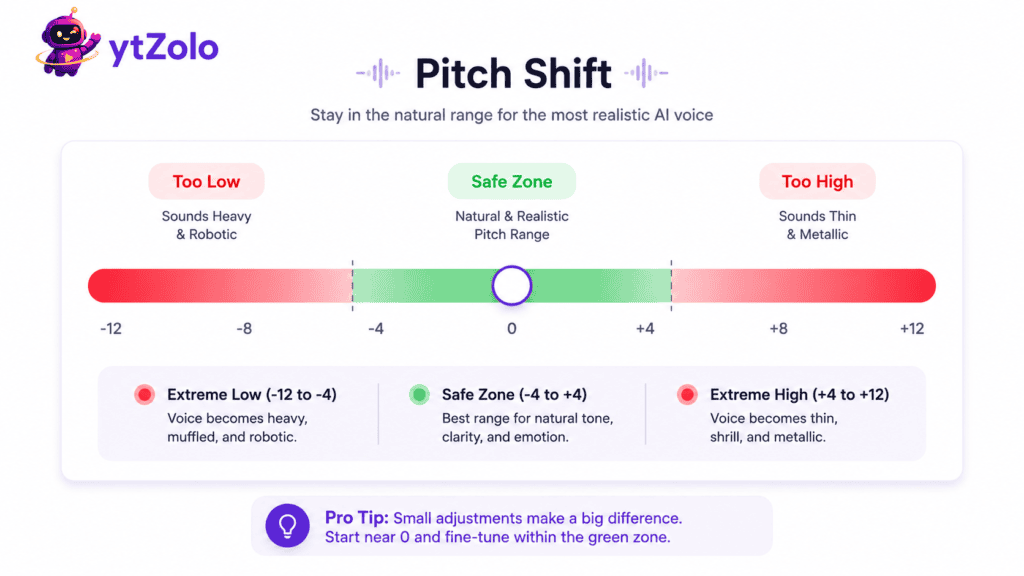
A quick pitch slider is tempting. It’s also the fastest way to make an AI voice sounds robotic.
When you shift pitch far outside a human-plausible range, the model has to stretch formants — the resonant frequencies that make a voice sound like a real person — beyond what it was trained on.
The result is a thin, warbly, or metallic texture, even if every word is understandable.
The fix: Keep pitch adjustments modest. If you’re converting to a very different voice type (say, a deep voice into a bright one), expect more artifacts and dial back the intensity setting until it sounds natural again.
Cause 3: Flattened Prosody
Prosody is the rhythm, stress, and melody of speech — the rise and fall that signals a question, a joke, or emphasis.
Cheaper or older engines often strip prosody out entirely. What’s left is technically correct speech with no emotional shape. That flatness reads as “robotic” even when pronunciation is perfect.
Researchers studying voice conversion describe the process as separating linguistic content from speaker identity, and prosody is part of what can get lost if the model doesn’t model it explicitly during that separation.
The fix: Choose a tool built to preserve pacing and emphasis from your original take, not just the words. If you’re using text-to-speech, add punctuation deliberately — commas and line breaks control pacing more than people expect.
Cause 4: Model Mismatch Between Source and Target Voice
Converting a low, gravelly voice into a bright, high-pitched target voice forces the model to invent detail it never actually heard.
The wider the gap between your natural voice and the target, the more the engine has to guess. More guessing means more artifacts, and artifacts sound robotic.
The fix: Pick a target voice reasonably close to your own tonal range for the most natural result. Save dramatic voice changes for character work where a little artificiality is expected anyway.
Cause 5: Low Bitrate or Aggressive Compression
This cause gets overlooked constantly.
Audio compression removes data the codec decides is less perceptible. At low bitrates, speech-specific compression artifacts appear — a slight buzz, warble, or “underwater” quality around consonants.
Research on speech codecs consistently shows that voice quality trades off directly against bitrate and latency, especially in real-time systems that have to encode and decode instantly.
The fix: Export and upload source files at the highest bitrate your tool allows. Avoid re-exporting the same file through multiple compressed formats before conversion — each pass compounds the artifacts.
Cause 6: Real-Time Processing Constraints
A real-time AI voice changer has milliseconds to analyze, convert, and output your voice while you’re still talking.
That speed requirement means the model can’t “look ahead” the way a post-production tool can. Less context means lower-quality reconstruction, and that shows up as a more robotic tone.
The fix: If quality matters more than speed — publishing a YouTube video, recording a podcast — use post-production conversion instead of live mode. Save real-time processing for streaming and live chat, where latency actually matters.
Cause 7: An Outdated or Low-Tier Voice Model
Not all AI voice engines are built the same. Older or free-tier models often use simpler architectures that skip fine acoustic detail to save processing cost.
If a voice has sounded robotic across multiple recordings, multiple mics, and multiple settings, the model itself may be the limiting factor.
The fix: Test the same clip across two or three different voice engines. If quality jumps dramatically on a different platform, the previous model was the bottleneck, not your process.
Cause 8: Text Written for Reading, Not Speaking
This one is unique to text-to-speech rather than voice conversion.
Long sentences, dense numbers, abbreviations, and unnatural punctuation confuse synthesis engines. The model has no natural pause to insert, so it defaults to a flat, even rhythm — which sounds robotic.
The fix: Write shorter sentences. Spell out abbreviations. Add commas where a human speaker would naturally breathe. Our AI Voice Generator guide covers script formatting tips that noticeably improve synthesis output.
Cause 9: Wrong Output Settings for the Platform
Sometimes the voice isn’t robotic at all — it’s being resampled or re-encoded incorrectly when exported for its final destination.
Uploading a high-quality file into a platform that force-compresses audio can reintroduce artifacts after the fact, undoing clean source work.
The fix: Match your export settings (sample rate, bit depth, format) to what your final platform recommends, rather than defaulting to whatever the tool exports automatically.
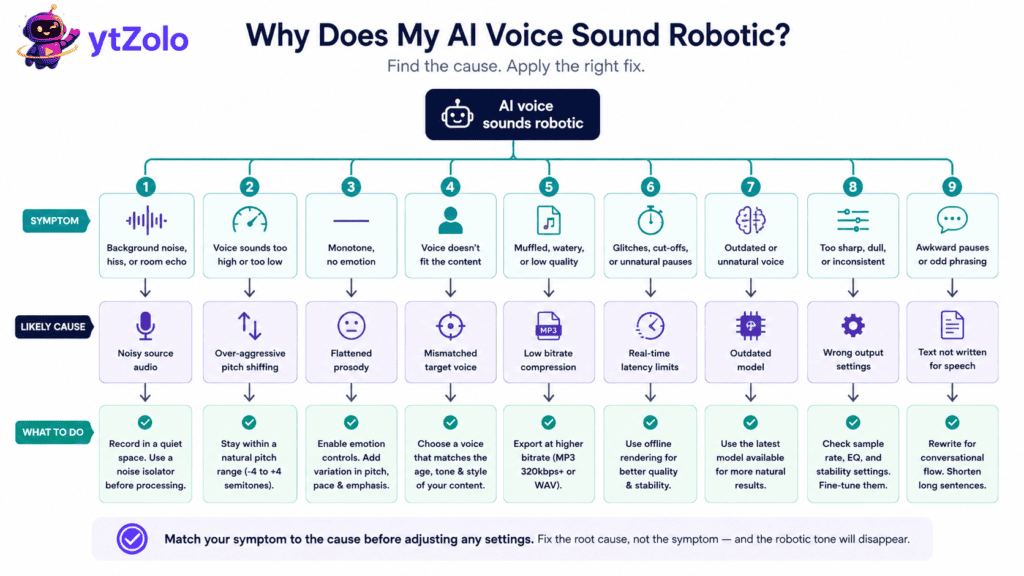
Quick Diagnostic: Which Cause Is Yours?
| Symptom | Most Likely Cause |
|---|---|
| Hiss, hum, or echo underneath the voice | Noisy source audio (Cause 1) |
| Thin, warbly, “chipmunk” or “demon” tone | Pitch pushed too far (Cause 2) |
| Words are clear but delivery feels flat | Flattened prosody (Cause 3) |
| Sounds artificial only on certain target voices | Model mismatch (Cause 4) |
| Buzzing or “underwater” quality on consonants | Compression artifacts (Cause 5) |
| Fine in playback, worse during live use | Real-time constraints (Cause 6) |
| Robotic across every setting you try | Outdated model (Cause 7) |
| Only happens with text-to-speech, not conversion | Script formatting (Cause 8) |
| Sounded fine in the tool, worse after upload | Export/output settings (Cause 9) |
How to Change Your Voice with AI Without the Robotic Tone
Once you know your cause, the general workflow for a cleaner result stays consistent.
- Start with a quiet, high-quality recording.
- Isolate and clean the audio before conversion.
- Choose a target voice close to your natural range.
- Keep pitch and intensity adjustments modest.
- Export at the highest available bitrate.
- Match output settings to your final platform.
Our full how-to-change-your-voice-with-ai walkthrough covers each of these steps in more detail, start to finish.
Does the Tool You’re Using Actually Matter?
Yes — significantly.
Some engines simply preserve emotion and pacing better than others, independent of your input quality. When comparing options, our best AI voice changers in 2026 roundup ranks tools specifically on emotion preservation, latency, and output consistency at scale — the three factors most tied to robotic-sounding results.
If you’re evaluating a specific platform switch, the ytZolo vs VEED comparison breaks down how workflow and audio quality differ between two commonly compared options.
What About Free Tools?
Free AI voice changer apps are usually fine for a one-off clip or a quick test.
They tend to use lighter, cheaper models to keep hosting costs down, and that’s often where extra robotic artifacts come from — not from your recording setup.
If robotic tone shows up consistently on a free tier but disappears on a paid tier of the same platform, the model itself was Cause 7.
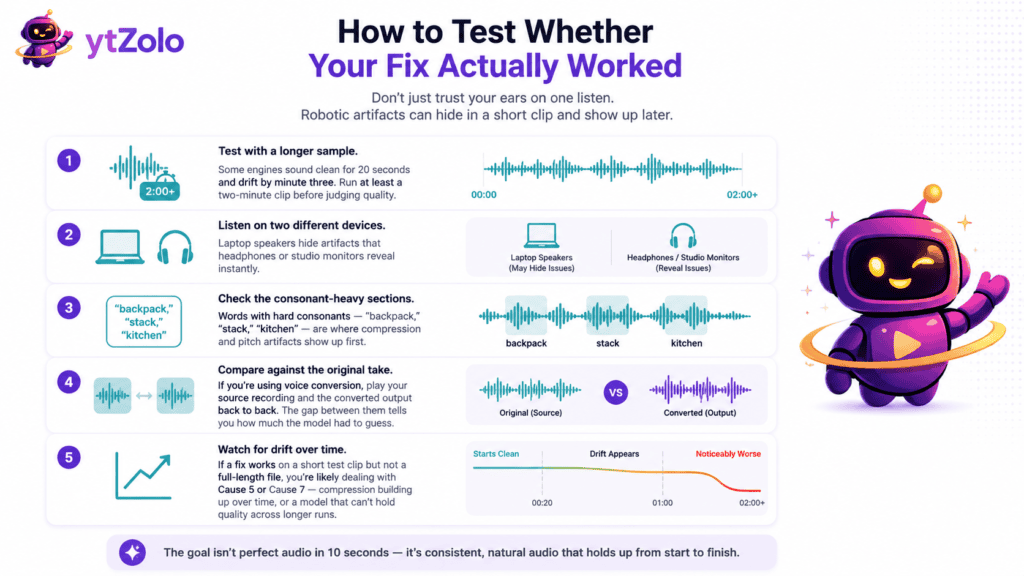
How to Test Whether Your Fix Actually Worked
Don’t just trust your ears on one listen. Robotic artifacts can hide in a short clip and show up later.
Test with a longer sample. Some engines sound clean for 20 seconds and drift by minute three. Run at least a two-minute clip before judging quality.
Listen on two different devices. Laptop speakers hide artifacts that headphones or studio monitors reveal instantly.
Check the consonant-heavy sections. Words with hard consonants — “backpack,” “stack,” “kitchen” — are where compression and pitch artifacts show up first.
Compare against the original take. If you’re using voice conversion, play your source recording and the converted output back to back. The gap between them tells you how much the model had to guess.
If a fix works on a short test clip but not a full-length file, you’re likely dealing with Cause 5 or Cause 7 — compression building up over time, or a model that can’t hold quality across longer runs.
When a Little “Robotic” Is Actually Fine
Not every use case needs a fully natural voice.
A stylized robot character, a sci-fi narrator, or a deliberately synthetic brand voice can lean into artificiality on purpose. The goal in those cases isn’t to eliminate the effect — it’s to control it.
The troubleshooting above matters most when you want the voice to pass as natural: narration, dubbing, training content, or a consistent on-camera-adjacent “channel voice.”
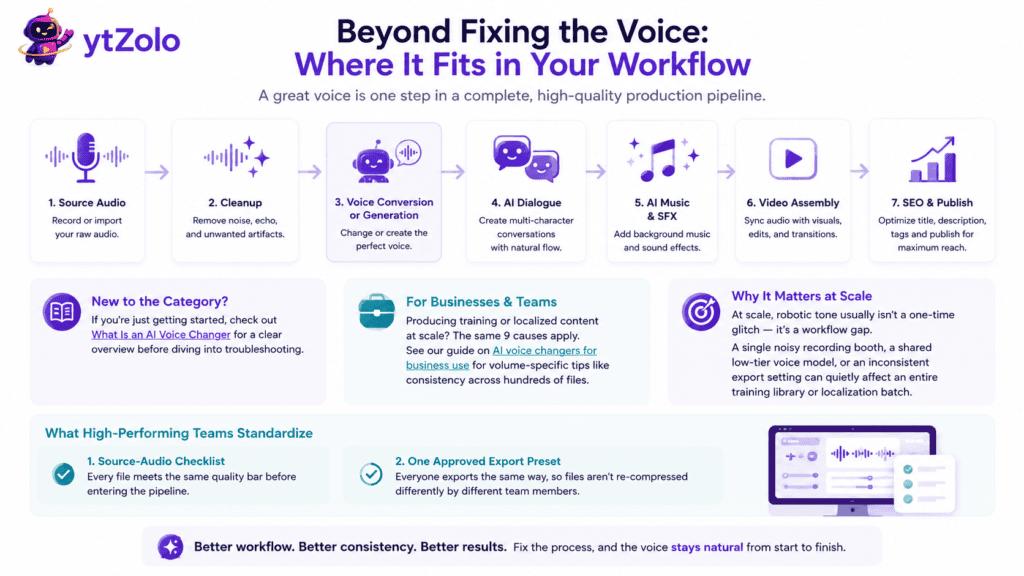
Beyond Fixing the Voice: Where It Fits in Your Workflow
A voice changer or generator rarely works alone in a real production pipeline.
Inside ytZolo, cleanup, conversion, and generation sit next to an AI dialogue tool for multi-character scripts, an AI music generator for scoring, and SEO tools for the title and description that get the finished video found.
If you’re new to the category entirely, What Is an AI Voice Changer is a good starting point before diving into troubleshooting.
And for businesses producing training or localized content at scale, the same nine causes above apply — see our notes on AI voice changers for business use for volume-specific considerations like consistency across hundreds of files.
At scale, robotic tone usually isn’t a one-time glitch — it’s a workflow gap. A single noisy recording booth, a shared low-tier voice model, or an inconsistent export setting can quietly affect an entire training library or localization batch.
Teams that catch this early tend to standardize two things: a fixed source-audio checklist before any file enters the pipeline, and one approved export preset so files aren’t re-compressed differently by different team members.
A Note on Disclosure
If a converted or synthetic voice could realistically make a viewer think they’re hearing someone they’re not, YouTube’s guidance on disclosing altered or synthetic content likely applies.
Fixing a robotic tone is a quality issue. Disclosure is a separate, transparency-based requirement — worth checking regardless of how natural the final voice sounds.
Frequently Asked Questions
Why does my AI voice sound robotic even with a good microphone? A good mic helps, but pitch settings, prosody handling, and the model itself all affect output independently of recording quality. Work through the diagnostic table above to isolate the cause.
Can background noise really make an AI voice sound robotic? Yes. Noise interferes with how the model analyzes your original speech, which is one of the most common reasons an AI voice sounds robotic in the first place.
Does a more expensive AI voice tool always sound less robotic? Usually, but not always. Price often correlates with model quality, but settings and source audio still matter more than the subscription tier in most cases.
Is there a way to fix a robotic AI voice after it’s already generated? Limited. Some artifacts can be softened with audio post-processing, but the cleanest fix is re-running the conversion with better source audio or adjusted settings.
Does real-time voice changing always sound more robotic than post-production? Generally yes, because of the latency constraints covered in Cause 6. If quality matters more than speed, switch to post-production mode.
Will AI voices eventually stop sounding robotic altogether? Voice conversion and synthesis quality has improved sharply in recent years, but source audio quality and settings will likely keep mattering for the foreseeable future.
Final Thoughts
A robotic AI voice is a diagnosable problem, not bad luck.
Work through the nine causes in order, starting with source audio, and most robotic-sounding output resolves before you even touch a pitch slider.
For the fuller picture of how voice changing, conversion, and generation fit together, see the complete AI voice changer guide, or explore ytZolo’s AI Audio Studio to test cleanup, conversion, and generation in one workflow.
About the Author
Anshika Verma is a content and SEO researcher at ytZolo, specializing in AI audio and video production technology for creators. She writes about voice AI, YouTube growth, and creator tooling, drawing on hands-on testing of voice conversion, dubbing, and text-to-speech systems across the industry.
📧 anshika@ytzolo.com
Sources referenced: Sisman et al., “An Overview of Voice Conversion and its Challenges,” arXiv; Speech codec bitrate/latency/quality trade-offs, arXiv; YouTube Help Center — Disclosing Altered or Synthetic Content.

